


Top 12 RMM Software Tested: Features and Pricing

Remote monitoring and management (RMM) software installs agents on client endpoints, servers, network devices and virtual machines, and reports their health and performance metrics to a centralized dashboard so managed service providers (MSPs) and IT departments can patch, script and troubleshoot remotely.
We benchmarked 3 RMM platforms (NinjaOne, ManageEngine, and Acronis) by deploying them on 7 servers across 7 AWS regions. We analyzed how they handle agent deployment and monitoring from scratch. The remaining 9 tools are summarized from each vendor’s own documentation.
RMM benchmark summary
Dashboard & Monitoring
Metric | NinjaOne | ManageEngine | Acronis |
|---|---|---|---|
Monitoring Startup | Automatic | Automatic | Manual |
Dashboard Layout | Full-page tabs | Full-page tabs | Right-side panel |
Terminal Access | ✓ Browser-based + 2FA | ✓ Browser-based | Via Remote Desktop |
File Browser | ✓ Full CRUD | ✕ | ✕ |
Open Ports Visibility | ✓ With process names | ✕ | ✕ |
Chat | Remote session only | ✓ Standalone + files | ✓ Standalone only |
- NinjaOne monitoring started automatically, with real-time metrics displayed in a full-page layout. Unique features included open ports with process names and clear OS-specific icons for instant identification.
- Acronis showed metrics after a monitoring plan was applied, in a narrower side-panel layout. It offered a built-in software library, alerts with direct response actions, device location tracking, and backup and disaster recovery in the same console. In our setup, Acronis showed metrics after we applied a monitoring plan.
- ManageEngine matched metric visibility but split service controls between the System tab (read-only) and the System Manager (full power). Offered standalone chat with file attachments which works without active remote sessions.
Critical Gaps
- Installation feedback: NinjaOne’s Windows and Linux installers and ManageEngine’s Windows installer finished without a completion message, so each install had to be confirmed in the dashboard. Acronis, NinjaOne, and ManageEngine macOS installers displayed a completion message.
- Linux deployment: On Ubuntu 24.04, the interactive Acronis installer asked us to confirm missing dependencies and register each device in a browser. Installation took about 4 minutes. We did not test token-based unattended installation.
- Network security: In our test, NinjaOne was the only platform that showed open ports with process names; we did not find this view in ManageEngine or Acronis.
Agent Deployment
- NinjaOne: Sub-2-second installation on Windows and Linux with copyable URLs and pre-authorized tokens. Didn’t require any manual steps.
- ManageEngine: 20-second Windows install with CAPTCHA and wizard clicks. Linux execution took 5 seconds, but session-locked URLs required manual SCP transfers, adding 5-10 minutes per server.
- Acronis: The macOS installer downloaded 588 MB of additional files during installation, which took 45 minutes on our Mumbai instance. Windows and Linux installs in the other five regions had no download delays. Install times depend on network conditions and installer size.
See the detailed results of my remote monitoring and management benchmark.
Prices
* We selected the most economical tier that provided all the core capabilities of an RMM. For ManageEngine Endpoint Central, the price is annual-based and costs $1,195.
For more: RMM pricing.
If you are looking to avoid license fees, Open source remote monitoring and management.
Search market shares
Search market shares reflect how frequently users search for these brands on Google:
User reviews & company size
*Based on the total number of reviews and average ratings (on a 5-point scale) from leading software review platforms.
Top 12 RMM software analyzed
NinjaOne, Acronis, and ManageEngine were tested hands-on in our benchmark. Capabilities for the other vendors come from their own product pages and documentation.
1. NinjaOne RMM
NinjaOne is a cloud-based remote monitoring and management platform designed for IT teams and managed service providers (MSPs). The platform combines endpoint management, security monitoring, remote access, and automated patch management into a unified interface.
Our benchmark testing revealed NinjaOne delivered the fastest agent deployment among competitors, with installation completing in under 2 seconds on Windows and Linux systems. The platform automatically begins monitoring immediately after agent registration, eliminating manual configuration steps.
Pros
- Remote tools: Browser-based terminal behind 2FA, file browser, process manager, service control, and Windows registry editor, all reachable without an RDP or SSH session.
- Open ports view: Lists every listening port with its process name. Neither ManageEngine nor Acronis showed this in our test.
- Activity logging: Filters by user, date range, and action type across more than 1,000 predefined event categories.
Cons
- No completion message: Windows and Linux installers finished silently, and success had to be confirmed in the dashboard.
- macOS registration: The first macOS install did not register with the dashboard. A second run fixed it.
NinjaOne’s patch management product includes Patch Intelligence AI. According to NinjaOne, the feature analyzes telemetry, forums, and deployment signals to flag unstable updates, and risky patches are paused automatically. Manual controls remain available for responding to zero-day vulnerabilities.1
The company also closed a $400 million-plus Series C extension in June 2026 at a $12.3 billion valuation with co-founders retaining majority control.2 This is relevant for MSPs prioritizing platform longevity.
Choose NinjaOne RMM to monitor, patch, and manage endpoints remotely.
2. Acronis
Acronis RMM is the remote monitoring and management module of Acronis Cyber Protect Cloud, which also includes backup, disaster recovery, and security tools. We tested it in our benchmark.
Pros
- Standalone Chat: Messages reach the logged-in user as system notifications without a remote control session. In NinjaOne, chat runs inside an active remote session.
- Web Client: Acronis operates entirely through a web client, which allows administrators to manage devices from any browser without installing a dedicated desktop application. However, the panel-based layout for device details feels compressed compared to full-page device views in desktop RMM clients, and some features require additional plan configuration before they become accessible.
- Built-in Software Library: Prepackaged applications with version, language, and architecture selection. Adobe Reader installed silently in just over two minutes with no manual installer or script.
- Actionable Alerts: Each alert includes a Response action menu to connect, run a script, open a command line, or apply a fix. Disabling Windows AutoRun from the alert cleared it and logged the action.
- Advanced Patch Management: The Patches tab displays severity levels and stability indicators per patch, helping teams prioritize which updates to install first and which to approach with caution.
- GPS Location Tracking: Device physical location and movement history via the “See on map” feature.
- Workflow Automation: Cross-service automation across backup, DR, RMM, security, and PSA with triggers ranging from device registration to EDR incident updates.
Cons
- Agent deployment: The default installer requires browser-based registration with admin credentials for each device. Unattended installation needs a registration token generated in the console, which is less direct than NinjaOne’s device-specific installers.
- No copyable download URL: Both Windows and Linux agent selection triggers an immediate download rather than providing a URL to copy. Administrators managing remote Linux servers work from the CLI, not a browser. We had to extract the URL manually from the download prompt.
- No device renaming from dashboard: Devices cannot be renamed from the web interface. We had to log into each server individually and change the computer name at the OS level.
- Manual monitoring setup: Metrics appear after a monitoring plan is applied, and applying one requires 2FA.
Recent Developments
- Workflow Automation Platform: Cross-service automation across backup, DR, RMM, security, and PSA.
- Kaseya VSA 10 Integration: the integration links VSA 10 organizations to Acronis customer tenants, installs the Acronis agent on Windows, Mac, and Linux workloads managed by VSA 10, and applies or revokes protection plans from within VSA 10.3
- Enhanced Security Controls: New RMM operator role provides least-privilege access limited to remote management tasks. Automatic agent uninstallation protection helps prevent ransomware from disabling security software.
Choose Acronis RMM for a built-in software library with actionable security alerts.
3. ManageEngine Endpoint Central MSP
ManageEngine is the enterprise IT management division of Zoho Corporation. Its RMM Central product for MSPs combines network discovery, device performance monitoring, patch deployment, remote access, and hardware and software inventory. We tested Endpoint Central in its cloud edition. On-premises deployment is also available.
Pros
- AI-Powered Insights: ManageEngine introduced Zia Insights, offering automated narratives that simplify data interpretation with clear, plain-language summaries of key insights from performance graphs.4
- Enhanced Monitoring Capacity: Now supports monitoring up to 2,500 devices per Monitoring Probe, with improved CSV discovery for automatic device imports.4
- Custom Dashboards: Users can create custom widgets from Advanced Report data and add them to dashboards for personalized monitoring views.4
Cons
- Multi-OS: Some features perform more poorly on Linux and macOS than on Windows.
4. Atera
Atera combines RMM, ticketing, patch management, and AI agents in one cloud platform priced per technician. Its agent tracks device availability, CPU, RAM, disk usage, component temperatures, network bandwidth, Windows events, and services, and supports Windows, macOS, and Linux.
Pros
- AI-Powered Features: Atera’s platform features IT Autopilot (an autonomous, context-aware AI agent for end users) and AI Copilot (an IT technician’s companion for productivity).
- AI Copilot: Generates scripts and CLI commands, summarizes tickets and remote sessions, and runs device health checks.
- Robin: An autonomous agent that handles end-user IT requests through chat, Slack, Microsoft Teams, and the user portal.5
Cons
- Linux Deployment is challenging.
- Agent installation is significantly slower than NinjaOne.
5. GoTo Resolve
GoTo (formerly LogMeIn) offers RMM through GoTo Resolve, which combines remote support, RMM, and help desk ticketing.
Pros
- Proactive maintenance: IT alerting, customizable patch management, and antivirus management.
- Device coverage: Remote support for PC, Mac, iOS, Android, and Chromebook devices.
- Conversational ticketing: End users raise issues through Microsoft Teams chat.
- Technician tools: Background access, IT automation, proactive alerting, agent collaboration, and multisession handling.6
Cons
- Reporting: Reporting customization is lacking.
6. Kaseya VSA
Kaseya, founded in 2000, sells VSA 10 as its core RMM platform. Its portfolio also includes Datto RMM and Pulseway.
Pros
- Automation: A workflow builder, an out-of-the-box script library, and ticket auto-remediation.
- Ransomware detection: Monitors for ransomware-style behavior, remediates common ransomware, and quarantines infected endpoints. Kaseya’s release notes list the module as an optional licensed add-on.
- Security: Automated patching, vulnerability scans, and endpoint protection.
Recent Developments
- Digital Workforce: Kaseya previewed Digital Workforce, a set of AI “digital specialists,” at DattoCon 2025. At Kaseya Connect 2026, it introduced the first one, Digital Specialist for Ticket Triage, which classifies tickets and routes them to the right technician. An early release with more than 25 partners processed over 4,000 tickets in a test environment.7
- Pricing Model Changes: Effective December 2025, Kaseya ended its High Watermark pricing policy for Datto RMM, SaaS Protection, and Autotask, transitioning to a Committed Minimum Quantity and Variable Consumption model for greater flexibility.8
7. Pulseway
Pulseway is a mobile-first RMM made by MMSOFT Design. In May 2025, Kaseya announced that Pulseway had formally joined the company, giving Pulseway customers access to KaseyaOne integrations and an upgrade path to Kaseya 365 Endpoint.9
We tested Pulseway and looked at its RMM capabilities. Our findings are below:
- The deployment process is easy.
- You can easily browse around the platform.
- Remote access runs without a problem.
8. ConnectWise
ConnectWise allows deeper manual customization and can be hosted on-premises or in the cloud. It primarily supports Windows endpoints. ConnectWise sells a separate cloud-native product, ConnectWise RMM, built on its Asio platform.
Pros
- AI scripting: AI assistance drafts PowerShell scripts for technician review and approval.
- DataViews: Query, filter, and export data across clients and devices for audits, QBRs, and investigations.
- Patch management: Windows OS patching with approval policies, pilot groups, maintenance windows, and deployment rings.
- Third-party patching: Included, though ConnectWise notes that ConnectWise RMM covers a larger list of third-party applications.10
9. Datto RMM
Datto was founded in 2007 in Norwalk, Connecticut. Kaseya completed its acquisition of Datto in 2022, valuing the company at $6.2 billion.
Pros
- Ransomware detection: Automated responses attempt to kill the ransomware process and isolate the infected device, which keeps contact with Datto so technicians can act.
- Network topology maps: Discovery identifies every device on the network, including unmanaged ones.
- Remote control: Web Remote, a browser-based HTML5 tool that also supports chat with end users.
- ComStore: Hundreds of free prebuilt scripts and automation policies.
- Agent security: A unique encryption key per agent installation, and login restriction to selected IP address ranges.
Post-Acquisition Updates
Pricing Flexibility: The High Watermark pricing model was eliminated in 2025, replaced with a Committed Minimum Quantity and Variable Consumption model across the Datto product line.11
10. N-able N-Sight
N-able separated from SolarWinds in 2021. N-sight RMM combines N-able’s cloud RMM with Take Control for remote support and MSP Manager for professional services automation.
We tested N-able N-sight and looked at its RMM capabilities. Our findings are below:
- It can occasionally be challenging for users to navigate to other pages due to the structure of the web browser page.
- In the device management and monitoring window, you can choose to remote control, download agents, chat, send mail, choose report settings, and share files.
- The predefined script library can be utilized to deliver automated tasks by allowing specific scripts to be executed.
- You can invoice your customers in accordance with the type of fee you define.
Pros
- Remote support: Fast Assist for remote desktops with live chat, and native Android and iOS apps.
- Ticketing and billing: Automated ticketing and billing workflows and a brandable customer portal.
- Automation and platforms: About 400 out-of-the-box scripts, drag-and-drop automation, third-party patching, and support for Windows, macOS, Linux, iOS, and Android devices from one dashboard.
- EDR: N-able EDR, powered by SentinelOne, is a feature of N-sight RMM.
11. SuperOps
SuperOps, founded in 2020, sells a unified PSA-RMM platform for MSPs and a unified endpoint management and help desk suite for internal IT teams.
The following are the main conclusions from our benchmarking study of RMM tool products and product documentation:
Pros
- Ease of use: Browsing through the platform is easy with tab-based navigation.
- PSA integration: The built-in PSA integration works seamlessly.
- Endpoint control: Real-time monitoring, software management, and automated patching across client environments.
Monica AI: An agentic AI assistant that handles routine work such as ticket deflection and patch summarization, using context from devices, tickets, and workflows.12
RMM Agent Deployment and Dashboard Benchmark
1. Agent Deployment
Agent Deployment Comparison Table
1. NinjaOne
NinjaOne opened with a “Get started” page featuring intro videos and step-by-step guides for adding technicians, users, and devices. The onboarding anticipates everyday first tasks without overwhelming new users.

We clicked the “+” button in the top right and selected “Add new device.” The dropdown revealed every manageable device type: computers, mobile devices, virtual infrastructure, cloud monitors, and network management systems.
Windows Agent Installation
We selected “Computer” and chose Windows from the operating system options. The right panel requested organizational details, such as the organization and office location to which the device belongs. NinjaOne generated a single Windows installer for deployment across our servers in Ireland, Ohio, and Seoul.
The platform provided both a download button and a copyable link. The link option lets us paste the URL directly into each server’s browser instead of downloading locally and transferring files, a time-saver when managing remote servers.
We downloaded the installer on our Ireland server and double-clicked the .msi file. The installer window disappeared instantly. No progress bar, no completion dialog. We checked the NinjaOne dashboard and found the device already listed with a “Connected” status.
Installation took under 2 seconds from click to dashboard registration.
We renamed the device from its AWS hostname to “IRELAND” for clarity. Our complaint: the complete lack of installation feedback. A simple notification saying “Agent installed successfully” would confirm the installation worked instead of leaving users wondering if something failed silently.
We repeated the process on Ohio and Seoul servers using the same installer file. All three Windows instances appeared in the dashboard within seconds of execution.
Again, we expected a completion notification to confirm success, but the silent installation provided no feedback.
Linux Agent Installation
We generated a Linux installer for deployment to our São Paulo, North California, and Canada servers. Linux setup required selecting a distribution type. NinjaOne showed “Debian” and “RPM” as options.
The dropdown would be clearer with familiar distribution names, “Ubuntu/Debian” or “CentOS/RHEL” instead of package format types. Users unfamiliar with .deb versus .rpm packaging might not know which to select.
The platform provided a download link but no installation instructions. We expected a “How to install” section, or, at a minimum, a sample command to execute the installer. Windows users clicking a .msi file is intuitive, but Linux users need to know whether to run it. dpkg -i, apt install, or another command.
After generating the Linux installer, NinjaOne displayed the download link, but never mentioned that this single installer works across unlimited devices running the same OS.
We knew from experience that one installer can deploy to multiple machines, so we used the same file across all three Linux servers. However, administrators unfamiliar with agent deployment might assume each device needs its own installer.
We pasted the download URL into our São Paulo server’s terminal and executed the .deb package:
The agent was installed before we could lift our finger from the Enter key. The terminal showed “NinjaOne installation completed successfully” and returned to the prompt. The device appeared in the dashboard immediately, literally within seconds of the installation completing.
We deployed to servers in Northern California and Canada using the same installer. All three Linux instances registered in the dashboard as soon as installation finished.
macOS Agent Installation
Mac setup asked whether we wanted DMG or PKG format. We selected DMG for the standard macOS installation experience.
We connected to our Mumbai Mac instance via VNC and opened the downloaded DMG. The installation wizard walked through standard macOS steps and displayed a completion message, unlike the silent Windows and Linux installers that provided no feedback.
The device didn’t appear in the dashboard. We waited 5 minutes with no change. We restarted the machine, still nothing in the device list.
We reran the installer. This time it displayed “Previous installation detected” but allowed us to proceed. After the second installation, the device finally appeared in the dashboard with “Not connected” status. A few seconds later, it switched to “Connected.”
macOS installation required troubleshooting that Windows and Linux didn’t need. The agent was installed successfully the first time (confirmed by the “Previous installation detected” message on the second run), but failed to register with the dashboard.
NinjaOne needs better visibility into agent registration status and more explicit error messages when initial registration fails.
2. ManageEngine
We signed up for ManageEngine Endpoint Central and received a verification email from Zoho. ManageEngine is a Zoho product.
The trial setup asked whether we wanted on-premises or cloud deployment. NinjaOne and Acronis offered cloud, so this deployment flexibility was unexpected. We selected the cloud to match our other tests.
After registration, ManageEngine directed us immediately to device enrollment: no onboarding tour or setup guidance, just a prompt to add devices.

Windows Agent Installation
We clicked the download link, expecting a direct file download. Instead, ManageEngine opened a separate page showing the installer download button with OS selection options.
Clicking download opened the installer. Before installation could begin, a CAPTCHA verification prompt appeared.
We clicked through the wizard steps. Installation completed in 15-20 seconds. Unlike NinjaOne’s silent Windows installation, ManageEngine required clicking “Next” through multiple screens.
The installer provided no completion notification. No dialog saying “Agent installed successfully.” We navigated to the dashboard manually to confirm the device registered.
The dashboard showed that our Ireland server appeared successfully. We repeated the process for Ohio and Seoul servers using the same installer file.
All three Windows instances registered within a minute of installation completing.
Linux Agent Installation
Linux installation presented immediate problems. The download page offered a browser download button, no direct URL to copy. We needed to download the agent on our local machine, then figure out how to transfer it to our Linux servers.
We tried copying the download button URL and pasting it into the Linux terminal. The URL returned a 400 error. The download link was session-specific and wouldn’t work when accessed from a different machine or IP address.
We eventually downloaded the .zip file locally, uploaded it to our servers via SCP, and proceeded with installation. This added 5-10 minutes per server compared to NinjaOne’s copy-paste URL approach.
The download page contained zero installation instructions: no command examples, no documentation link. We extracted the .zip file and found a README with installation steps buried inside the archive.
We ran the .bin file and timed the downloads across regions:
- Canada: 4.88 MB/s
- São Paulo: 1.16 MB/s
- California: 3.25 MB/s
The agent was extracted and installed within seconds once executed.
macOS Agent Installation
Mac installation downloaded a standard .pkg installer. We opened it on our Mumbai Mac instance.
The installer walked through typical macOS installation steps. Installation completed in seconds with a clear completion message.
The device appeared on the dashboard immediately.
macOS installation worked smoothly without the registration issues we encountered with NinjaOne.
3. Acronis Cyber Protect Cloud
Acronis RMM is part of Acronis Cyber Protect Cloud. We signed up and began adding devices.

The “Add devices” panel showed device types arranged differently from competitors’. Windows and Linux appeared under “Servers,” while Mac joined Windows under “Workstations.” This categorization felt arbitrary; we were deploying to servers across all three operating systems.
Windows Agent Installation
We selected Servers, Windows, and the platform immediately triggered a download without offering a URL to copy. We needed to install agents on remote servers, not the local admin machine. This UX oversight forced us to find the “click here if download hasn’t started” link to extract the actual download URL.
We downloaded the installer and launched it. The welcome screen appeared.
Clicking “Install” revealed that the installer downloads additional files from Acronis servers during installation.
After the download completed and the installation finished, we clicked “Register workload.” The installer opened our default web browser and demanded admin login credentials.
This registration workflow creates problems at scale. DevOps teams deploying to server fleets don’t need dashboard logins. NinjaOne and ManageEngine both avoided this issue with pre-authorized installer tokens.
After logging in, Acronis displayed a registration wizard requesting a protection plan selection.
We clicked “Change” to see available options. The platform offered Essential, Complete, Backup, and Extended protection plans. We kept the default “Complete protection” setting.
We used the default interactive installer, which asked us to register each device in a browser with admin credentials. Acronis also supports registration tokens for unattended installation, which avoids this step; we did not test that method.
After completing web registration, the agent confirmed successful installation.
The device appeared in the dashboard. However, Acronis provided no option to rename devices from the web interface. NinjaOne let us rename devices instantly. We had to log into each Windows server and change the computer name at the OS level, which was an unnecessary extra step.
We repeated the process for Ohio and Seoul servers. All three Windows instances registered successfully.
Linux Agent Installation
Linux agent selection triggered an automatic download rather than providing a copyable URL. Administrators managing Linux servers work from the CLI, not a browser GUI, so we had to extract the download link manually. No installation instructions appeared on the download page.
The installer is approximately 1.1GB. We changed server hostnames before running it since Acronis does not allow device renaming from the dashboard.
After running the installer, it flagged missing dependencies and prompted us to install them. We confirmed, and the platform proceeded to ask which agent infrastructure we wanted. We selected the Linux agent directly. The installer then downloaded and installed all required files sequentially.
Once installation was completed, the platform prompted enrollment into Acronis. Clicking “Show registration info” displayed a URL and a registration code. We navigated to that URL, entered the code, and the platform located the server. We selected Complete Protection and finished the process.
Total installation time: 4 minutes. Download time: 3 minutes.
The dashboard showed all six devices (three Windows, three Linux) but provided no visual distinction between operating systems. NinjaOne displayed clear OS icons for each device. Acronis showed identical icons, requiring users to open device details to identify the operating system.
macOS Agent Installation
We downloaded the Mac installer and opened it. We clicked “Install” and watched the progress.
The installer downloaded 588MB of additional files during installation. Download speeds from Mumbai were extremely slow, likely due to limited CDN presence in the region. The download took 45 minutes to complete.
After installation finished, the agent prompted for workload registration. We completed web registration with the Complete Protection plan.
macOS requested extensive system permissions for the agent. We granted Full Disk Access, Accessibility, and other requested permissions.
After granting permissions, Acronis requested that we log into the Acronis account from the Mac itself. This behavior differed from Windows and Linux agents. The Mac agent functions more like a standalone portal application than a background monitoring agent. It added an icon to the dock and menu bar.
We declined to log in. The agent should operate like Windows and Linux versions without requiring local user authentication.
The device appeared in the dashboard. macOS showed a distinct Apple icon, making the operating system immediately visible. However, Windows and Linux devices still lacked clear OS identification. The “Backup” column showed an “OK” status for macOS, though we hadn’t configured backups yet, so it’s unclear why this appeared.
2. Dashboard & Monitoring Capabilities
Dashboard Features Comparison
Monitoring & Management Tools Comparison
1. NinjaOne
Clicking any device from the main list opened a detailed device view with multiple tabs across the top: Overview, Details, Software, Tools, Activities, Custom, Vulnerabilities, and Settings.
The Overview tab displayed essential information immediately.
Real-Time Metrics: Four graphs showed current resource usage:
- CPU usage (10 minutes of history)
- Memory consumption (current usage vs total)
- Disk space (usage per volume)
- Network activity (last hour)
Device Information Panel: The right column lists system details.
Health Status: A dedicated section flagged any system problems. Our fresh servers showed no issues, but this area would display driver warnings, disk space alerts, or service failures.
Recent Activities Log: The bottom portion showed timestamped server events:
- User logins and logouts
- Software installations
- OS updates
- User account changes
- System restarts
Each activity entry included the specific action, timestamp, and affected user or component.
Quick Actions: The page provided immediate access to everyday tasks without navigating away.
The “Related items” feature lets us link devices to other entities: attachments, end users, other devices, organizations, locations, apps & services, documents, articles, and checklists. This grouping helps organize complex infrastructure where multiple components work together.
Terminal Access
We clicked the terminal button to test command-line access. NinjaOne immediately prompted for 2FA verification proper security for privileged access.
After 2FA, a terminal window opened in the browser with several features:
- Virtual keyboard (useful for special characters)
- Download/copy output buttons
- User selection dropdown
On Linux, we could choose between root and standard user access. On Windows, NinjaOne offered more granular options:
- CMD (32-bit or 64-bit)
- PowerShell (32-bit or 64-bit)
- System user or currently logged-in user
This terminal flexibility exceeded our expectations. Most RMM platforms offer a single terminal type per OS.
Details Tab
The Details tab displayed comprehensive system specifications organized into expandable sections.
Time-frame selector options appeared at the top:
- Last hour
- 24 hours
- 7 days
- 30 days
- 90 days
No custom date range option existed, which limits investigations tied to a specific known time.
The Details tab sections included:
CPU Information:
- Processor model and specifications
- Core count and speed
- Current temperature
- Usage graphs over selected timeframe
Memory:
- Total and available RAM
- Usage patterns over time
- Memory type and speed
Disk:
- All volumes with capacity and free space
- I/O metrics and throughput graphs
- SMART health status
Network:
- All adapters with IP addresses and MAC addresses
- Bandwidth usage graphs
- Active connections
BIOS/UEFI:
- Firmware version and date
Open Ports: A dedicated section listed every listening port with the associated process name. We saw port 22 (SSH), port 3389 (RDP on Windows servers), and AWS management services. This visibility helps identify unexpected services or security concerns. We haven’t seen this feature in other RMM platforms.
Software Tab
The Software tab listed all installed applications and services, with full search capability.
Sortable columns included:
- Application name
- Version
- Publisher
- Installation date
- Size
Sorting by installation date helps spot recently added software during security audits. We quickly identified when the NinjaOne agent itself was installed, along with any subsequent changes.
Tools Tab
The Tools tab contained four powerful remote management features that replicate local system administration.
- Task Manager
The Task Manager view displayed all running processes with real-time resource consumption. We could:
- Search for specific processes
- Sort by CPU, Memory, or Disk usage
- Select any process and terminate it
- Change process priority
This replicated Windows Task Manager and Linux top command functionality through the web interface. We tested terminating a non-critical process and it stopped immediately.
2. File Browser
The File Browser provided complete access to the filesystem. We navigated to the root directory (/) and saw all 24 system directories: bin, boot, dev, etc, home, lib, and others.
Available operations:
- Navigate any directory
- Download files
- Upload files
- Rename files and folders
- Delete items
- Create new folders
We tested uploading a file it appeared in the target directory instantly. This eliminates the need for separate SFTP/RDP connections when grabbing log files or uploading configurations.
3. Service Manager
The Service Manager listed all 176 system services, including their current status and startup configuration. For each service:
- View current status (Running, Stopped)
- Start or stop services
- Restart services
- Change startup type (Automatic, Manual, Disabled)
We tested stopping and restarting a non-critical service. Changes are applied within seconds with status updates reflecting the new state.
4. Remote Registry (Windows Only)
Windows devices showed a fourth tool: Remote Registry. This provided full registry access through the browser, we could navigate registry hives, add keys, modify values, and delete entries. Registry editing through a web interface feels risky, but the functionality matches local regedit exactly.
Activities Tab
The Activities tab provided comprehensive logging of all device events. Filter options included:
- Custom date ranges
- Specific users (show one user’s actions)
- Action types
The action type filter revealed thousands of predefined categories.
Available action types included:
- Disk Volume Removed
- Memory Added/Removed
- Network Adapter Added/Config Changed/Deleted/Status Changed
- Process Started/Stopped
- RAID Controller Added
- Software installations/removals
- Hardware changes
- User logins/logouts
- Remote control sessions
- File modifications
- Service changes
- Network configuration changes
- Security events
This logging granularity exceeded Windows Event Viewer. We could quickly answer “who installed what software on which date” without parsing cryptic event IDs.
Vulnerabilities Tab
The Vulnerabilities tab lists security issues in the operating system and installed software. Our fresh servers showed no vulnerabilities (0 Results). This section would populate with CVE identifiers and patch recommendations as the system ages and new vulnerabilities are discovered.
Settings Tab
The Settings tab contained device configuration and policy assignments organized into three sections:
General: Device information (name, display name, role, organization, location, assigned user)
Policies: Applied configuration policies
Apps: Installed NinjaOne applications or extensions
Scheduled Tasks & Automation
From the Overview page, we clicked the “Create” button and selected “Scheduled task.”
The scheduler interface included:
- Task name and description
- Repeat frequency (Daily, Weekly, Monthly, Custom)
- Recurrence interval
- Start date and time with timezone
- End date (or Never)
- Enable/disable toggle
Automation Library
We clicked into the Automations tab and selected “Add automation” to explore available actions.
The library contained extensive pre-built automations filterable by:
- Operating system
- Type (Native, Script, etc.)
- Language
- Categories
We selected “Clear Event Logs” and “Empty Recycle Bin” as examples. Tasks appeared in drag-and-drop order, allowing us to sequence operations.
Target Selection
The Targets tab lets us select which devices receive the scheduled task. We selected the CALIFORNIA machine. Multi-device deployment works the same way; check multiple devices to deploy simultaneously.
When we clicked Save, NinjaOne requested 2FA verification. Scheduled tasks can perform system-critical operations (like clearing event logs), so two-factor authentication for task creation makes sense.
Maintenance Mode
The dashboard included a “maintenance mode” feature. We could specify date/time ranges to suspend:
- Alerts
- Scheduled tasks
- Monitoring checks
This prevents false alarms during planned maintenance windows.
OS and Software Patching
While exploring the dashboard, we noticed “OS patching” was disabled by default. After enabling it, a new “Patching” tab appeared in the device navigation.
We clicked the Patching tab and immediately saw available OS patches. Selecting a patch displayed two options: Apply Now and Reject.
We tested patch application on one of our servers. The patch deployed successfully.
Software patching worked similarly. When new software patches became available, NinjaOne displayed notifications in two places:
- Alert in the main dashboard
- Patch list in the Patching section
The deployment options provided flexibility:
- Apply to this device
- Apply the policy to all devices using that policy
We applied a patch to the SEOUL server to test individual device patching. This dual deployment method, personal device or policy-based fleet-wide, gives administrators precise control over patch rollout strategies.
2. ManageEngine
The ManageEngine dashboard opened with an inventory list showing all registered computers.
The top navigation bar contained module links:
- Configurations
- Threats & Patches
- Software Deployment
- Inventory (current view)
- Mobile Device Mgmt
- Admin
- Browsers
- BitLocker Management
- Agent
These modules provided fleet-wide views when accessed from the main menu. For example, clicking Software Deployment showed deployment statistics across all devices.
The Threats & Patches module displayed vulnerability summaries and patch status across the entire infrastructure.
These fleet-wide dashboards exist in all three RMM platforms. We focused on individual device management capabilities for this comparison.
Device Detail View
We clicked the IRELAND server from the computer list. The device page opened with multiple tabs: Summary, System, Hardware, Software, Certificates, File Details, Security, USB Audit, and History.
The Summary tab displayed.
Disk Usage (center): A donut chart showed used space (2 GB) vs free space (99 GB) with the C: drive label.
Quick Actions Menu
The top-right Actions button revealed a dropdown menu. We could trigger scans, reboot the server, or access management tools with single clicks.
Testing Quick Actions
We returned to the Actions dropdown menu to test the available operations. We clicked “Patch Scan.” The system immediately confirmed the scan had started. Similarly, clicking “Asset Scan” triggered an immediate asset inventory scan.
We skipped testing Shutdown and Restart since their functionality seemed straightforward.
The System Manager submenu contained several remote administration tools. We explored each one.
Clicking Task Manager opened a new page displaying all running processes.
We could:
- Search for specific processes
- Sort by any column
- View detailed information (PID, path, resource usage)
- Terminate any process using the stop button on the right
The Task Manager also had a “Startup Programs” tab, but it returned no results, which is unusual for a Windows Server installation.
Services
The Services tool displayed all 252 system services with full management capabilities.
Clicking the action menu for any service revealed options:
- Status
- STOP
- RESTART
- Start Type
- AUTO
- DISABLE
This provided the service management functionality missing from the System tab’s Services view. We could start, stop, and restart services, and change their startup configuration, which is essential for troubleshooting and maintenance.
Command Prompt
The Command Prompt tool opened a browser-based terminal with two tabs: Command Prompt and PowerShell.
We could choose between:
- Command Prompt or PowerShell (tabs)
- SYSTEM user or Administrator (dropdown)
This flexibility matched NinjaOne’s terminal offering, though NinjaOne also provided 32-bit/64-bit options for Windows.
Registry Editor
The Registry tool opened a web-based registry editor. Remote registry editing through a browser eliminates the need for RDP access when modifying system configurations. NinjaOne also offered this feature for Windows devices.
Patch Details
Clicking Patch Details brought us back to the patching interface we’d seen earlier. Remember, we’d triggered a patch scan from the Actions menu.
The six missing patches appeared in a table with checkboxes. We selected all six patches and clicked “Install/Publish Patches.”
Instead of immediately installing, ManageEngine opened a configuration screen. The configuration page contained multiple sections.
Chat
Clicking the Chat option opened a messaging pop-up window.
We typed a message, and it immediately appeared in the chat window. The message went directly to anyone using the IRELAND server. A new browser window popped up on the server showing the incoming message.
This direct messaging capability didn’t exist in NinjaOne chat; NinjaOne worked inside active remote control sessions. Acronis offered a standalone chat but without file attachments.
ManageEngine’s implementation included support for file attachments. We tested sending an image.
System Tab
The System tab contained four subsections in the left sidebar: Services, Users, Groups, Drivers, and Shares.
We clicked Users to view all user accounts on the server. The Users section displayed:
- Filter options: All Domains, Group Name, custom search
- Generate Report button
- User table with columns: Name, Account Type, Description, Domain, Full Name, SID, Status
Four accounts appeared:
- Administrator (Normal Account, OK status)
- DefaultAccount (Degraded status)
- Guest (Degraded status)
- WDAGUtilityAccount (Degraded status)
Clicking the Administrator account opened detailed user information.
We searched the interface for service management options: start, stop, restart, or change startup type. None appeared. The Services view provided read-only information. NinjaOne offered full-service management through its Service Manager tool.
Hardware Tab
The Hardware tab displayed comprehensive hardware specifications organized by component category.
Each hardware category provided similar detailed specifications.
Software Tab
The Software tab showed installed applications with two subsections: Desktop Apps and Metered Software.
The Desktop Apps view included filters:
- Install/Uninstall Software dropdown
- Filter By: All Software, All Users, OS Compatibility
Security Tab
The Security tab contained four subsections: BitLocker, Antivirus, Firewall, and Missing Patches.
History Tab
The History tab tracked system changes over time with two subsections: Audit History and User Logon History.
Audit History showed timestamped events with expandable details. User Logon History displayed login and logout activity.
3. Acronis
When opening the device section, all machines appear in a single table view. Each row shows the device type, name, associated account, CyberFit Score, protection status, source, disaster recovery status, and last backup time.
One limitation becomes obvious immediately: Windows and Linux systems are not initially separated. Device type is indicated with icons (for example, VM), but there is no operating-system-based grouping or default filter. In larger environments, this makes the initial scan less efficient.
Clicking on a Windows server does not open a dedicated device page; instead, a panel slides in from the right side of the screen. This panel-based approach allows users to stay within the main device list while interacting with a specific machine. It works well for quick checks, but the limited horizontal space makes deeper inspection feel compressed compared to a full-page layout.
The first section shown in the side panel is the CyberFit Score. This is Acronis’ own scoring system that evaluates the device against a predefined set of security checks.
When opening the score details, several areas are listed, including backup status, firewall configuration, disk encryption, VPN usage, and NTLM traffic.
In practice, some of these checks produced misleading results. Disk encryption was flagged as missing even though the server runs on AWS with encryption enabled at the infrastructure level. VPN usage was also marked as an issue, despite access being restricted through an external VPN and network-level controls. These findings suggest that the scoring logic evaluates the server in isolation and does not account for cloud or network-based protections.
As a result, the CyberFit Score is better suited as a general indicator than as a reliable security assessment. In our AWS setup, the score did not account for infrastructure-level encryption or network-level VPN controls, so its findings need to be checked against the actual environment.
Opening the Monitoring section shows no metrics by default. Instead, the interface displays a message stating that no monitoring plan is applied.
This means monitoring does not start automatically. The user must explicitly enable it by selecting a plan before any data becomes available.
When applying a monitoring plan, the system requires two-factor authentication to be enabled. The process is enforced before continuing, which adds a security step for administrative actions.
After enabling two-factor authentication, the platform presents a list of predefined monitoring plans. These include generic monitoring as well as operating-system-specific recommendations.
Even when a Windows server is selected, plans for macOS are also shown, which makes the selection less intuitive. The correct plan must be chosen manually.
Once the Windows monitoring plan is applied, the system begins collecting basic performance data such as CPU usage, memory usage, disk activity, and network traffic. Unlike NinjaOne, which collects these metrics automatically, Acronis requires manual configuration.
Entering the Disaster Recovery section immediately prompts the user to configure a recovery plan. Since no plan was set up, the interface does not show any additional information. This area was not explored further as it falls outside the scope of monitoring behavior.
The Recovery section lists available backups and explains that restore operations are performed by selecting one of them.
The interface offers two restore paths: restoring the entire machine or restoring individual files and folders. While the options are clear, the underlying recovery process, especially for full system restores, is not visible at this stage and requires further testing.
Selecting the Remote Desktop option opens a small modal window rather than a separate page.
The modal asks whether the session should allow complete control or be view-only. It also allows you to choose between two connection methods: NEAR or standard RDP. A web-based connection option is available as well, though its limitations and capabilities need to be tested separately.
In the Settings section, connection behavior is configured separately for NEAR and RDP.
For RDP connections, the interface allows control over visual quality, audio transfer, and printer access. These options are applied before the session starts and remove the need to adjust settings inside the remote operating system itself.
When opening the Manage tab for a device, the interface presents a set of direct actions that can be executed remotely.
From this menu, you can empty the recycle bin, log out the currently active user, put the machine into sleep mode, restart it, or shut it down.
Overall, this section is focused on fast, low-friction actions rather than long interactive sessions.
When entering the Chat section for the first time, the system prompts to apply a remote management plan. Without an active plan, chat functionality is not available. After using the required plan, the chat interface becomes active.
The initial chat screen shows a list of users currently logged in to the selected machine. In this case, the server had a single active administrator session, which appeared immediately in the list. In workstation scenarios, this list would include multiple users if several sessions were active at the same time.
Starting a chat does not require a remote desktop connection. Messages sent from the Acronis console are delivered instantly to the machine as system notifications. On the Windows side, the message appears in the lower-right corner of the screen, similar to a native system alert.
Clicking the server notification opens a dedicated chat window. This window allows real-time messaging between the technician and the user logged into the device. The experience feels closer to a messaging app than a support overlay.
This is a notable difference from NinjaOne. In NinjaOne, chat is tied to an active remote control session. In Acronis, chat works independently, allowing communication with users without taking control of the machine.
Opening Deploy software launches a side panel where software installation tasks are defined.
At first, no software packages are available. The interface directs the user to either upload custom packages or explore the built-in software library.
Choosing to explore the library opens a full software catalog. This catalog includes a wide range of prepackaged applications, both open-source and proprietary. Each entry shows the software name, vendor, version, license type, and release date.
Selecting an application such as Adobe Reader opens a configuration screen. From there, you can choose the exact version, language, and system architecture before adding the package.
Once added, the software becomes available for deployment. The process does not require manual installers or scripting. After the deployment starts, progress appears in the Activities section.
In this test, Adobe Reader was installed on the server in just over two minutes. The start and finish times were logged clearly, and the application appeared on the desktop immediately after completion. The installation ran silently and did not interrupt the active user session.
In our test, Acronis offered a built-in software catalog with version, language, and architecture selection; we did not find an equivalent catalog in NinjaOne.
Returning to the server details and opening the Inventory tab provides access to the system’s complete inventory. The information is split into software, hardware, and USB-connected devices.
The software section lists installed programs in detail, including names and versions. Hardware information goes beyond basic specs and includes the motherboard, processor, memory, storage, network adapters, and system-level details.
USB devices are shown separately, making it clear whether any external peripherals are connected.
The inventory is not static. Using the Scan now option triggers a new scan that updates all inventory data manually instead of waiting for a scheduled refresh.
Compared to NinjaOne, the level of detail here is noticeably higher, especially for installed software and hardware components.
Opening the See on map tab displays the server’s physical location on a map. The view also includes location history and movement when available.
This feature is especially relevant for employee laptops and mobile devices, where location changes matter. The experience feels similar to Apple’s “Find My” feature. This type of location tracking is not something I encountered in NinjaOne, and it adds a different layer of visibility for distributed or remote devices.
When entering the Patches tab, a large list of available patches appears immediately. None of these patches were visible or manageable from NinjaOne in the same environment.
Each patch entry shows its severity level, which makes prioritization easier. The platform also displays a stability indicator for each patch, helping differentiate between safer updates and those that may require caution.
After selecting patches, moving to the Restart options step allows full control over what happens once patch installation finishes. It is possible to install all patches and restart the system if required. Restart timing can be delayed, scheduled, or skipped entirely, depending on whether a user is logged in.
Opening the Details tab shows a consolidated summary of the device. This includes system identifiers, operating system information, agent version, installed components, and network details.
One limitation stands out here. The IP address shown is the local IP address. For cloud-based servers, it would be more useful to display both local and public IP addresses. Having the internal address makes external identification harder.
The Activities tab lists a complete timeline of actions performed on the server. This includes monitoring plan changes, software deployments, scans, patch installations, and other system operations.
Each entry includes timestamps and status information, making it easy to understand what happened and when. This acts as a full audit trail for the device.
Opening the Alerts tab reveals a security recommendation to disable Windows AutoRun for removable media. The alert explains why this is a security risk and suggests disabling it.
What stands out here is the Response action menu. Instead of showing a warning, the platform offers multiple ways to respond. It is possible to connect to the machine, run a script, open a command line session, or directly disable the AutoRun feature from the alert itself.
In this case, selecting the option to disable AutoRun resolved the alert immediately. The action was logged, and the warning was cleared. This turns alerts from passive notifications into actionable tasks, which is a clear strength.
The Add to group option allows you to assign the server to one or more groups. Grouping becomes essential later when performing bulk actions, such as patching or running scripts across multiple devices.
The Delete option removes the device from the platform entirely. This is a direct device-level action rather than an account-wide operation.
Returning to the Monitoring tab after setup shows that performance data is now available. CPU, memory, disk activity, and transfer rates are displayed as live charts.
This confirms that monitoring starts after a plan is applied, but once active, metrics are collected and visualized without further configuration.
Test Environment and Methodology
We provisioned 7 EC2 instances across 7 AWS regions to represent a distributed corporate environment.
Mac instances require dedicated hardware with a 24-hour minimum allocation. We included macOS despite the higher cost because many IT environments manage mixed operating system fleets.
Agent Installation: We measured the time from executing the installer to the device appearing in the dashboard. For silent installers, we noted whether they provided completion feedback. We tracked:
- Installation duration (seconds)
- Required steps (clicks, commands, manual configuration)
- Post-install notifications
- Installer reusability across multiple devices
- Documentation clarity
Dashboard & Monitoring We evaluated information density and usability of device detail pages. We tested:
- Real-time metrics (CPU, Memory, Disk, Network)
- Time-frame options for historical data
- Terminal access types (CMD, PowerShell, Bash, root)
- Process management (viewing, stopping, priority changes)
- File browser capabilities (upload, download, delete, rename)
- Service management (start, stop, modify startup settings)
- Activity logging detail
- Open ports visibility
- Software inventory
- Registry editor (Windows only)
Results reflect our specific AWS infrastructure. Performance may vary based on geography, internet provider, and vendor data center locations.
What does RMM software do?
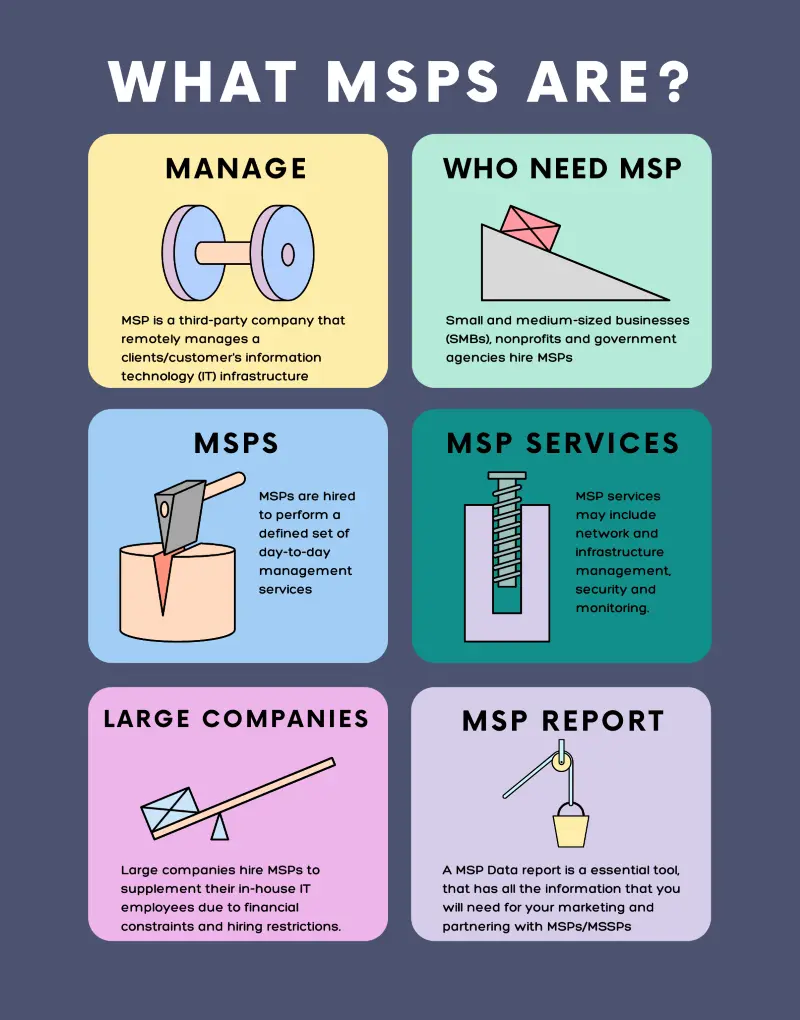
RMM software lets IT teams and MSPs remotely track and manipulate system objects such as servers, networks, clients, applications, workstations, and peripheral devices in accordance with needs, requirements, and developments. Thanks to developments in artificial intelligence and machine learning, most tasks can be completed by automated tools.
The following graphic summarizes the definition of managed service providers (MSPs).
Source: InfoMSP
What are RMM software capabilities?
The functional components of the RMM system are called RMM tools. General definitions of common RMM tools are listed below.
1. Remote monitoring
Servers, workstations, networks, apps, and other devices in an organization’s IT environment are all continuously monitored by RMM software. It gathers information on network traffic, system health indicators, resource usage, log reports, and performance measurements.
2. Remote management
Enabling the remote management and troubleshooting of IT systems and devices by administrators, including the installation of settings, scripts, patches, and software upgrades.
3. Security management
Providing security capabilities to guard against malware, cyberthreats, and security breaches, such as antivirus management, intrusion detection, and vulnerability screening.
4. Reporting and analytics
Creating analytics and reports to offer information on security posture, compliance status, system performance, and other important parameters.
5. Alerting and notifications
Producing messages and alerts in response to important events, like system malfunctions, declining system performance, security lapses, or other thresholds that have been set.
6. Patch management
Automating the process of updating and patching firmware, operating systems, and software on a variety of devices.
7. Back-up and incident management
Assisting in the backup and recovery processes for disaster recovery and data protection; frequently includes settings for off-site storage, recovery point objectives (RPOs), and recovery time targets (RTOs).
8. Asset management
Enabling the tracking of hardware and software assets, along with information on licenses, warranties, serial numbers, and device specs, through inventory management tools.
 Add as preferred source
FAQs
Remote monitoring and management (RMM) software installs an agent on each endpoint, server, or virtual machine and reports device health and performance metrics to a centralized dashboard. Managed service providers (MSPs) and IT departments use it to patch, script, and troubleshoot devices remotely across multiple client networks. Most RMM tools are cloud-hosted; some, such as ManageEngine Endpoint Central, also offer on-premise deployment.
An RMM agent runs on the device and sends CPU, memory, disk, and network data to the vendor’s console. In our test, NinjaOne and ManageEngine began collecting these metrics automatically after installation; Acronis required a monitoring plan to be applied first. Alerts fire when thresholds are breached, and technicians act from the dashboard: restart services, deploy patches, open a terminal, or start a remote session.
RMM covers servers, workstations, and network devices across Windows, Linux, and macOS. Mobile device management (MDM) focuses on phones, tablets, and unattended Android or iOS hardware such as kiosks and point-of-sale terminals. AirDroid Business is an MDM that manages Android and Windows devices, not a full RMM. Some RMM platforms, including ManageEngine, include an MDM module; organizations managing both desktops and mobile fleets should confirm coverage before buying.
Further reading
Cite this research
Pick the format that matches where you're publishing. Pasting the link version into your CMS preserves the backlink.
@misc{dilmegani2026,
  author = {Dilmegani, Cem and Dogan, Sedat and Sezer, Sena},
  title  = {{Top 12 RMM Software Tested: Features and Pricing}},
  year   = {2026},
  month  = sep,
  howpublished    = {\url{https://aimultiple.com/rmm-software}},
  note   = {AIMultiple. Retrieved September 22, 2026}
}Results and timestamps of 196 data points. Download the summary data shown in this article's charts and tables as a ZIP file containing 9 CSV files.
Want the granular data behind it? Join Premium
Changelog
14 updatesAdded NinjaOne's AI-based patch-pausing feature to the NinjaOne section.
Replaced the Acronis Linux agent installation results with a successful four-minute install.
Removed the Gartner Magic Quadrant recognition trend section and its NinjaOne and Atera mentions.
Added a new section, Industry Trends in RMM Software, to the article.
Reference Links
Cem's work at AIMultiple has been cited by leading global publications including Business Insider, Forbes, Morning Brew, and Washington Post, global firms like Deloitte and HPE, NGOs like World Economic Forum, and supranational organizations like European Commission. [1], [2], [3], [4], [5]
Throughout his career, Cem served as a tech consultant, tech buyer and tech entrepreneur. He advised enterprises on their technology decisions at McKinsey & Company and Altman Solon for more than a decade. He also published a McKinsey report on digitalization.
He led technology strategy and procurement of a telco while reporting to the CEO. He has also led commercial growth of deep tech company Hypatos that reached a 7 digit annual recurring revenue and a 9 digit valuation from 0 within 2 years. Cem's work in Hypatos was covered by leading technology publications like TechCrunch and Business Insider.
Cem regularly speaks at international technology conferences. He graduated from Bogazici University as a computer engineer and holds an MBA from Columbia Business School.

- Has 20 years of experience as a white-hat hacker and development guru, with extensive expertise in programming languages and server architectures.
- Is a board advisor at a VC investing in early-stage technology firms and at Ödeal, a regional digital payment platform serving 125,000 merchants.
- Has led the technology infrastructure and cybersecurity of seven national elections, and has been recognized in the cybersecurity Hall of Fame by global technology leaders including Twitter.













Be the first to comment
Your email address will not be published. All fields are required. Comments are left in their original language.