

Email Security Solutions: Acronis Email Security & Sophos

Email is one of the most common entry points for cyberattacks, and built-in protections are no longer enough to handle targeted threats. We tested three cloud email security platforms (Acronis Email Security, Sophos Email Security, and Barracuda Email Protection) with 100 tests across 11 threat categories.
Cloud email security solutions benchmark results
Read the email security solutions benchmark methodology to learn how we tested these tools and measured results.
Email security solutions comparison based on verdict categories
Acronis Email Security
- Acronis has the highest overall detection score (122/200) and performs strongest against GenAI phishing at 100%. All ten polished business pretexts were blocked, including fake board pre-reads, Microsoft 365 re-consent flows, and fictitious legal NDAs.
- This was the hardest category in the benchmark, with an average difficulty of 8.2/10. Catching all ten suggests Acronis handled semantic and contextual phishing cues well in this benchmark, rather than depending solely on obvious grammar or formatting signals.
- Category F and Category D also support this picture: Acronis scored 89% on brand/domain impersonation and 90% on URL phishing, including a BLOCK on the authentication-results header injection test. The aggregate results suggest strong handling of impersonation and URL-analysis cases.
- The clean false-positive record is operationally significant. None of the eight control messages were blocked, which means the 66% detection rate carries no offsetting cost in legitimate mail loss.
- The negatives are concentrated in lower difficulty levels. Basic spam (Category A, 44%) is lower than other tools, with misses on pharmaceutical spam, lottery scams, and a basic romance scam at difficulty levels 1 to 2. The gap suggests Acronis prioritizes sophisticated attacks over bulk, low-effort traffic.
Sophos Email Security
- Sophos has the second-highest overall score (105.5/200). It achieved 100% on Category B (EICAR malware variants), catching every archive nesting variant, password-protected ZIP, and offset-tolerance test.
- Sophos’ most visible weaknesses are URL phishing (Category D, 58%) and evasion techniques (Category J, 22%). The URL phishing gap is notable because links are among the most common phishing delivery mechanisms, and Category D tests several realistic ways attackers hide or route them.
- Sophos’ 58% score, compared with Acronis’ 90%, suggests that its URL-analysis layer was less consistent across redirects, obfuscation, and non-body URL placements.
Barracuda Email Protection
- Barracuda’s 60/200 detection score is lower than the other two products. Category I (GenAI phishing) returned 0% detection, and Category A (Spam: 33%) has the lowest score among competitors. This suggests Barracuda was less effective in this configuration against the benchmark’s spam, GenAI phishing, and social-engineering scenarios.
- Category B (known-malware detection via EICAR test strings, 89%) and Category C (carrier file types such as PDFs with embedded JavaScript, HTML smuggling, and LNK shortcuts, 70%) are competitive with other vendors.
- Barracuda’s Category J (evasion techniques, 44%) results show the best of the three vendors. This suggests that the underlying content-inspection engine can handle features such as zero-width characters, encoded subjects, and homoglyphs reasonably well.
- The weaknesses are more prominent in categories that matter most for modern threat protection. QR-code phishing (Category E, 13%), brand impersonation (Category F, 11%), BEC (Category G, 11%), and extortion (Category H, 22%) are all well below the comparison.
- Across the eleven hard-tier tests, Barracuda blocked one and missed the remaining ten.
Top 3 cloud email security solutions
Acronis Email Security detailed analysis

When we select Acronis Email Security from the left-hand menu in the Acronis Cyber Protect Cloud interface, we see the following screen. We then click through to access the Email Security console.
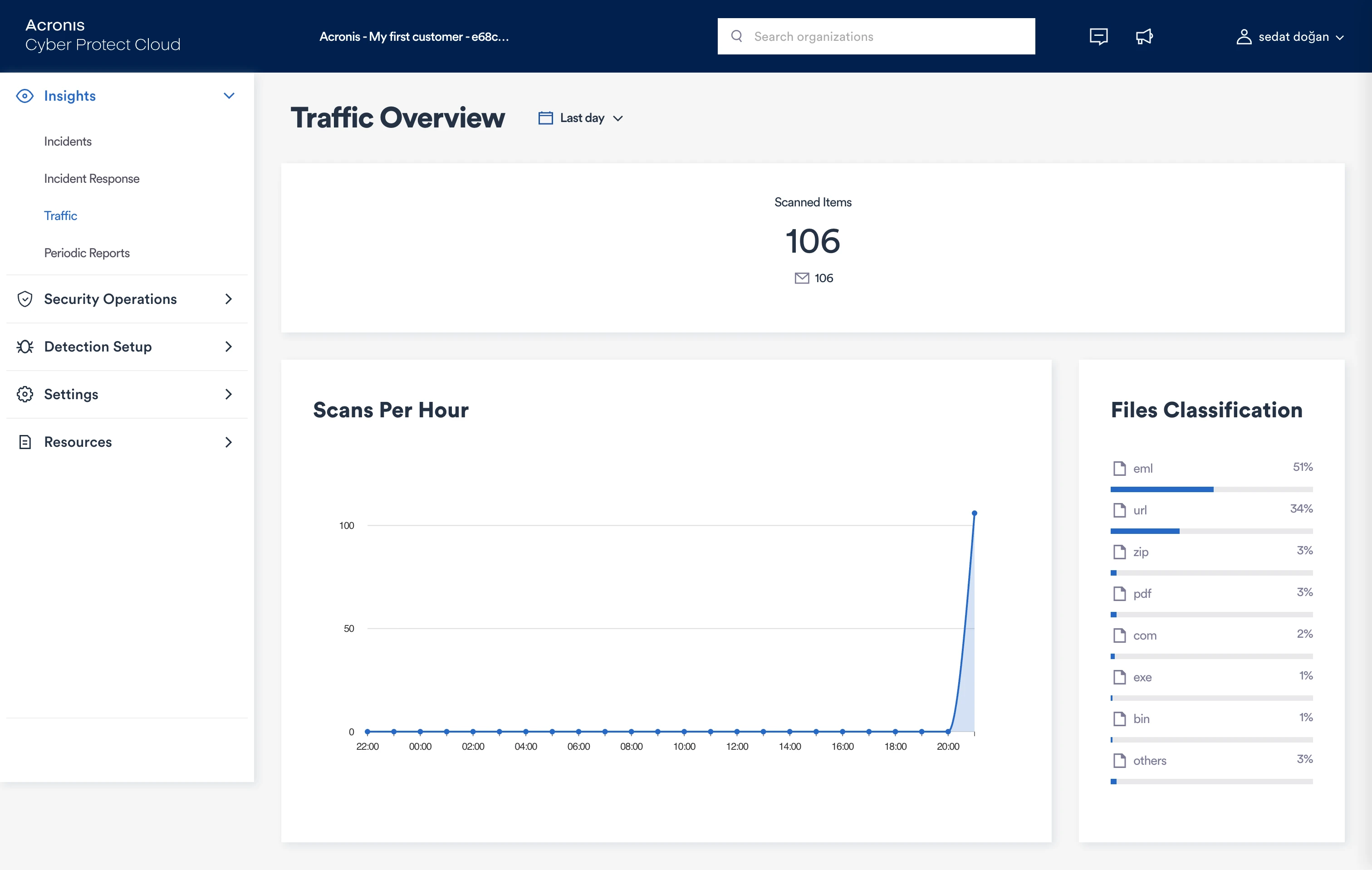
Since we have not completed any setup yet, our dashboard displays the menu items:
- Incidents: Detected security incidents and attack activity.
- Incident Response: Tools for investigating and responding to incidents.
- Traffic: Visibility into scanned email or web traffic patterns.
- Periodic Reports: Scheduled security and protection reports.
- Security Operations: Operational security controls and monitoring tools.
- Detection Setup: Configuration for detection rules, scanning, and protection settings.
From the Settings menu on the left, we go to Protected Email Assets.
Since there are no assets yet, the system redirects us to the configuration flow. We click Configure email protection. The system asks us for an escalation email address to report issues and asks which email service we use.
For this test, we will proceed with a custom provider via MX. We are doing this to compare vendors directly, without being affected by the built-in protections in Microsoft 365 or Google Workspace.
We select the email service and choose the Inline connection method. This means Acronis scans and blocks malicious emails before they are delivered.
We also add an escalation contact that Acronis can use for account takeover, security, or connection issues. The next step is to enable the Google Workspace app, which supports onboarding, accurate user counting for billing, and remediation actions, such as removing malicious emails delivered by mistake.
We add the connected domain, aimultiple.com, and the system automatically retrieves the MX records.
We also set the license calculation method to “According to Reported seats” and enter 100 seats. After these settings, we proceed with Next to continue the MX configuration.
The system asks us to add a TXT record to verify domain ownership. We add the record and wait for verification.
We can also manage the configured SMTP destination servers, confirm that TLS is enabled, and use the Verify action to verify that the TXT record has been published correctly. This page also allows us to edit server and TLS settings or delete the domain if needed.
We sent a total of 100 emails that could be considered malicious or spam. The dashboard now shows statistics such as how many emails were scanned, how many were classified as spam, how many were classified as malicious, and how many emails were received by attack type. There is also a statistic showing which email addresses were attacked most frequently.
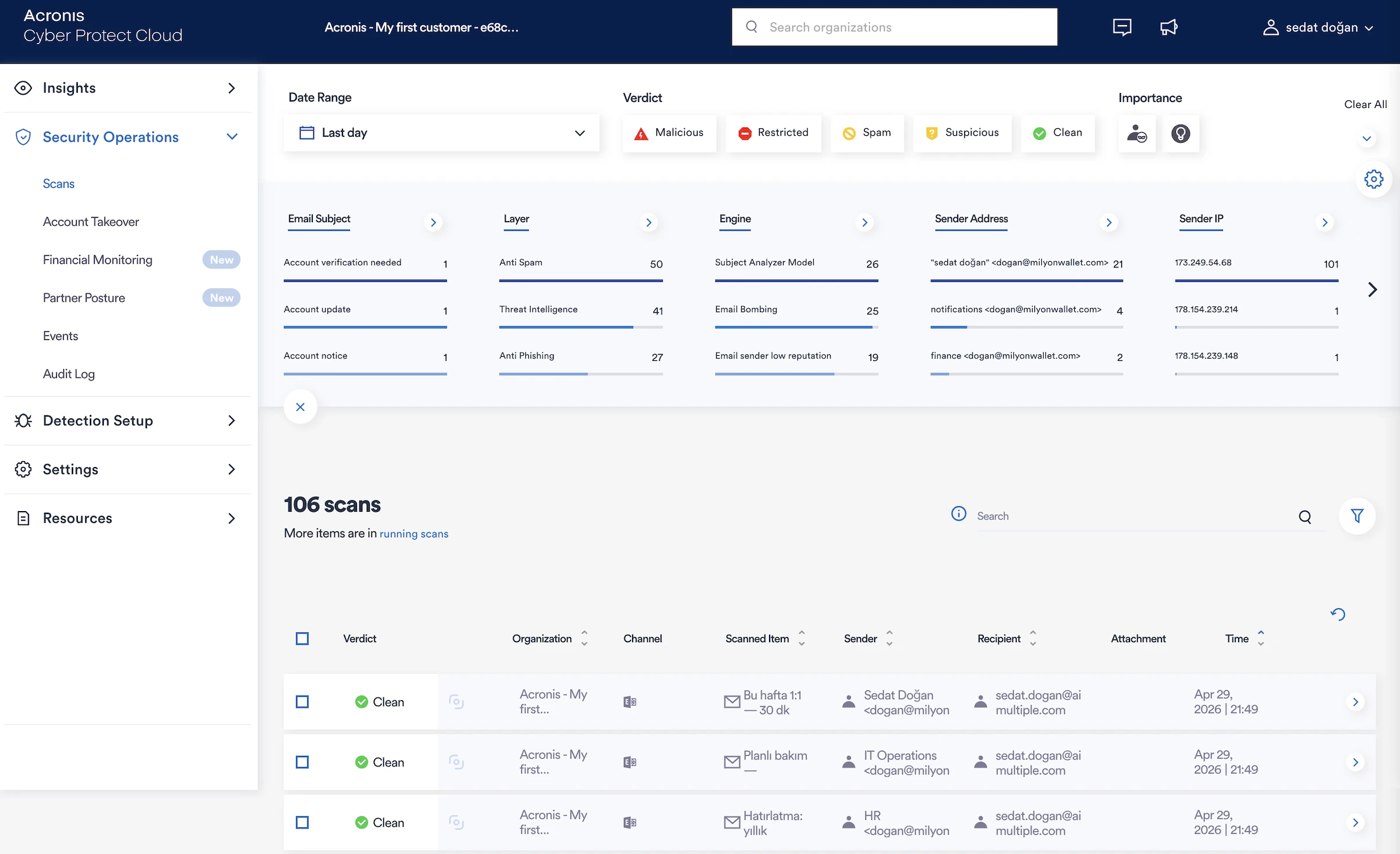
In the Scans menu, we can see the scanning statistics for all incoming emails. The breakdown by file type is also a useful detail. In addition, throughout the application, we can adjust the date range by clicking Last Day at the top of the page.
The filtering in the Scans section is highly detailed. Here are some of the options:
- Sender address/domain/IP: The primary indicators for identifying malicious or spoofed senders.
- Impersonated display name: Directly targets one of the most common phishing techniques, where the visible name looks legitimate, but the actual address does not.
- Reply-to address: Another important phishing red flag. When the reply-to differs from the sender address, it often signals an attempt to redirect responses to an attacker-controlled inbox.
- Action (quarantined/delivered): Essential for understanding whether a threat was caught or reached the recipient.
- Subject: For identifying phishing campaigns that use identical or near-identical subject lines across multiple targets.
- Receiver address: Critical for determining the scope of an attack. Shows how many users were targeted and whether high-value individuals (executives, finance) were among them.
- Payload (attachments/URLs): Narrows the search to emails carrying the most common malware delivery mechanisms.
When we go to Security Operations from the left-hand menu, we reach the Scans section. From this screen, we can access details related to the scans. All scans are listed here, and we can also see the resulting categorizations, such as clean, spam, and malicious.
When we open an email’s details, we can see how the system evaluated it and its current status. We can also change its status to:
- Approve Verdict (Handle): Accept the current verdict and process the email accordingly.
- Mark email as restricted: Classify the email as restricted or policy-violating.
- Mark email as Spam: Classify the email as unwanted or unsolicited.
- Mark email as Suspicious: Flag the email as potentially risky and needing caution.
- Mark email as Clean (FP): Mark the email as safe and indicate it was a false-positive.
The view below is the compact view. When we click the Detailed tab in the upper-right corner, we can see many additional details.
In the compact view, we can see the scan details of a malicious phishing email that was quarantined by Acronis. It includes an AI-generated overview explaining why the email is considered malicious and showing indicators such as a suspicious sender domain, email-bombing behavior, and a risky URL. In the Details section, we can verify the channel, action taken, scan time, processing time, organization, and IR status.
In the Email Inspector, we can review the message metadata, including subject, sender, recipient, time, return path, and source IP. The email body is also displayed, so we can assess the social engineering attempt directly.
The incident evaluation criteria are clear and transparent. For an incident, we can also click the Request investigation button, select “I think this email is clean”, and send it to the Acronis team for review. We can view previous scans related to the same email.
With the Screenshots button, we can see the rendered version of the email, which is a useful feature. Notably, the system does not render the email as HTML in the browser, so any undetected vulnerability in the email cannot trigger a breach during review.
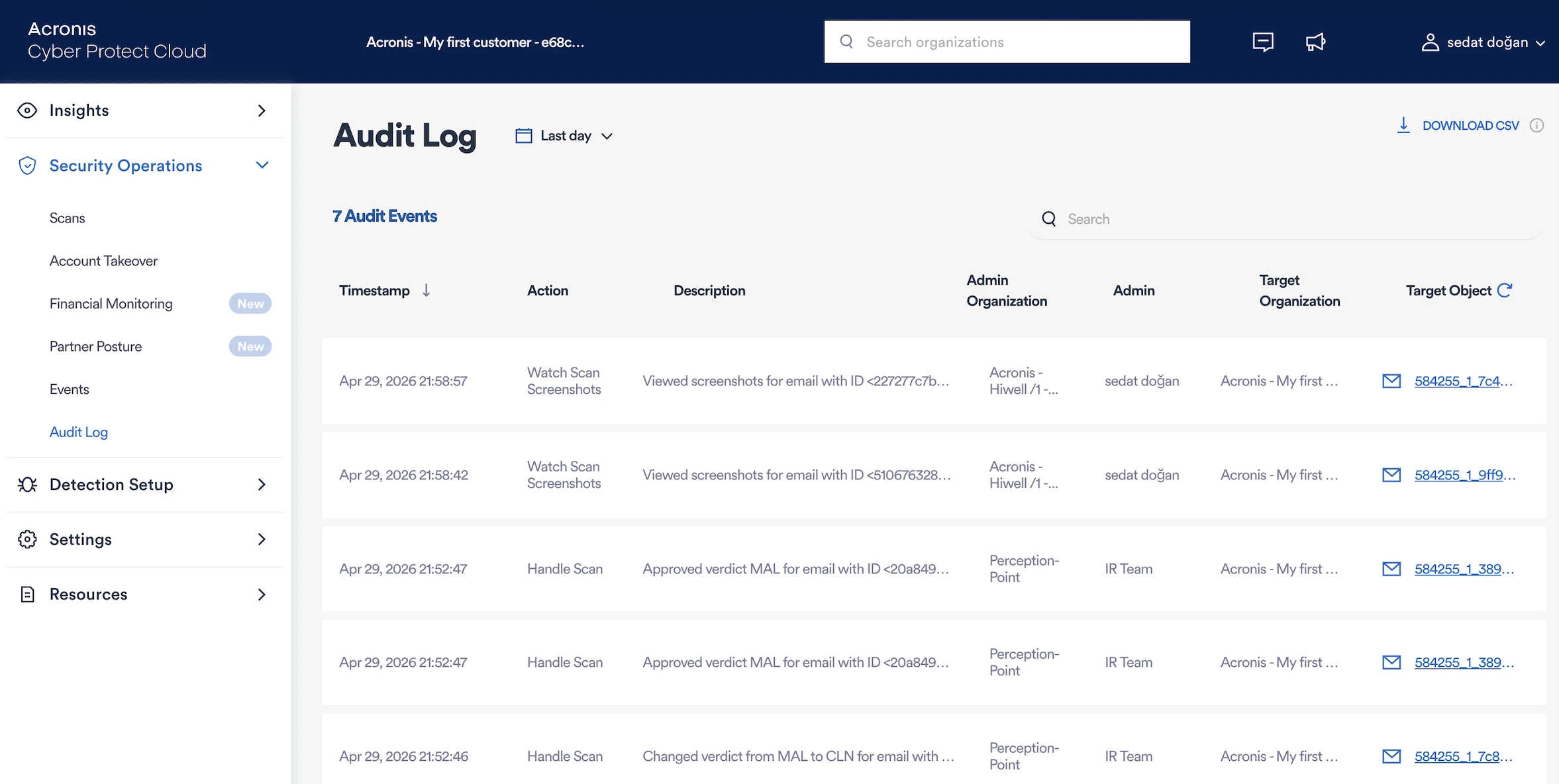
User actions observed in this test were available in the Audit log from the left-hand menu. Some of these records are:
- Watch scan screenshots
- Handle scan
- UI Action
Each log records the timestamp, action, description, admin or team, target organization, and the related email or target object.
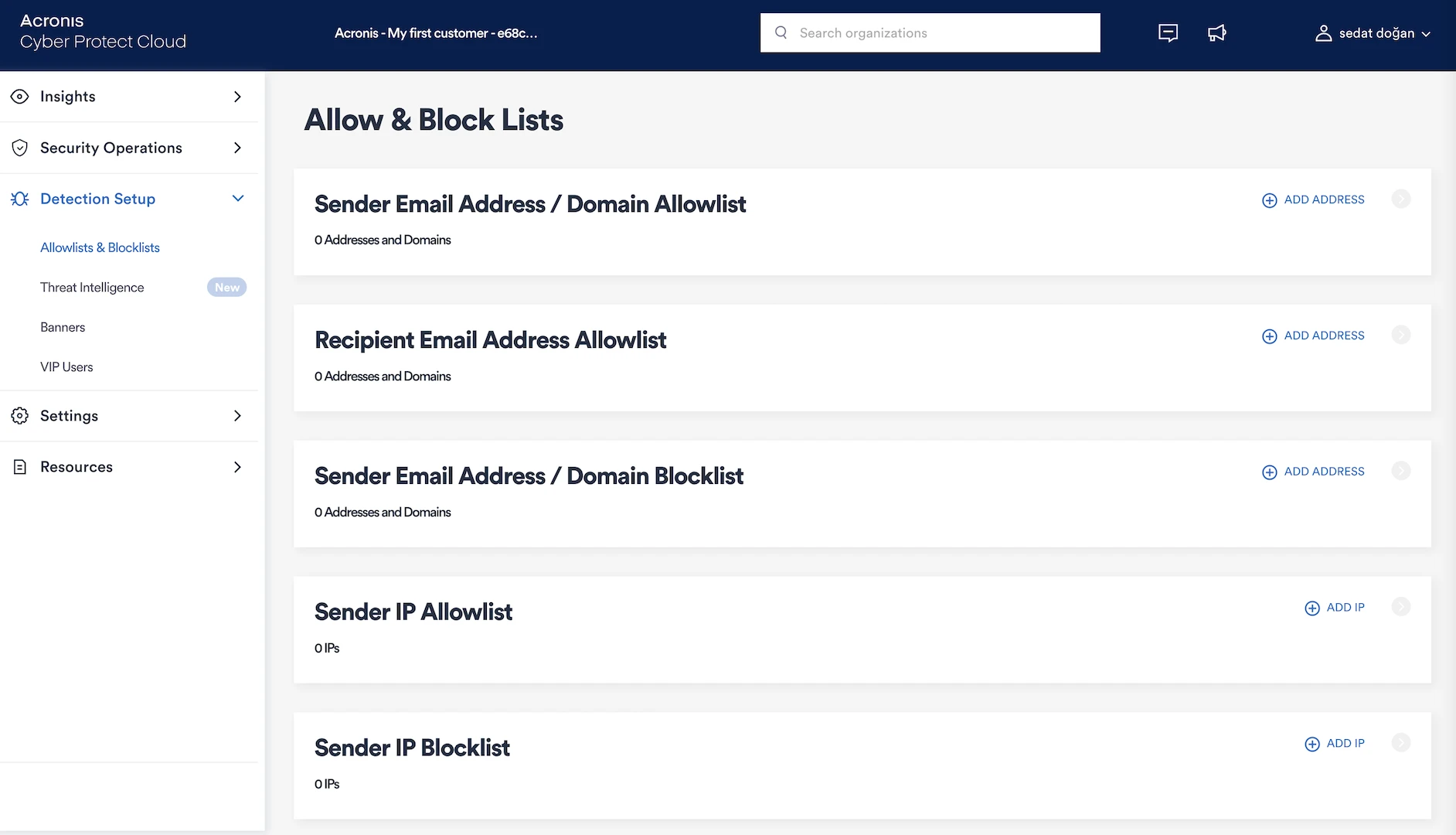
In Detection Setup on the left-hand menu, we can manage allow lists and block lists in detail, which is a highly useful feature:
- Sender email address/domain allowlist: Emails from addresses or domains on this list are always trusted and will bypass spam/threat filters. This can be useful for whitelisting known partners or internal systems that might otherwise trigger false-positives.
- Recipient email address allowlist: Specifies internal recipient addresses that should receive all inbound mail without filtering. This ensures certain users (e.g., a catch-all inbox) always get emails, even from unknown senders.
- Sender email address/domain blocklist: Emails from addresses or domains on this list are automatically rejected or quarantined. It can be used to permanently block known spam sources, malicious domains, or unwanted bulk senders.
- Sender IP allowlist: Mail servers with IPs on this list are considered trusted, and their emails skip IP-based reputation checks. Can be used for trusted third-party mail services or on-premise mail relays.
- Sender IP blocklist: Connections from these IPs are blocked, regardless of the sender address. This can be effective against known malicious mail servers or compromised infrastructure.
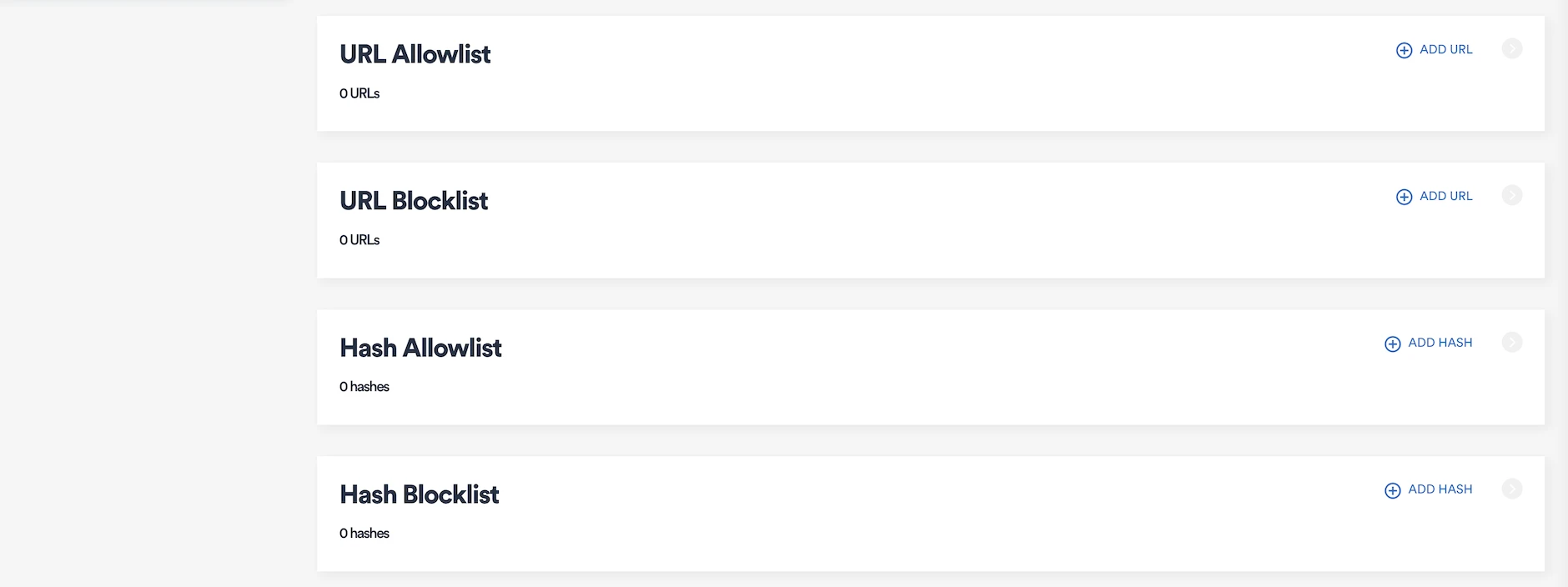
- URL allowlist: Links matching these URLs or domains within email bodies are considered safe and will not be flagged.
- URL blocklist: Emails containing these URLs are flagged, blocked, or quarantined.
- Hash allowlist: File attachments matching these cryptographic hashes are treated as safe and pass through without scanning alerts.
- Hash blocklist: Attachments whose hash matches an entry in this list are blocked immediately. This provides precise, signature-based blocking of known malicious files, even if they are renamed or disguised.
Some of the features that are worth mentioning, but we did not specifically test, are:
Under detection setup:
- Threat intelligence: Pulls indicators from external threat-intelligence sources. This feature helps catch widespread commodity malware, malicious URLs, and active attack campaigns.
- Banners: Adds customizable banners to incoming emails based on policies and rules.
- VIP Users: Allows admins to maintain a list of high-value users (executives, finance staff, etc.).
Under security operations:
Account Takeover (ATO): Detects signals of compromised Microsoft 365 mailboxes.
The engine flags suspicious mailbox rules (forwarding, redirecting, moving, or deleting emails), impossible travel logins, and sign-ins from unfamiliar locations or devices. When it spots one of these signals, it opens a case in the console, and the incident response team reaches out to the admin to investigate together.
Sophos Email Security detailed analysis

To start with Sophos, we create a trial link and are directed to the following screen. Similar to Barracuda, Sophos asks us to select a region.
The system then asks which product we want to install. We select Email Security. Other products that can be set up include Endpoint Protection, Server Protection, Phish Threat, DNS Protection, Zero Trust Network Access, Protected Browser, Mobile, Wireless, Device Encryption, Firewall Management, Cloud Optix, and Switches.
We will send 100 emails, and the image below shows the dashboard. It includes statistics such as the total number of scanned incoming emails, potential threats, and detected threat types. There are also statistics for outbound emails, but we are not testing outbound email security in this benchmark.
We can also see other dashboard elements such as email activity trends, threat summaries, and security status indicators.
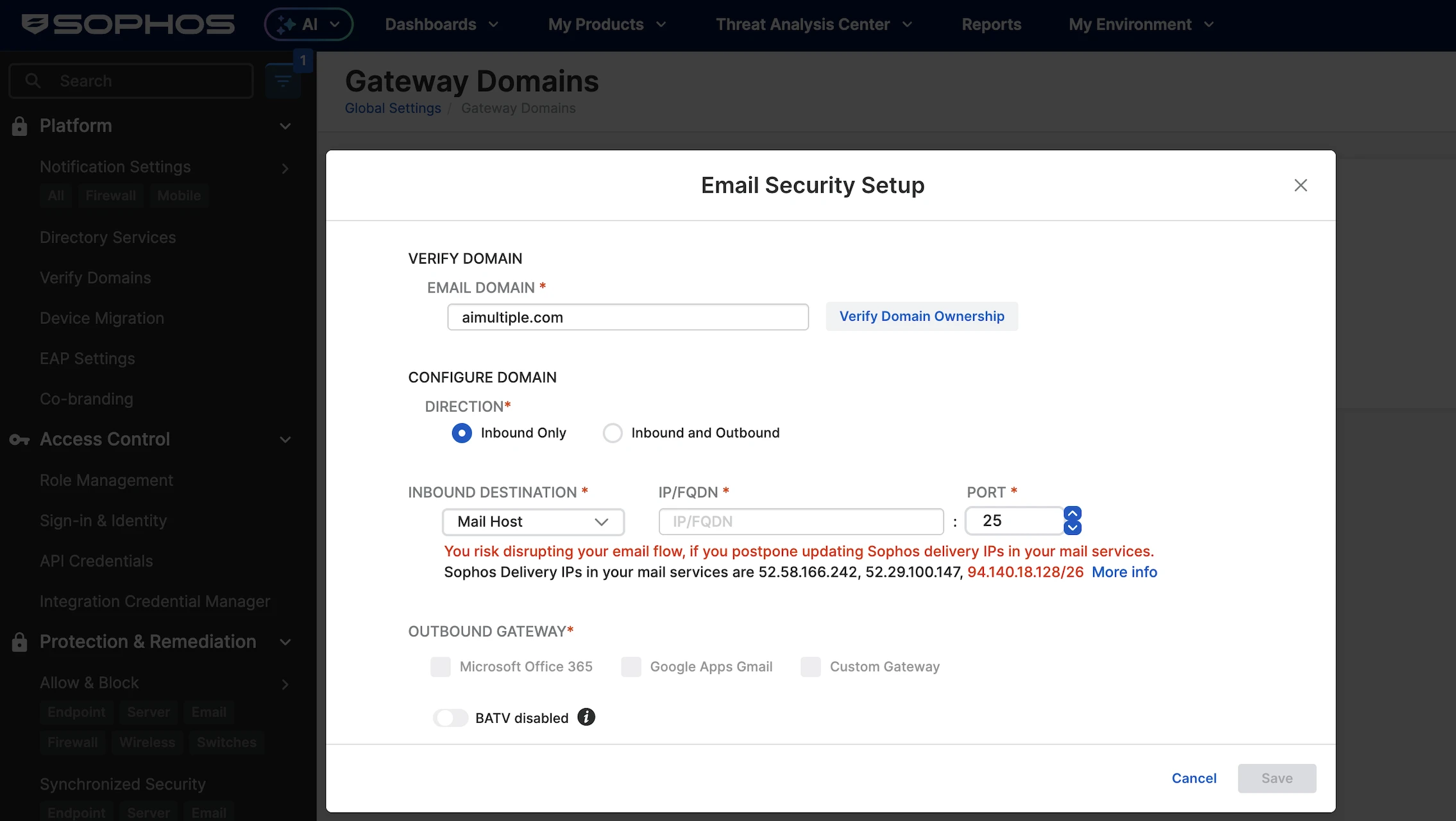
We clicked Set up email gateway settings. The system asks us to verify our domain. Then we observe a useful setting in which we can choose inbound-only or both inbound and outbound. It also checks outgoing emails to prevent security issues.
The system shows the DNS record we need to enter. We then add it and proceed.
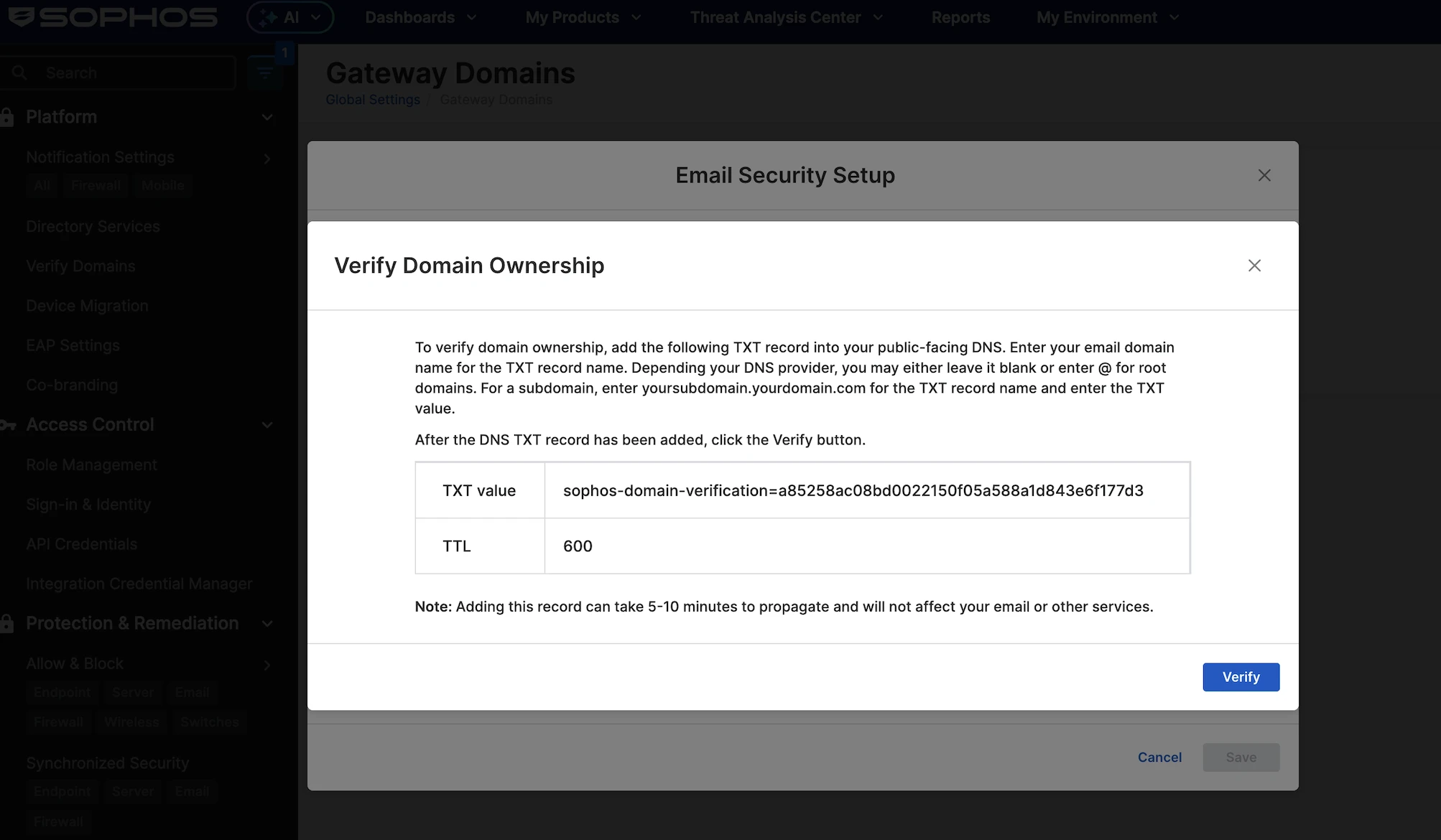
We add the TXT record to the domain’s public DNS. The TXT value is a Sophos domain verification token, and the TTL is set to 600. After adding the DNS record, we wait for propagation, then click Verify so Sophos can confirm we own the domain.
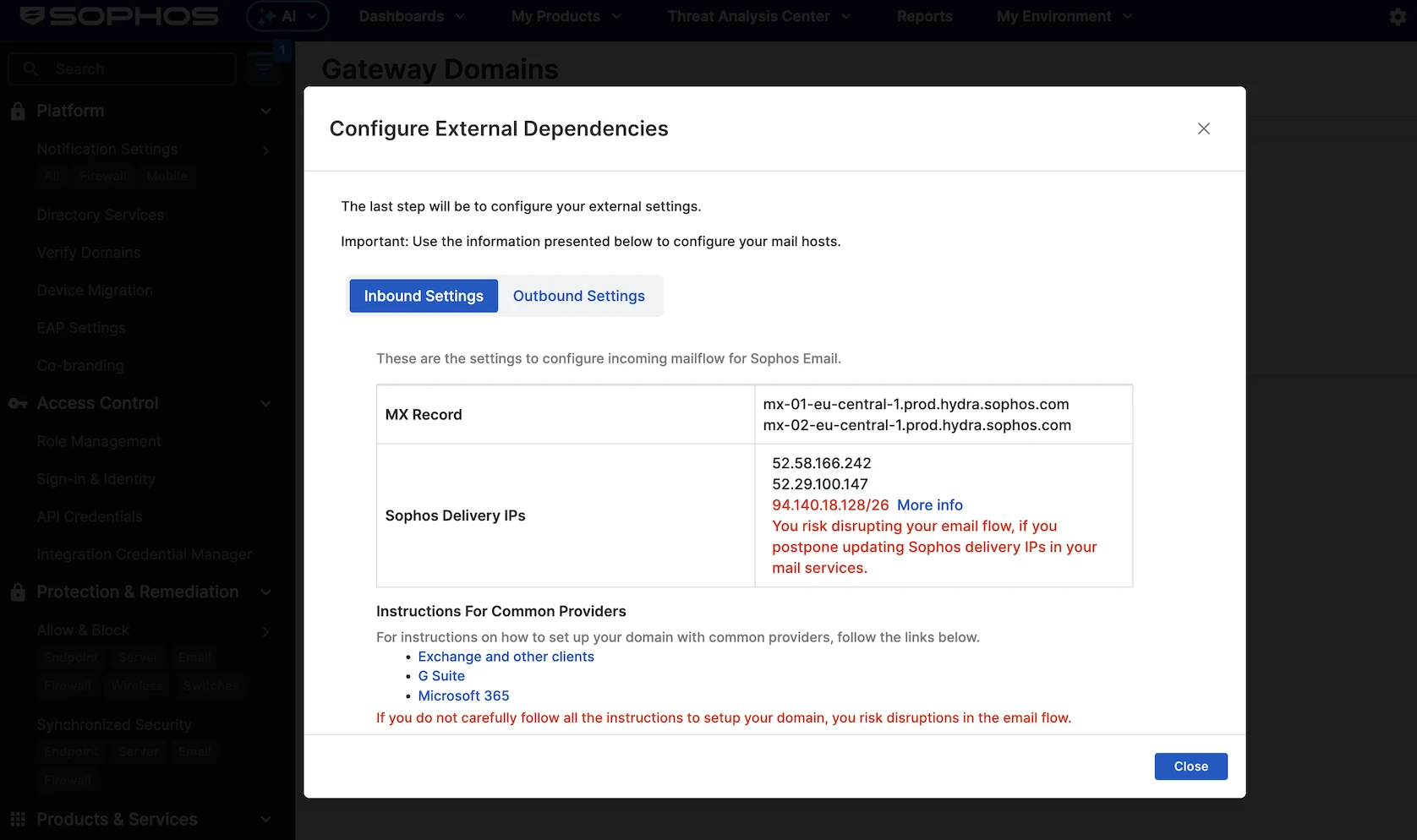
We added the record and verified our domain. For the inbound destination, we selected MX and entered the Google Workspace MX record: aspmx.l.google.com.
Like Barracuda, Sophos requires MX routing. Unlike Sophos and Barracuda, Acronis handled this process cleanly through an API, and we did not need to change any settings.
We completed the MX settings and sent a test email, but it did not go through. After some investigation, we saw that the error was: “This email address was not found,” which was unexpected.
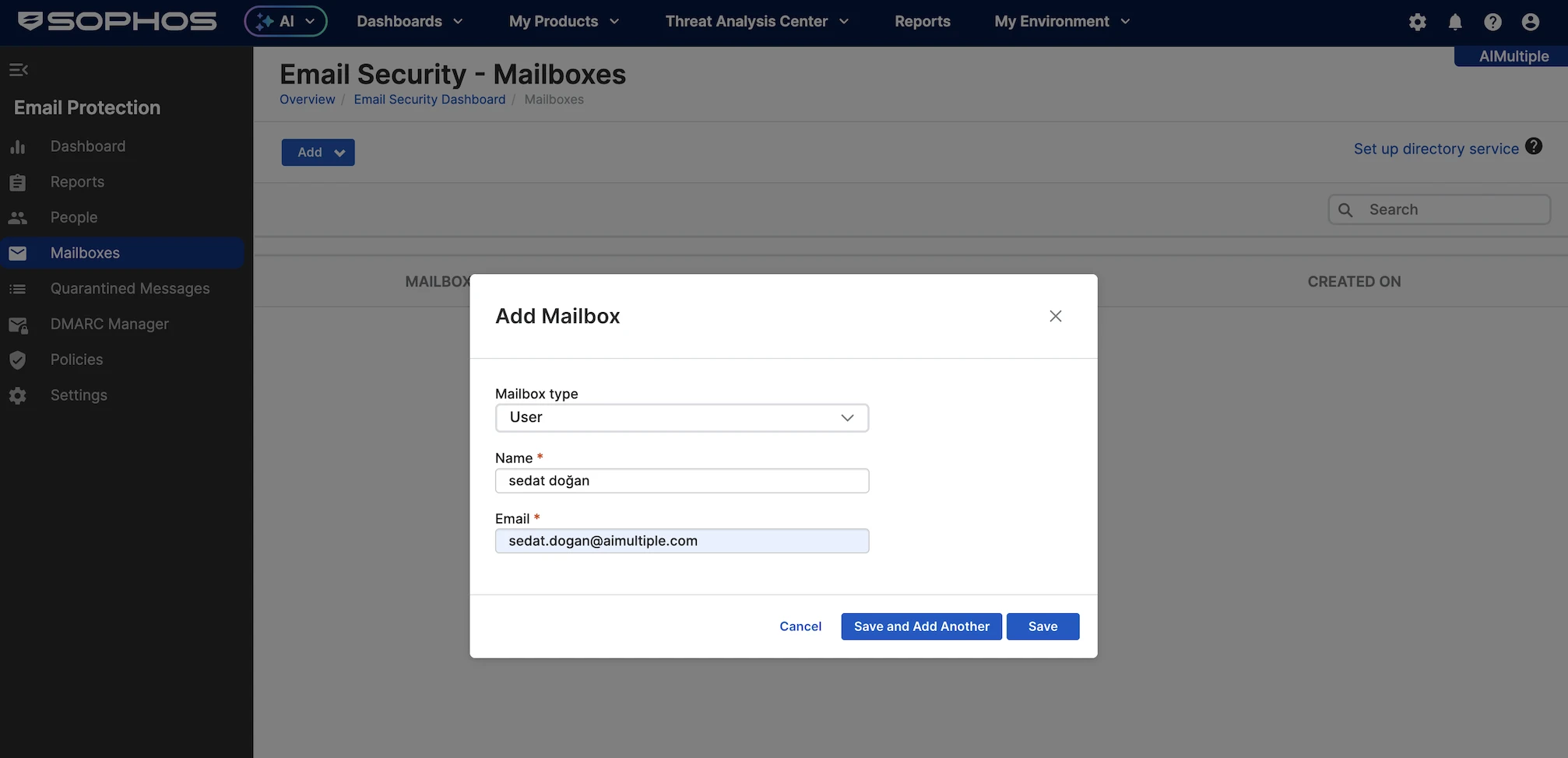
We need to go into the panel, open the Mailboxes section from the left menu, and manually add users one by one. This is a usability problem that damages the overall experience, as both Acronis and Barracuda worked immediately. For the test, we added our own email address and continued testing through that account.
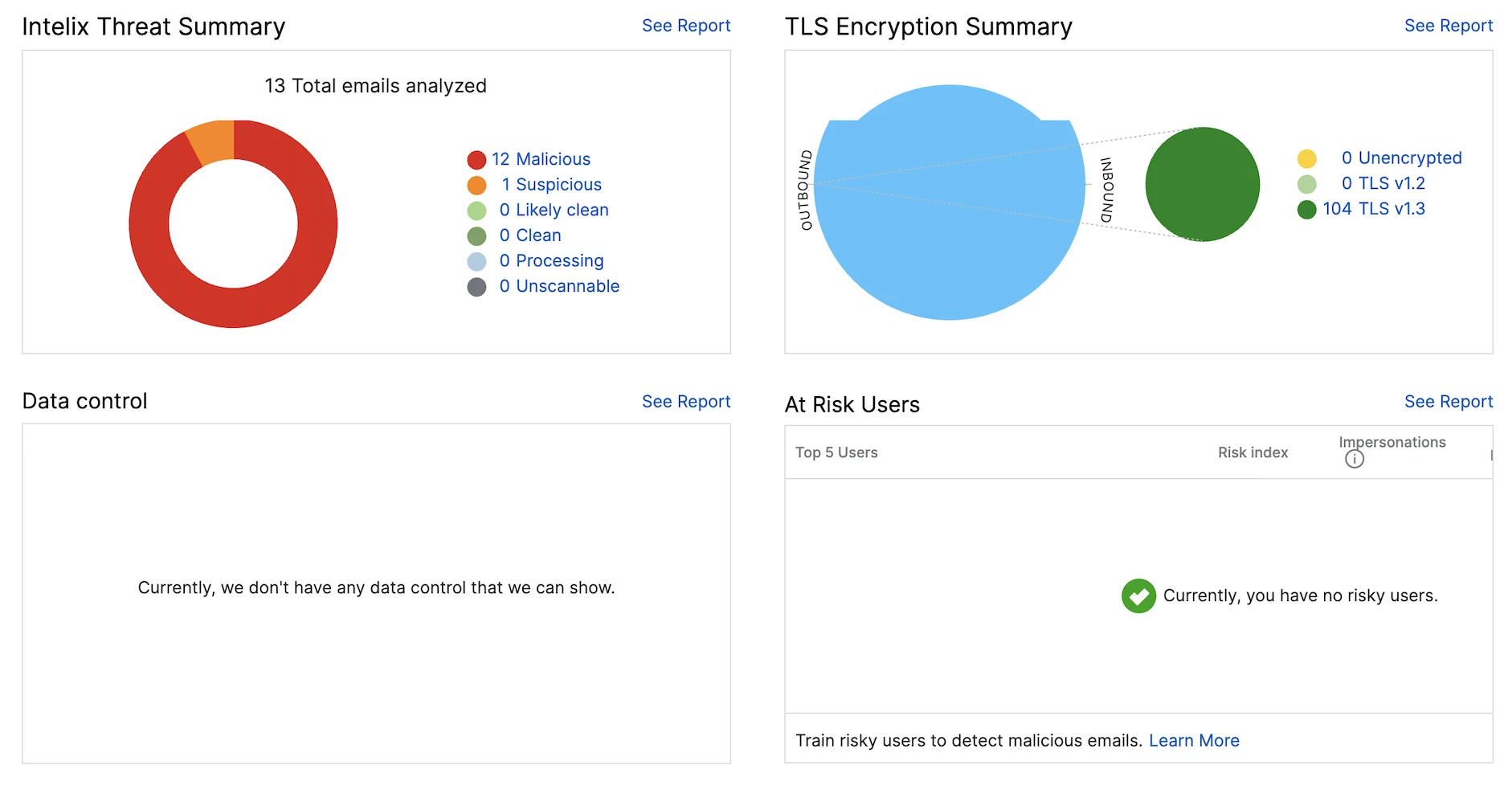
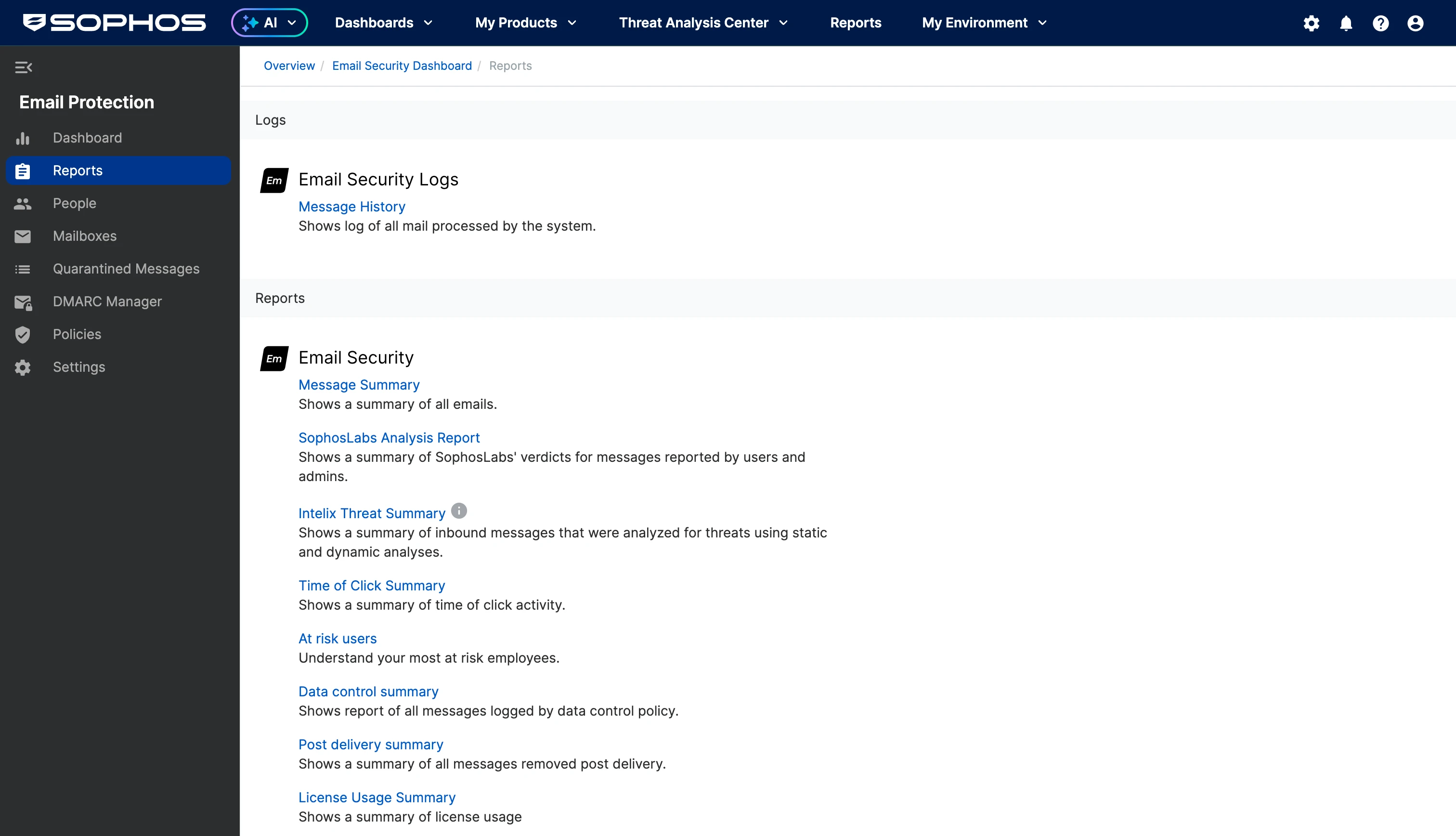
The reports section is on the left-hand menu. Here are some of the reports that we can create:
- Message summary: Overall email volume and status.
- SophosLabs analysis report: User/admin-reported message verdicts.
- Intelix threat summary: Threat analysis for inbound emails.
- Time of click summary: Link-click activity report.
- At-risk users: Most vulnerable employees.
- Data control summary: Data-loss policy matches.
- Post delivery summary: Emails removed after delivery.
- License usage summary: Email security license usage.
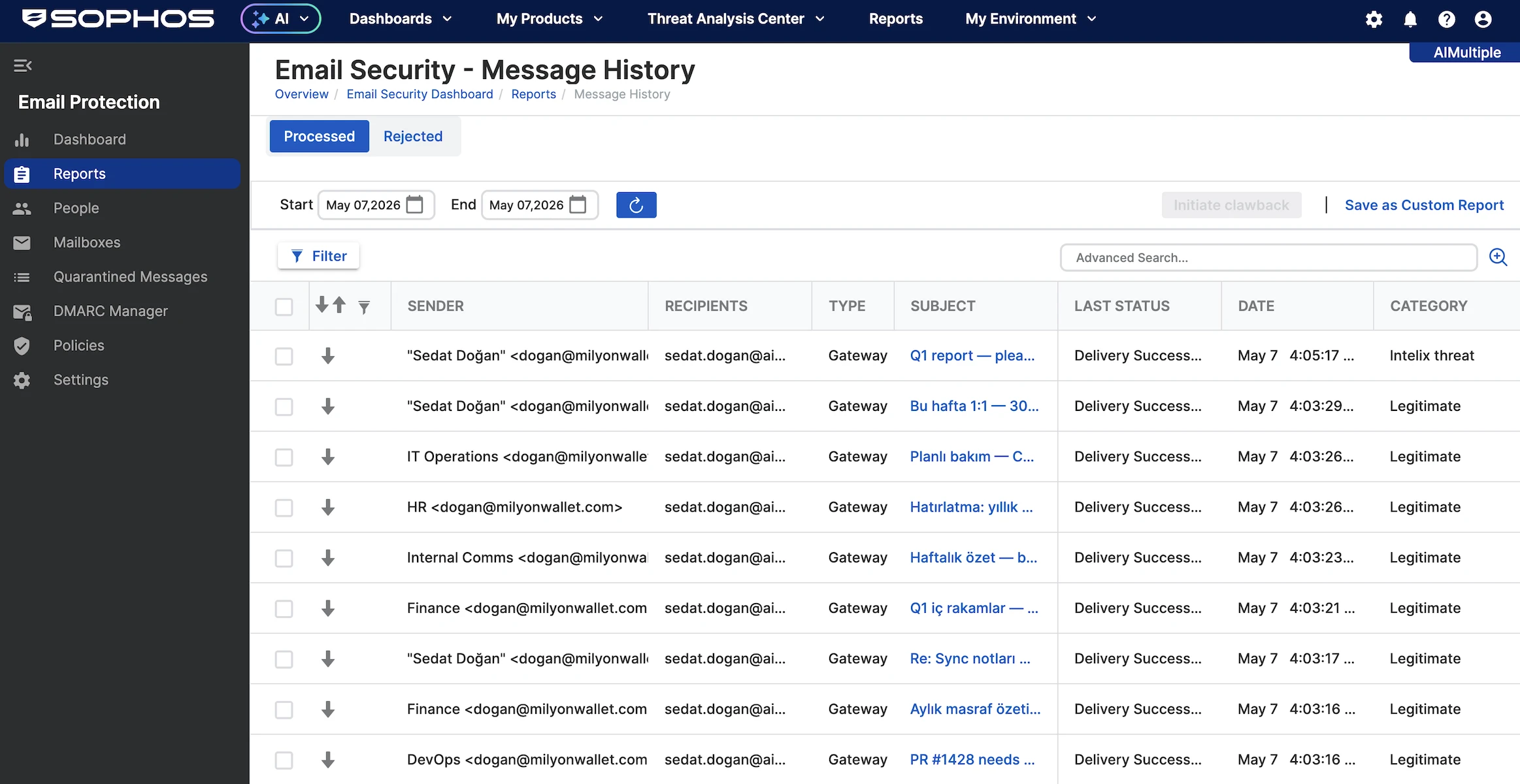
When we go to Email Security > Message History, we can see all incoming emails and how each one was classified. This Message History report lists individual emails processed by Sophos Email Security. A few key fields are:
- Sender: Who the email appeared to come from.
- Recipients: Who received the message.
- Type: How the email entered the system, usually Gateway.
- Subject: The email subject line.
- Last Status: What Sophos did with it, such as Delivered, Deleted, or Quarantined.
- Date: When the email was processed.
- Category: Sophos’ classification, such as Legitimate, Spam, Malware, Intelix threat, or Authentication.
Some examples from the categories are:
- Legitimate: Normal emails that were allowed through.
- Spam: Suspicious or unwanted emails; many are quarantined.
- Malware: Dangerous emails containing malicious content; these are deleted.
- Intelix threat: Emails analyzed by Sophos Intelix that were found suspicious or threatening.
- Quarantined: The email was blocked and placed in quarantine for review.
- Deleted: The email was removed instead of delivered.
The filters below allow users to narrow the email log by message category:
- Legitimate: Normal allowed emails.
- Secure message: Encrypted or protected emails.
- Data control: Emails matching data loss/security rules.
- Authentication failure: Failed SPF, DKIM, or DMARC checks.
- Impersonation: Possible sender spoofing or identity fraud.
- Bulk: Mass marketing or automated emails.
- Spam: Unwanted or suspicious emails.
- URL/QR Code: Emails with risky links or QR codes.
- Intelix threat: Emails flagged by Sophos threat analysis.
- Unscannable: Emails Sophos could not fully inspect.
- Malware: Emails containing malicious files or content.
- Enterprise blocked: Emails blocked by company policy.
The Mailboxes menu shows the mailboxes being monitored. By opening a mailbox, we can select which policies to apply. Under Base Policy – Email Security, the following settings are available:
Authentication includes email authentication checks for inbound messages. We can configure how Sophos handles DMARC, SPF, and DKIM failures, including actions such as conforming to the sender policy or tagging the subject line with a warning.
- It also includes sender checks for header anomalies and domain anomalies, which help detect emails that appear to come from your own domain or from suspicious domains without proper DNS records. We can also enable end-user banners to show recipients the trust level of inbound messages and help us decide whether to allow or block senders.
Anti-malware manages inbound anti-malware scanning for email messages. We can choose the default action for malware detections, such as Delete, and enable enhanced malware scanning for deeper content and file analysis.
- It also allows control over unscanned emails and Intelix Threat Analysis, where Sophos can use static and dynamic analysis to classify suspicious messages. Based on the verdict, we can define actions such as deleting, delivering, or handling malicious and suspicious emails differently.
Anti-spam manages how Sophos handles spam and bulk email. We can set actions for categories like Confirmed Spam and Bulk, including quarantining messages and deciding whether they appear in the end-user quarantine. It also includes a customizable spam catch-rate slider, where higher levels increase the aggressiveness of spam detection.
New domain/sender includes protections for newly registered domains and new senders. We can enable checks for emails sent from recently created domains, which are often used in phishing campaigns. It also allows a New Sender banner to be shown when a recipient has not received emails from that sender before.
The country of origin allows for controlling emails based on the sender’s country. Specific countries can be selected from a list, and matching emails can be quarantined or otherwise handled in accordance with policy.
- There is also an option to check every message hop, which helps inspect the route an email took before reaching the recipient.
Language manages filtering by message language. We can select specific languages that we want to disallow and choose the action Sophos should take, such as quarantining matching messages.
The impersonation protection feature enables checks for VIP, brand, and general impersonation attempts.
For URL and QR code protection, we can check emails for malicious URLs and QR codes. Sophos can scan links and extract URLs from QR codes to detect threats before users interact with them. It also manages Time of Click URL Protection, where links are rewritten and checked when the user clicks them.
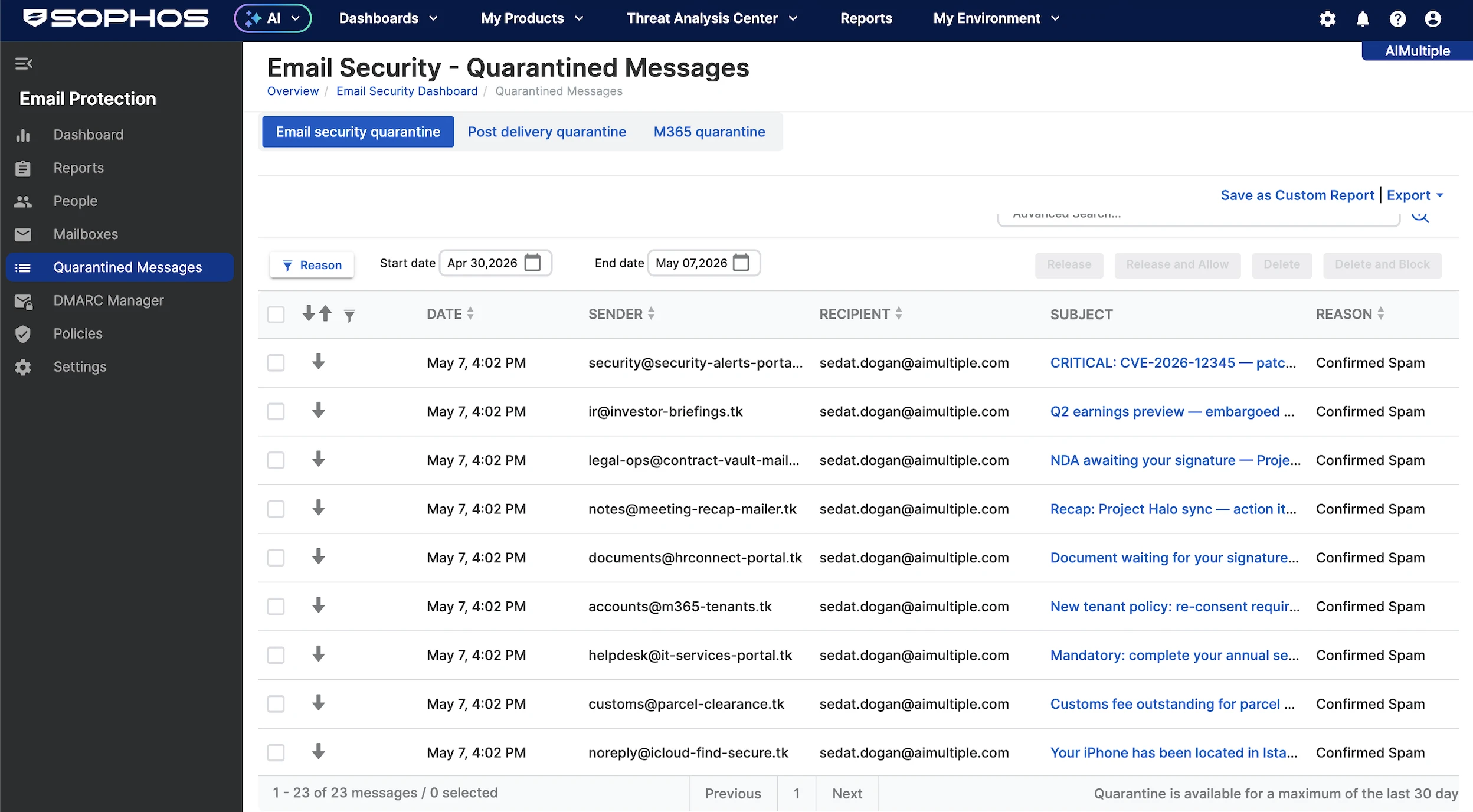
In the left-hand menu, the Quarantined Messages section shows all emails in which a threat has been detected. We can filter by:
- Anti-malware: Emails flagged during malware scanning. This includes messages with dangerous attachments, malicious content, or items Sophos could not fully inspect:
- Malware: Emails confirmed to contain malicious files, links, or content. These are usually deleted or quarantined.
- Unscannable: Emails that Sophos could not inspect properly, for example, because of encryption, corruption, password-protected attachments, or unsupported file types.
- Anti-spam: Emails that are classified through spam detection rules:
- Bulk: Mass-sent emails such as newsletters, marketing campaigns, or automated notifications.
- Confirmed Spam: Emails confidently identified as spam. These are typically quarantined or blocked.
- Suspected Spam: Emails that look suspicious but are not confirmed spam. They may be quarantined, tagged, or delivered depending on policy.
- Impersonation: Emails that may be pretending to come from a trusted person, brand, domain, or internal sender.
- Disallowed Country: Emails blocked or quarantined because they originated from a country restricted by policy.
- Disallowed Language: Emails blocked or quarantined because their detected language is not allowed by policy.
- BATV: Emails related to Bounce Address Tag Validation, used to help detect forged bounce messages or backscatter spam.
- New domain/NRD: Emails from newly registered domains, which are often used in phishing or short-lived attack campaigns.
- Authentication: Emails filtered based on sender authentication checks such as SPF, DKIM, or DMARC failures.
When we click on an email, we can see the messages explaining why it was quarantined. We can delete it and block the sender, release the message from quarantine, or release it and allow similar messages in the future.

In the Raw Header section, we can view all header information for the email. We can also view its attachments and the URLs contained in the message. This did not appear sufficiently detailed in our assessment. Acronis and Barracuda provided a more comprehensive and informative experience in this regard.
In the Message tab, we can view the email content as it is, which can be unsafe. It would be better if we could see the email content as a screenshot, as we observed in Acronis.
There are 23 emails here because these were marked as spam, while some others were directly rejected. In short, the system quarantines emails marked as spam.
When we want to export all incoming emails, we cannot do so directly from the report screens. We need to create a custom report from Email Logs, then open it, select Generate Report, choose CSV, and finally export everything as a CSV. This workflow feels unnecessarily indirect and not user-friendly.
Barracuda Email Protection detailed analysis
After obtaining a trial from Barracuda, we navigated to the panel, clicked Open for Email Protection, and proceeded.
Under Available in your trial, we can see the main products included:
- Email protection: Prevents email threats, secures email before and after delivery, and automates email incident response.
- Cloud-to-cloud backup: Backs up Microsoft 365 data.
- Data inspector: Finds sensitive data and undetected malware in OneDrive and SharePoint.
- Security awareness training: Trains employees on email security threats.
- Cloud archiving service: Enforces email retention for compliance and e-discovery.

Since we had not yet configured any domains or related settings, the system took us directly to the setup wizard, which is a helpful feature for configuring email settings.
When we clicked Next, the system forced us to connect a Microsoft 365 account. However, we use Google Workspace and are evaluating the service for that environment.
We later found that Barracuda supports Google Workspace. We continued with the standard setup.
The system asked us to select a data region. This is an important feature for GDPR compliance, so we selected Germany and continued.
Barracuda later asked us to enter an email address belonging to our domain and verify our MX records. We clicked the verification button and did not perform any additional action. The system verified the records successfully.
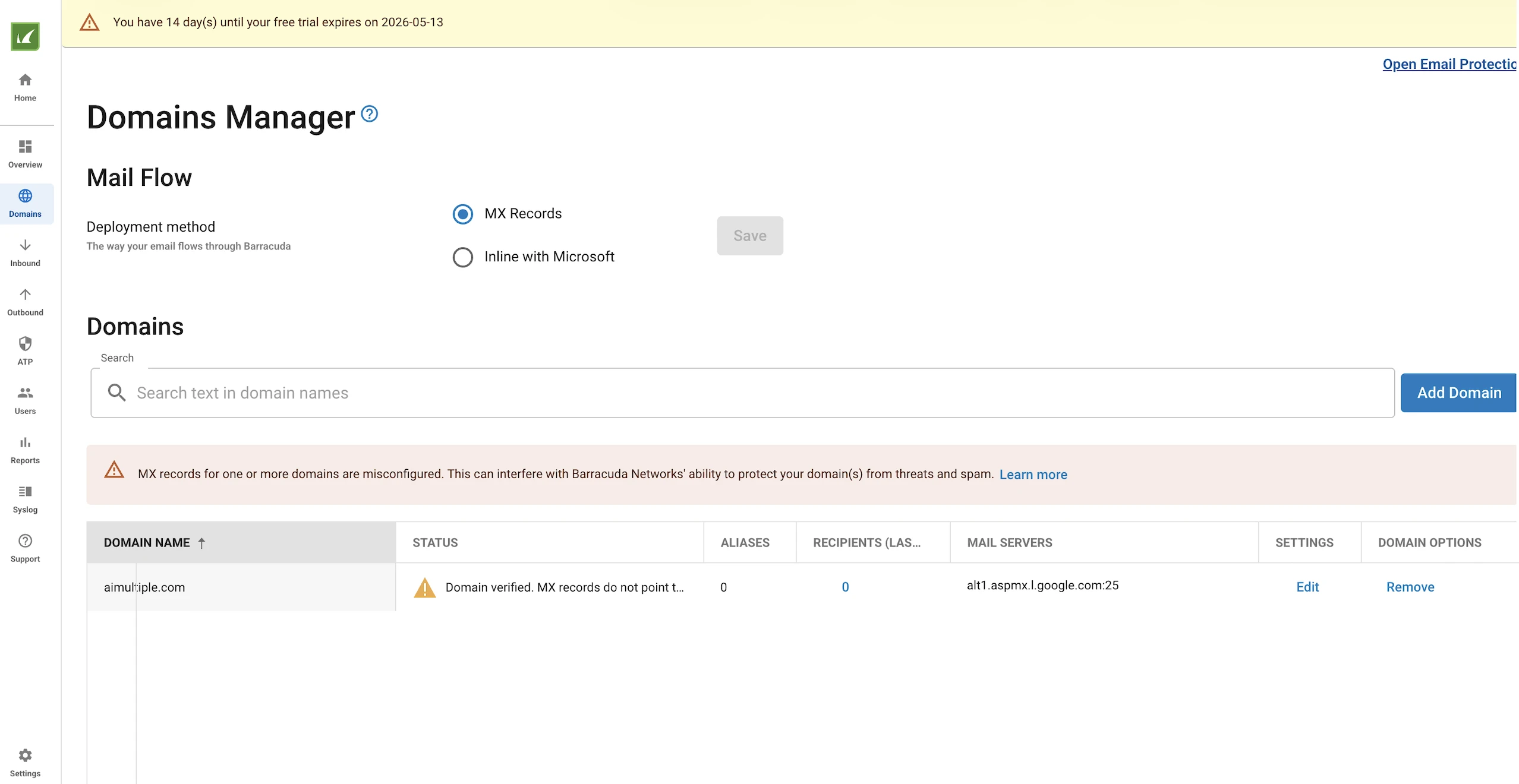
During the later stages of our configuration, we found that Barracuda lacked a native integration with Google Workspace. Instead, it gave us new MX records to replace our existing ones. When we update these MX records, incoming emails appear to reach Barracuda first.
Barracuda then filters inappropriate emails and forwards the acceptable ones. Requiring MX record changes for Google Workspace integration is a poor approach.
After that, we updated the MX records and verified them. We completed the setup and started sending emails.
While sending the emails, we observed that Barracuda rejected some SMTP requests and refused some attachments. When we performed the same test with Acronis, all emails were delivered and visible in the system. Here, Barracuda rejects some emails before they appear in the dashboard.
Although it rejects them because they are genuinely malicious, we lose visibility as a result of this automated process. In other words, we may not even know whether an attack arrived and was rejected. This is a challenge for using Barracuda for email security, as visibility is everything in security contexts. If a product arbitrarily rejects incidents and makes them invisible, it damages the security team.
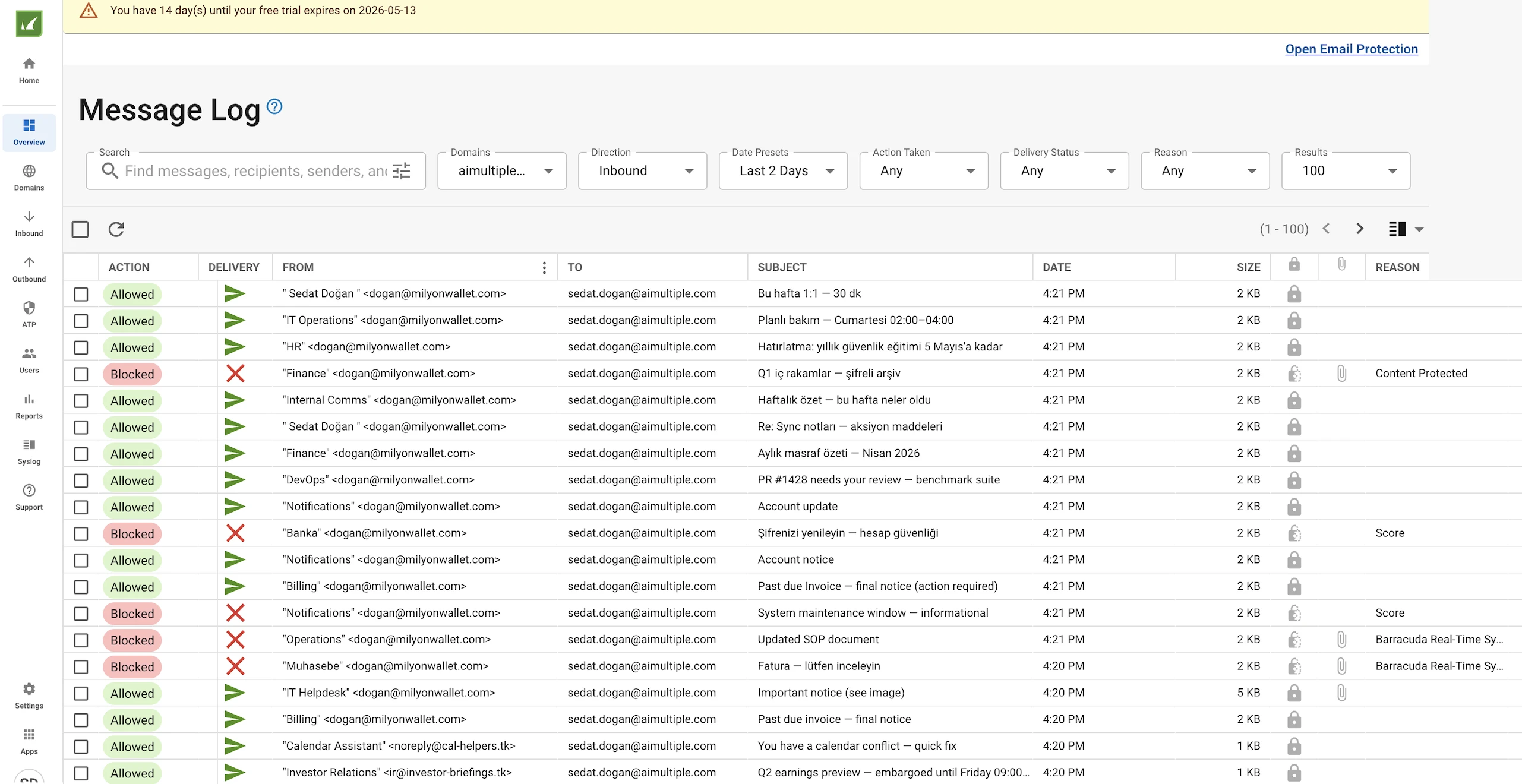
Despite these challenges, all test emails were sent. In the Barracuda dashboard, we are directed to the Message Log screen, where all scanned emails are listed.
The Message Log section includes a filtering area at the top. Here are the filtering options:
- Search: Text search across messages, recipients, senders, and other fields.
- Domains: Filters results by the selected domain.
- Direction: Filters by email direction; Inbound or Outbound.
- Date/time range: Limits results to a specific time window.
- Action taken: Filters by the action taken, e.g., Allowed, Blocked, Deferred.
- Delivery status: Filters by whether the email was delivered, failed, quarantined, etc.
- Reason: Filters by the detection reason that triggered an action (e.g., Score, DMARC, Antivirus, Content Protected).
- Results: Controls how many records are displayed per page.
We can report it as incorrectly classified. For example, one email is safe but incorrectly classified as harmful. We reported the email as safe.
Another email is blocked, but the dashboard does not provide any additional details. Therefore, Barracuda falls short in this area. It would be more useful if we could see more information on why the message is blocked, in addition to the blocking score.
In the Domains section on the left, we can view, add, and delete the domains that we want to include in mail protection, which are standard functions.
Inside the Inbound menu on the left, Barracuda provides the filters used for these controls. We can configure these filters.
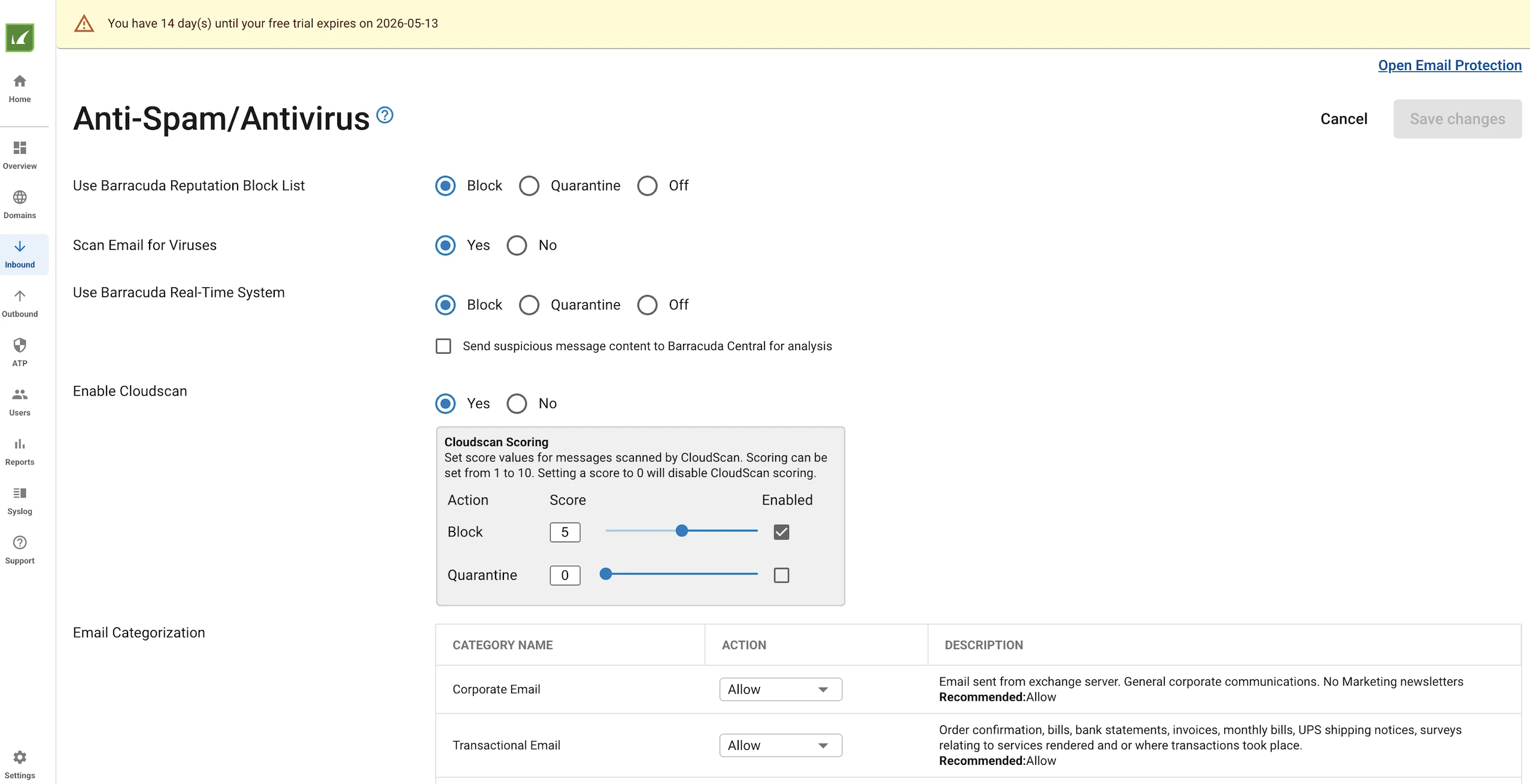
For example, under Anti-Spam/antivirus settings, we can configure:
- Use Barracuda reputation block list: Checks incoming mail against Barracuda’s database of known malicious senders. Can be set to Block, Quarantine, or Off.
- Scan email for viruses: Enables or disables virus scanning on all incoming emails.
- Use Barracuda real-time system: Cross-references emails against Barracuda’s live threat intelligence feed. Can be blocked, Quarantined, or turned off. Optionally sends suspicious content to Barracuda Central for further analysis.
- Enable cloudscan: Offloads spam scoring to Barracuda’s cloud engine. Scores range from 1 to 10; emails exceeding the threshold trigger the configured action.
- Email categorization: Classifies incoming emails by type and applies a per-category action. Categories include Corporate Email, Transactional Email, Marketing Materials and Newsletters, Mailing Lists, and Social Media, each independently set to Allow, Quarantine, Block, or Off.
- Bulk email detection: Detects and acts on bulk/mass-sent emails. When it is set to Off, bulk emails are not filtered separately.
- Bulk email exemptions: Allows specific email addresses or domains to bypass bulk email detection, defined per sender or recipient.
The Rate Limit pages define how many emails a sender IP address can send within each 30-minute period, which is a useful setting. It can prevent email abuse and sudden high-volume attacks from a single sender IP.
By limiting how many emails an IP address can send in a 30-minute period, the system can reduce the impact of:
- Spam campaigns
- Phishing bursts
- Malware distribution
- Compromised sender accounts or servers
- Denial-of-service style email flooding
On the IP Whitelist/Blacklist page, we can bypass scanning for emails coming from specific IP addresses or block them directly.
In Regional Policies, we can apply geographic blocking or whitelisting. We can also block or allow emails based on content language.
In Recipient Policies, we can configure scanning or bypass rules based on the recipient email address.
Barracuda also provides similar policies for senders. We can apply exceptions based on the sender.
There is also a dashboard where we can define exceptions based on standard email security controls such as DMARC, DKIM, and SPF.
In Content Policies, we can configure whether to scan or bypass emails based on file name or file type. We can also define scan or bypass rules based on the message body content using regular expressions.
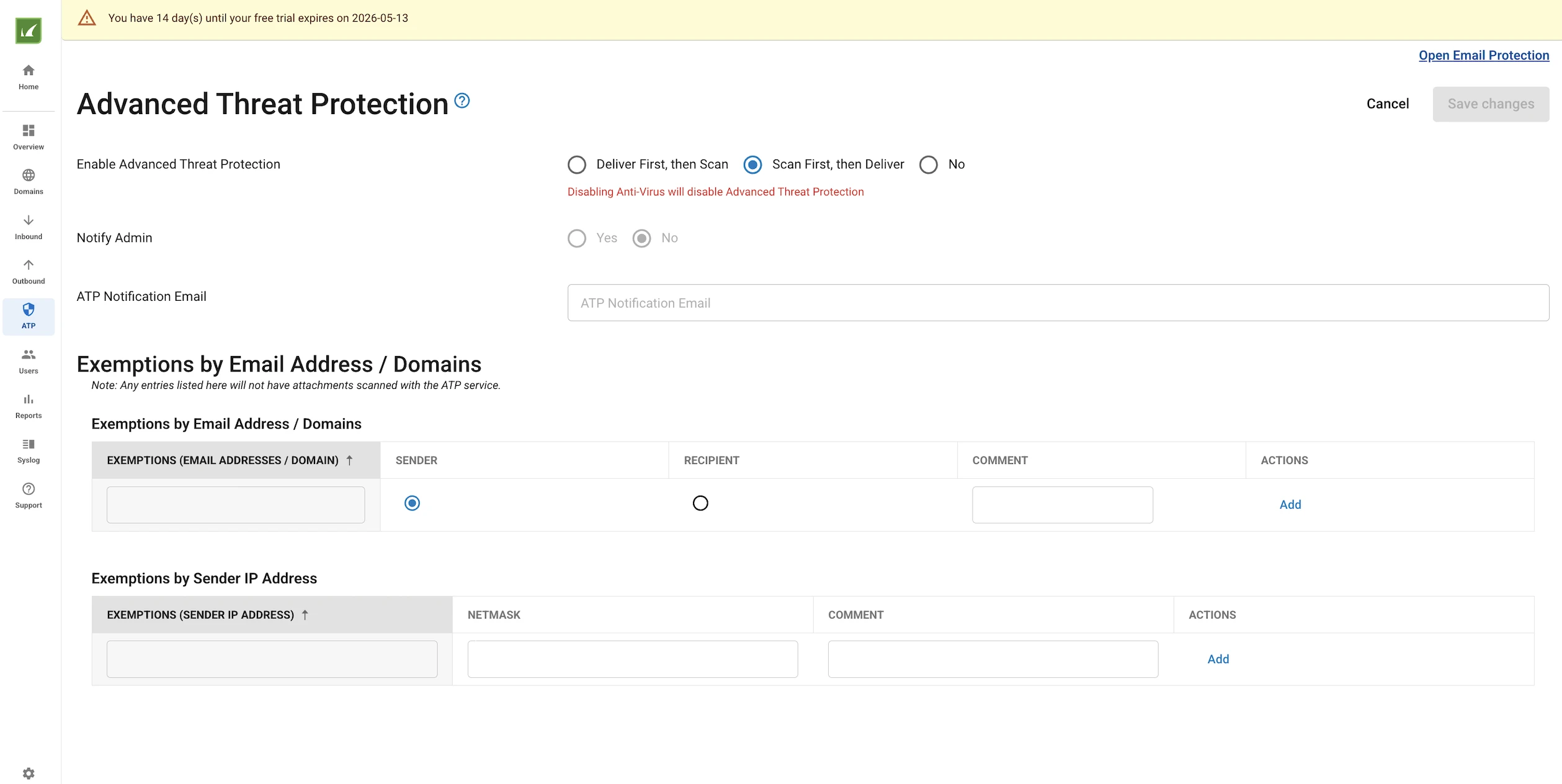
Barracuda provides Advanced Threat Protection as a subscription in addition to the regular virus scanner. Advanced Threat Protection (ATP) is a cloud-based scanning service that analyzes email attachments in a secure cloud environment to detect threats that standard virus scanners may miss. It applies to inbound messages and supports most MIME file types.
There are three modes in ATP:
- Deliver First, Then Scan attempts to scan the attachment in real time as the email arrives. If the scan completes in time and a threat is detected, the email is blocked. If the scan does not finish in time, the email is delivered immediately without waiting for the result. The scan continues running in the background, and if a threat is found afterward, the recipient is notified, but the email has reached their inbox. This means the recipient could open an infected attachment before the threat is identified.
- Scan First, Then Deliver scans the attachment before delivery. If a threat is detected, the email is blocked. If clean, it is delivered. Emails pending a scan appear in the Message Log with “Pending Scan” as the reason. If a message remains deferred for more than four hours, it is quarantined. This mode is more secure but may delay delivery.
- Disabled: ATP is turned off entirely.
The key trade-off here is between speed and security. “Deliver First” prioritizes delivery speed but introduces a window of risk. “Scan First” eliminates that risk but may delay or defer messages with attachments.
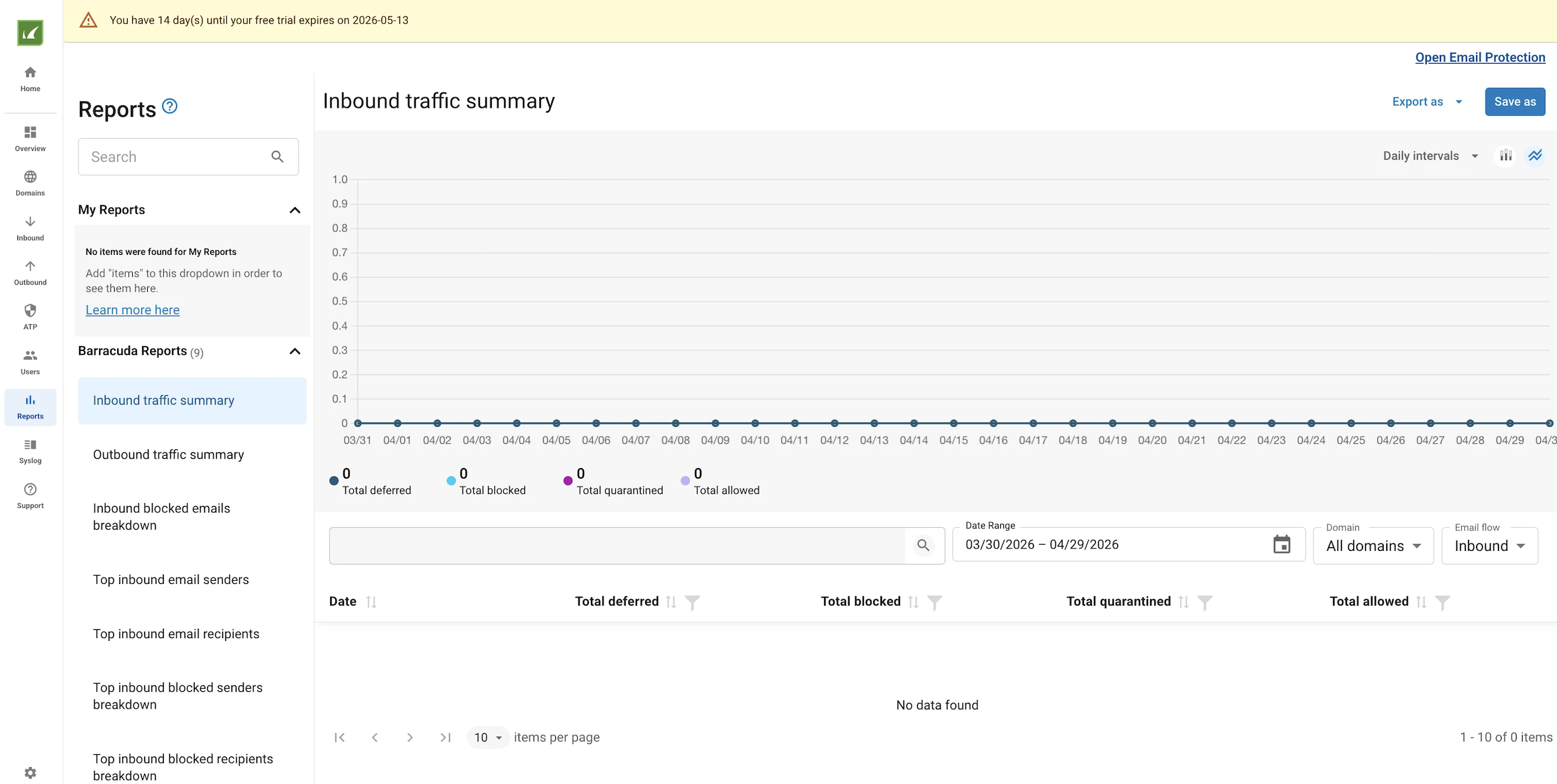
In the Reports section, Barracuda creates detailed reports on email security:
- Inbound/outbound traffic summary: Overview of all inbound and outbound email activity, broken down by deferred, blocked, quarantined, and allowed.
- Inbound blocked emails breakdown: Detailed breakdown of why inbound emails were blocked.
- Top inbound email senders/recipients: Shows the most frequent senders/recipients of inbound email.
- Top inbound blocked senders breakdown: Lists the senders whose emails are most frequently blocked, with reasoning.
- Top inbound blocked recipients breakdown: Shows the internal recipients who are most frequently targeted by blocked emails.
- Top outbound email senders: Overview of the internal users sending the highest volume of outbound email.
- Top outbound blocked senders: Shows the internal users whose outbound emails are most frequently blocked.
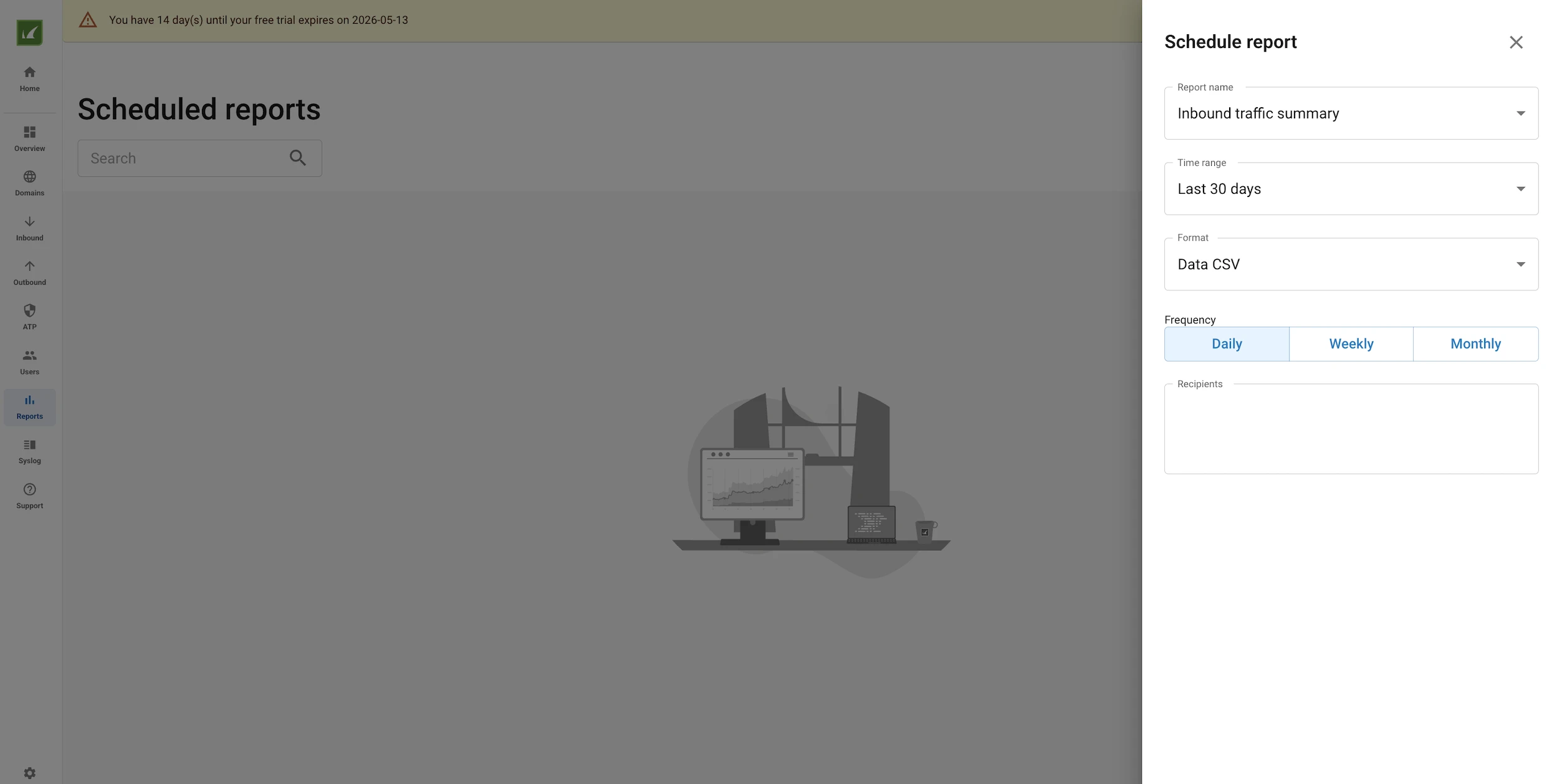
Additionally, we can schedule automated reports, which is a useful feature. Instead of logging in repeatedly to check dashboards, we can receive regular summaries of threats, quarantined messages, spam trends, malware detections, impersonation attempts, policy actions, and user risk. Scheduled reports can also help users identify patterns early, such as a rise in phishing emails, repeated attacks against specific users, or an increase in blocked malicious attachments.
The Syslog menu on the left allows us to forward all these records to a log server of our choice. This is a useful feature for SIEM integrations.
Overall, the product offers a wide range of features, but underperforms in threat detection in this test. A significant portion of the configuration is left to the user, raising the question of whether the added value justifies the overhead, particularly for organizations that use Google Workspace or Microsoft 365 Compliance Center.
Key features of cloud email security solutions
Cloud email security platforms differentiating capabilities
User-focused security (human layer)
Many incidents start with a user action. That is why modern email security platforms include tools that guide behavior rather than relying on filtering.
- Contextual warning banners can alert users when a message appears suspicious.
- Training is also becoming more adaptive. Instead of generic simulations, users receive guidance tailored to their interaction patterns.
Unified security & platform integration
Integration with endpoint and identity systems allows for coordinated responses. For example, if an email leads to credential theft, the system can trigger actions beyond the inbox.
Centralized dashboards give teams a clearer view of their overall security posture, reducing miscommunication across tools.
Data protection, encryption & compliance
Email often carries contracts, financial details, and other sensitive data. Protecting this information requires more than threat detection.
- Encryption ensures that messages remain private in transit and at rest. Data loss prevention policies help prevent unauthorized sharing, whether accidental or intentional.
- Compliance features support regulatory requirements, including audit trails and retention policies. This is especially relevant for organizations that operate across borders and handle data subject to strict legal or industry-specific rules.
 Add as preferred source
Cloud email security benchmark methodology
We benchmarked three email security products: Acronis Email Security (powered by Perception Point), Sophos Email Security, and Barracuda Email Protection.
The benchmark included 100 end-to-end tests and followed four principles.
- Coverage-driven: Every test maps to a capability the vendor publicly claims to provide.
- Difficulty-weighted: Missing a simple 1/10 test signals a serious product gap. Missing a 9/10 test is more understandable because those cases reflect expert-level detection problems. The scoring method separates these cases rather than treating all misses equally.
- Reproducible: The benchmark is run with a self-contained PHP test harness and checked by a separate verification suite. Before any test email is sent, the verifier performs more than 1,800 checks to confirm that the test payloads are complete, valid, and correctly configured.
- Ethical: Malware tests use the EICAR antivirus test string. Phishing URLs point to inert or non-existent canary infrastructure. All test mailboxes are owned by the testing team.
We selected tests so that each vendor’s public claims were exercised at least once. We prioritized threats that all three vendors claim to detect to keep the head-to-head comparison fair. We also included a smaller number of vendor-specific cases where they were relevant. For example, conversation hijacking is a core Barracuda claim and deepfake-style GenAI lures are most often promoted by AI-first vendors.
The benchmark is organized into eleven categories. Each category tests a different detection mechanism. Test counts are shown in parentheses, with 100 tests in total.
Category A: Spam (9 tests)
This category covers bulk pharmaceutical ads, cryptocurrency pump-and-dump emails, lottery scams, payday loans, dating-platform openers, and B2B SEO cold outreach.
Most tests in this category are intentionally easy. Two tests, graymail marketing and B2B cold outreach, sit closer to the false-positive boundary because aggressive filtering can block legitimate business email.
Category B: Known malware using the EICAR test string (9 tests)
This category tests EICAR delivery across common and nested attachment formats:
- Plain .txt attachment,
- Regular ZIP,
- Password-protected ZIP with the password included in the email body,
- ZIP nested inside another ZIP,
- EICAR with an .exe extension to test extension and content mismatch handling,
- .tar.gz, three-level recursive archive,
- Single-file .gz without a tar wrapper,
- EICAR with four kilobytes of prepended garbage to test offset tolerance.
These tests exercise archive unpacking, format support, and password extraction from the email body. These are baseline capabilities for modern email gateways.
Category C: Carrier file types (10 tests)
This category tests file formats commonly used to carry or trigger malicious behavior. The set includes:
- PDF with embedded JavaScript and an OpenAction trigger,
- HTML smuggling using URL.createObjectURL on a Base64-encoded blob,
- SVG with an onload script and remote XHR,
- Windows .lnk shortcut with a PowerShell payload in the argument block,
- PDF/ZIP polyglot file,
- HTML Application .hta with VBScript,
- Windows Script Host JavaScript dropper using XMLHTTP and ADODB.Stream,
- ISO 9660 image containing EICAR,
- Internet Shortcut .url file,
- Excel Internet Query .iqy file.
This is one of the more discriminating categories because product results vary widely across these carrier types.
Category D: URL phishing (10 tests)
This category measures URL analysis across direct links, redirects, obfuscation, and non-body locations. It includes:
- Direct phishing URL on a suspicious TLD,
- Bitly-shortened destination,
- Multi-hop redirect chain through Google’s open redirector and t.co,
- Punycode IDN homoglyph using Cyrillic “а” in раypal.com,
- HTML-hidden URL using zero-width characters and one-pixel white text,
- URL present inside a PDF annotation,
- URI carrying Base64-encoded HTML with a phishing link,
- Extremely long URL with the real host buried in the query string,
- Open-redirect parameter on a legitimate-looking host,
- Google AMP cache URL that hides the phishing destination behind google.com/amp/s/.
Category E: QR-code phishing (8 tests)
This category tests whether products can extract and inspect phishing URLs hidden inside QR codes. The set includes:
- Inline PNG QR codes for MFA re-enrollment,
- DocuSign signing,
- Payslip access,
- Shipment redelivery notice
- Voicemail access
- Bank 2FA reset.
It also includes evasion variants: a QR code embedded inside a PDF with no QR content in the email body, a QR code delivered as an SVG-wrapped image, and a QR code set as a CSS background-image data URI instead of an <img> tag.
These cases test whether the scanner examines images outside the most obvious HTML containers.
Category F: Brand and domain impersonation (9 tests)
This category tests sender, domain, brand, and header impersonation and includes:
- Display-name spoofing from a generic Gmail account,
- Typosquat domain using m1crosoft-account.com,
- IDN punycode homoglyph for Apple
- Subdomain abuse through microsoft.support-team-portal.tk
- Microsoft brand-kit imitation using the real logo and Segoe UI styling
- Sender and From header mismatch
- Local bank impersonation
- An eCommerce company typosquatting
- Authentication-Results header injection where the attacker adds forged spf=pass, dkim=pass, and dmarc=pass values to the message.
The last case tests whether downstream parsers trust attacker-supplied authentication headers rather than validating the actual upstream results.
Category G: BEC and spear phishing without payloads (9 tests)
This category focuses on social engineering without malicious attachments or links and includes:
- CEO wire-transfer request sent from a Gmail account,
- Vendor Email Compromise banking-change pretext,
- Employee self-service salary redirect,
- Online gift-card scam from a CFO impersonator
- Conversation hijacking using a Re:Re: subject and forged In-Reply-To headers,
- Confidential evidence request from a fake law firm,
- External head-hunter outreach with an attached resume,
- WhatsApp two-factor authentication takeover pretext,
- M&A insider pretext that combines confidentiality language with urgency.
Category H: Extortion and scams (9 tests)
This category covers common scam and extortion patterns. The tests include:
- Email using an old leaked password,
- Fake invoice with a malicious payment link in a PDF,
- Advance-fee letter,
- Confiscation threat from the tax authority,
- DDoS extortion against a website,
- Fake Apple iCloud lock notice with an unlock link,
- Courier customs-fee scam
- Doxing extortion,
- Stuck-in-customs relative scam.
Category I: GenAI-quality phishing (10 tests)
This category tests polished phishing emails that remove the obvious clues older systems often rely on. The set includes:
- IT helpdesk re-verification email with structured steps and a brand button,
- Fake board pre-read with confidentiality language and a workspace link,
- Microsoft 365 tenant-policy update requiring re-consent within seven days,
- HR Code of Conduct e-signature request,
- Customer success follow-up after a fictitious meeting,
- Meeting-recap impersonation,
- Legal NDA from a fictitious counterparty,
- CISO-style critical-CVE advisory,
- Investor-relations earnings preview with embargo language,
- Calendar-conflict resolver requiring one-time SSO sign-in.
Every email in this category was written to read like a competent native-English business message. The tests deliberately avoid older phishing giveaways such as broken grammar, awkward phrasing, and obvious brand mismatches.
Category J: Evasion techniques (9 tests)
This category tests obfuscation that can break shallow content inspection and includes:
- Zero-width Unicode characters inside trigger words,
- OCR bypass where the whole phishing message is rendered as a PNG with no scannable body text,
- Right-to-left override character in an attachment filename,
- Double-extension file name,
- CSS-hidden lure where the rendered text appears benign while the DOM contains the phishing content,
- RFC 2047 encoded-word subject,
- URL with hex-encoded characters in the host,
- Subject homoglyph using Cyrillic “е” for Latin “e”,
- URL hidden in a data-* HTML attribute and retrieved at click time by inline JavaScript.
Category K: Control set and false-positive testing (8 tests)
The control set contains legitimate business emails that should pass without warning and include:
- Internal team notifications,
- Monthly expense reports,
- Meeting follow-ups,
- Weekly digests,
- Password-protected ZIP files used for legitimate internal sharing,
- Training reminders,
- IT maintenance notices,
- One-on-one scheduling emails.
Any product that flags one of these messages receives a false-positive penalty.
Email security benchmark limitations
We excluded several categories because they require infrastructure or conditions beyond a one-shot benchmark:
- Time-of-click URL flipping: This attack delivers a URL that appears benign at the time of delivery and later redirects to a phishing destination. Testing it would require a stateful HTTP server that mutates its content, plus a user-side click action.
- Account takeover and lateral phishing: This would require control of an internal mailbox, which was outside the benchmark setup.
- Sandbox-aware dynamic malware: Real polymorphic samples that detect virtualization and avoid detonation were excluded for ethical reasons.
- Live phishing-kit landing pages: All URLs resolve to inert hosts. The benchmark does not test the post-click experience.
The Group S sender requires an SMTP relay that allows misaligned From headers. Cloud SMTP services usually reject these tests at the network level. When a permissive relay is unavailable, the benchmark degrades to Group L, which leaves 38 content-driven tests.
Two-sender architecture
Many email security tests overlook an important distinction between content-driven and sender-identity-driven attacks. Some threats are dangerous because of their message bodies or attachments, regardless of who sends them. Others are dangerous because the email claims to come from someone it does not represent. These two classes require different sending setups.
We split the benchmark into two sender groups.
- Group L, Legit, 38 tests: These emails are sent from an authenticated SMTP service. SPF, DKIM, and DMARC align correctly for the sending domain. The display name changes by test, such as Finance, IT Helpdesk, or the tester’s real name, but the From address remains the authenticated sender address.
- Group L is used for content-driven categories: K, B, C, J, and the two URL-phishing tests, where the URL is the threat regardless of the sender.
- Group S, Spoof, 62 tests: These emails are sent through a permissive SMTP relay that does not enforce From-domain alignment. The From address is whatever the test case specifies, so SPF and DMARC alignment fail by design.
- Group S is used for sender-identity-driven categories: A, most of D, E, F, G, H, and I.
This split reflects real attacker behavior. Phishing operators often use cheap virtual servers and throwaway domains because mainstream cloud SMTP services, such as Gmail, Office 365, and AWS SES, with verified domains, prevent mail from being sent with a misaligned From header.
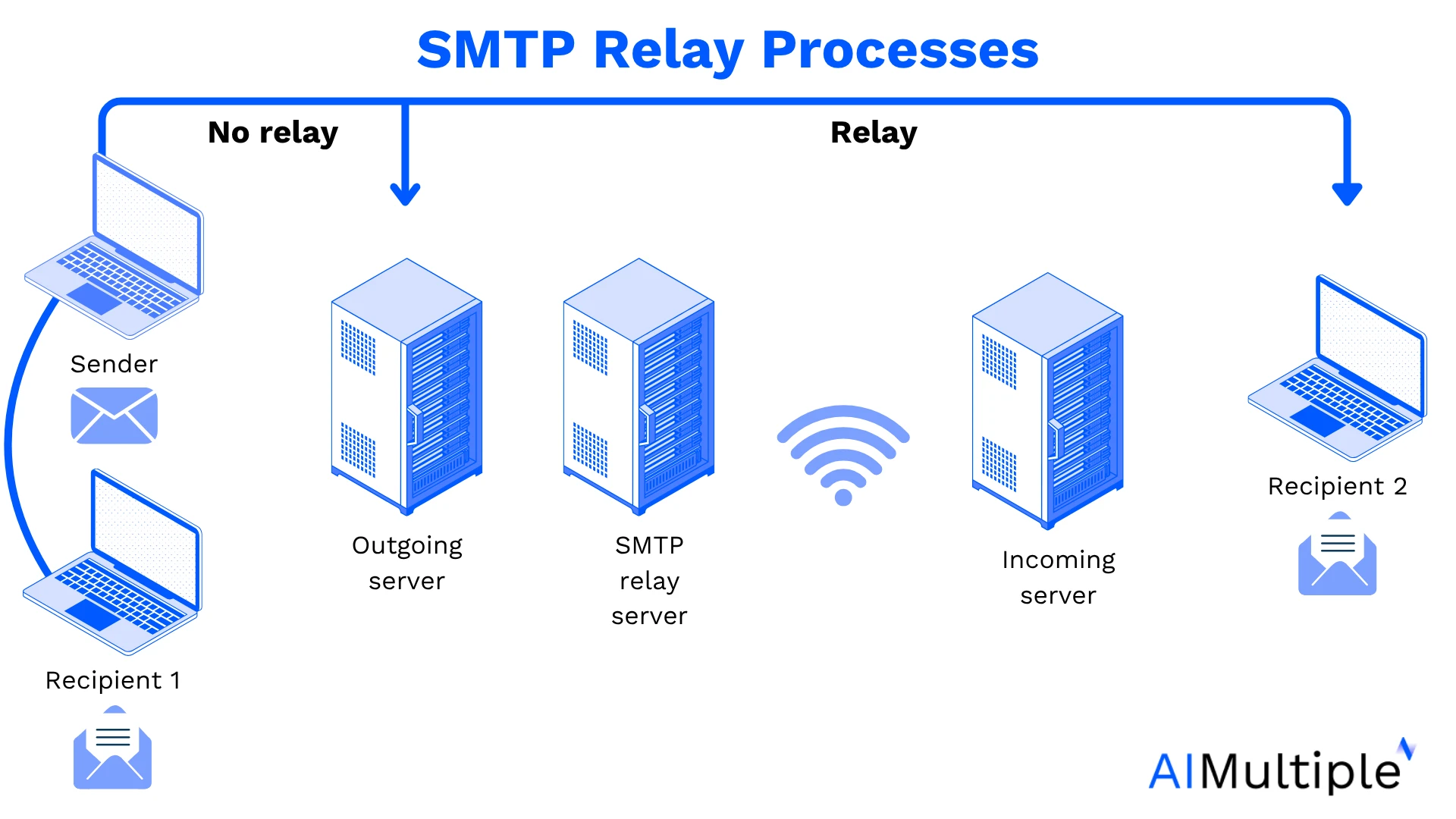
Figure 1: Figure showing how an SMTP relay server works. An SMTP relay server is a third-party mail server that receives emails from a sender and forwards them to recipient servers outside the sender’s own mail provider domain.
Difficulty weighting
Each test has a difficulty rating from 1 to 10. The rating indicates how hard a competent email security product should find the test.
- 1 to 2, trivial: These are textbook signatures with no meaningful obfuscation. Missing them indicates a fundamental detection gap. Examples are pharmaceutical spam, plain EICAR in a ZIP, and a 419 Nigerian letter.
- 3 to 4, well-known: These are familiar patterns that modern products should catch. Examples include PDF JavaScript, leaked-password sextortion, and CEO display-name spoofing.
- 5 to 6, intermediate: These cases require stronger analysis, such as modern AI, sandboxing, or computer vision, including HTML smuggling, IDN homoglyph URLs, and inline QR-code phishing.
- 7 to 8, advanced: These are edge cases that stronger products handle consistently, such as PDF/ZIP polyglots, multi-hop redirect chains, brand-kit visual impersonation, and image-only OCR bypass lures.
- 9 to 10, expert: These are genuinely difficult cases where catching is a strong result and missing is common across the industry. Examples include forged-thread conversation hijacking, a GenAI-quality customer-success follow-up, and a fake legal NDA from a previously unknown counterparty.
- Control tests: K-category messages should pass. Any detection in this category counts as a false-positive.
The category averages follow the intended difficulty curve: A spam averages 2.2/10, B EICAR averages 2.8/10, H extortion averages 3.8/10, C carrier files averages 5.0/10, F brand impersonation and J evasion average 5.6/10, D URL phishing averages 5.8/10, E QR-code phishing averages 6.8/10, G BEC averages 6.8/10, and I GenAI phishing averages 8.2/10.
Benchmark scoring
Each product receives one of five verdicts per test:
- BLOCK: The message is quarantined or rejected (2 points).
- WARN: The product injects a banner, sends the email to junk, or strips the attachment (0.5 points).
- LATE: The message is delivered first, then removed post-delivery (1 point).
- MISS: The message reaches the inbox without warning (0 points).
- FP: A control-set message is incorrectly flagged (-2 point penalty).
Detection rate is calculated as total points divided by the maximum possible score for attack tests, then expressed as a percentage. The maximum possible score equals the number of attack tests multiplied by two.
The false-positive rate is reported separately. A product that reaches 90% detection by blocking legitimate mail poses more operational risk than one that reaches 80% detection with no false-positives.
Reproducibility and tooling
The benchmark runs from a single self-contained PHP script. The script builds 100 MIME messages in memory with a custom multipart builder. It generates the payloads locally, including ZIPs, AES-256-encrypted ZIPs, tar.gz files, single-file .gz files, PDFs with JavaScript actions, HTML smuggling samples, SVG files with onload JavaScript, Windows .lnk files with the correct Shell Link CLSID and UTF-16LE argument block, and a minimal ISO 9660 disc image.
The script sends each test through the correct SMTP path based on its sender group.
Every message includes trace headers: X-Bench-Id, X-Bench-Run, X-Bench-Product, X-Bench-Category, X-Bench-Case, and X-Bench-Group. These headers make each test traceable across inboxes, quarantine consoles, and product logs.
A separate verification harness runs more than 1,800 sanity checks before transmission. It validates that every test has the required fields, every difficulty rating is within [1, 10] or zero for controls, and EICAR is present and recoverable from every B-category attachment, including password-protected and triple-nested archives.
The verifier also checks that PDFs contain valid %PDF- headers and %%EOF markers, PNGs contain valid signatures and IEND chunks, SVGs parse as well-formed XML, the LNK file has the correct Shell Link CLSID and expected PowerShell argument string, the ISO 9660 Primary Volume Descriptor appears at sector 16 with the correct \x01CD001 signature, and group inference matches the documented Group L and Group S split.
A third script processes the per-product CSVs after manual verdict entry. It produces a comparative report with a per-test side-by-side verdict table, per-category detection rates, total scores, detection-rate percentages, false-positive counts, and three forensic sub-tables:
- trivial-but-missed cases, defined as difficulty ≤ 2 with at least one MISS
- high-difficulty-yet-caught cases, defined as difficulty ≥ 8 with at least one BLOCK
- all false-positive incidents
Ethical and operational constraints
No real malware was created or transmitted. Malicious attachments use either the EICAR antivirus test string, a 68-character test document defined by the European Institute for Computer Antivirus Research, or benign demonstrators. Examples include a PDF whose JavaScript calls app.alert, an HTML page that uses URL.createObjectURL on the EICAR string, and an SVG whose onload calls a non-existent endpoint.
No live phishing infrastructure was used. Test URLs resolve to one of three safe destinations: the .invalid reserved TLD defined in RFC 2606, placeholder .tk domains under our control that serve a 404, or parody hosts such as m1crosoft-account.com and xn--pple-43d.com registered for the benchmark and serving no content.
No credential-harvesting page was deployed. All test mailboxes are owned and monitored by the testing team. SMTP credentials are scoped to the benchmark and rotated after each engagement.
Cite this benchmark
Pick the format that matches where you're publishing. Pasting the link version into your CMS preserves the backlink.
@misc{dogan2026,
  author = {Dogan, Sedat},
  title  = {{Email Security Solutions: Acronis Email Security & Sophos}},
  year   = {2026},
  month  = sep,
  howpublished    = {\url{https://aimultiple.com/email-security-solutions}},
  note   = {AIMultiple. Retrieved September 30, 2026}
}Results and timestamps of 15 data points. Download the summary data shown in this article's charts and tables as a ZIP file containing 4 CSV files.
Want the granular data behind it? Join Premium
- Has 20 years of experience as a white-hat hacker and development guru, with extensive expertise in programming languages and server architectures.
- Is a board advisor at a VC investing in early-stage technology firms and at Ödeal, a regional digital payment platform serving 125,000 merchants.
- Has led the technology infrastructure and cybersecurity of seven national elections, and has been recognized in the cybersecurity Hall of Fame by global technology leaders including Twitter.






Be the first to comment
Your email address will not be published. All fields are required. Comments are left in their original language.