


Top 12 Patch Management Software Including NinjaOne

Unpatched systems like outdated servers or forgotten workstations are low-hanging fruits for attackers. Patch management software automates the process of finding, testing, and deploying updates before vulnerabilities turn into breaches.
- We analyzed the leading patch management solutions based on features, user reviews, and pricing.
- Additionally, we benchmarked three platforms: NinjaOne, Acronis, and ManageEngine Desktop Central by deploying them to identical test servers.
Top 12 software analyzed
*Based on the total number of reviews and average ratings (on a 5-point scale) from leading software review platforms.
See vendor selection criteria.
1. NinjaOne Patch Management
NinjaOne patches Windows, macOS, and Linux from a single console. The system scans endpoints, identifies missing patches, and deploys them automatically or on a schedule you define.
Cross-platform coverage without separate tools. Most patch managers handle Windows well but struggle with Linux and macOS. NinjaOne treats all three equally.
Automation details: Set approval rules once. Critical security patches deploy automatically. Feature updates wait for manual approval. The system generates deployment logs for compliance audits, which are helpful when regulators ask, “Show me proof you patched CVE-2024-XXXX.”
Pricing: Pay-per-endpoint model:
- 10,000+ endpoints: $1.50/month per device
- 50 or fewer endpoints: $3.75/month per device
- Volume-based pricing in between
See NinjaOne’s interactive demo of autonomous patch management.
NinjaOne folded its patch approval workflow into an AI layer called Patch Intelligence, which analyzes vendor advisories and real-world deployment telemetry to flag patches likely to cause instability before they roll out, and pauses risky OS updates automatically instead of pushing them on the standard schedule.1
The company also closed a Series C extension of more than $400 million in June 2026, pushing its valuation to $12.3 billion and its total funding past $1 billion, money it says is going toward building AI into the patching, endpoint, and monitoring layers of the existing platform rather than into a new product line.2 For teams evaluating patch tools on the criteria in this article, the practical effect is fewer manual approve/reject decisions on routine updates, with review reserved for the patches the model itself flags as risky.
2. Acronis RMM
Acronis RMM is part of Acronis Cyber Protect Cloud. It patches Microsoft products and more than 300 third-party Windows applications. With fail-safe patching, it takes a full-image backup before applying a patch, so the system can be restored if an update breaks it.
Patch detection: On the same Windows Server, checked on the same day, Acronis listed dozens of available patches while NinjaOne listed one or two. We did not determine the cause; scan timing, NinjaOne’s patch settings (OS patching was off by default), and Acronis’s third-party application coverage may each have contributed.
Severity and stability ratings: Each patch shows Microsoft’s severity rating and an AI-based stability score to help decide which updates to hold back. We did not see these columns in NinjaOne’s patch list during our test; NinjaOne has since added AI-based patch stability checks.
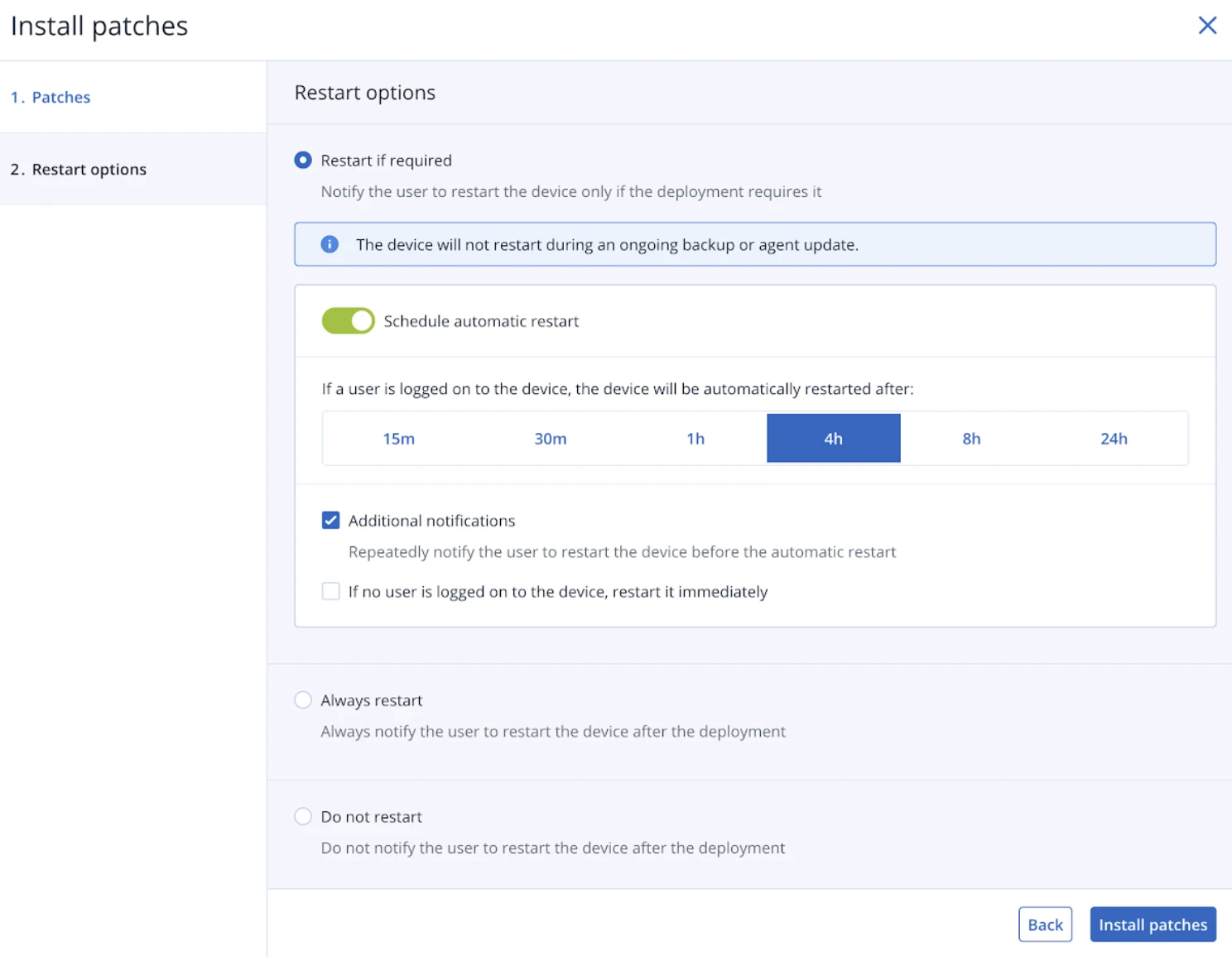
Restart scheduling: Acronis offers four restart policies immediate, scheduled time, only if required, or never. This is the most granular restart control of the three platforms we tested, and it matters for production servers where unnecessary reboots cause downtime.
Web Client: Acronis is accessible via web client, which is a meaningful advantage for cross-device management without installing a desktop application. However, the web client experience is slightly behind that of dedicated desktop RMM clients in terms of responsiveness and feature depth.
Installer note: The Acronis agent is large (about 1.1 GB on Linux and 588 MB on macOS). On our Mumbai macOS instance, with the tenant in a European data center, the download took 45 minutes. Installs in the other five regions had no download delays.
Organizations deploying in India should validate tenant-region selection and expected download performance with Acronis or their reseller before rollout.
3. SolarWinds Patch Manager
SolarWinds Patch Manager integrates with the broader SolarWinds ecosystem (Network Performance Monitor, Server & Application Monitor, etc.).
Patch capabilities: Automated patching for Windows servers and workstations. WSUS integration extends Microsoft’s native patching with better reporting and control.
Enterprise focus: Handles thousands of endpoints across multiple sites. Detailed reporting shows patch compliance by department, location, or device type, useful for enterprise IT and compliance teams.
3. Atera
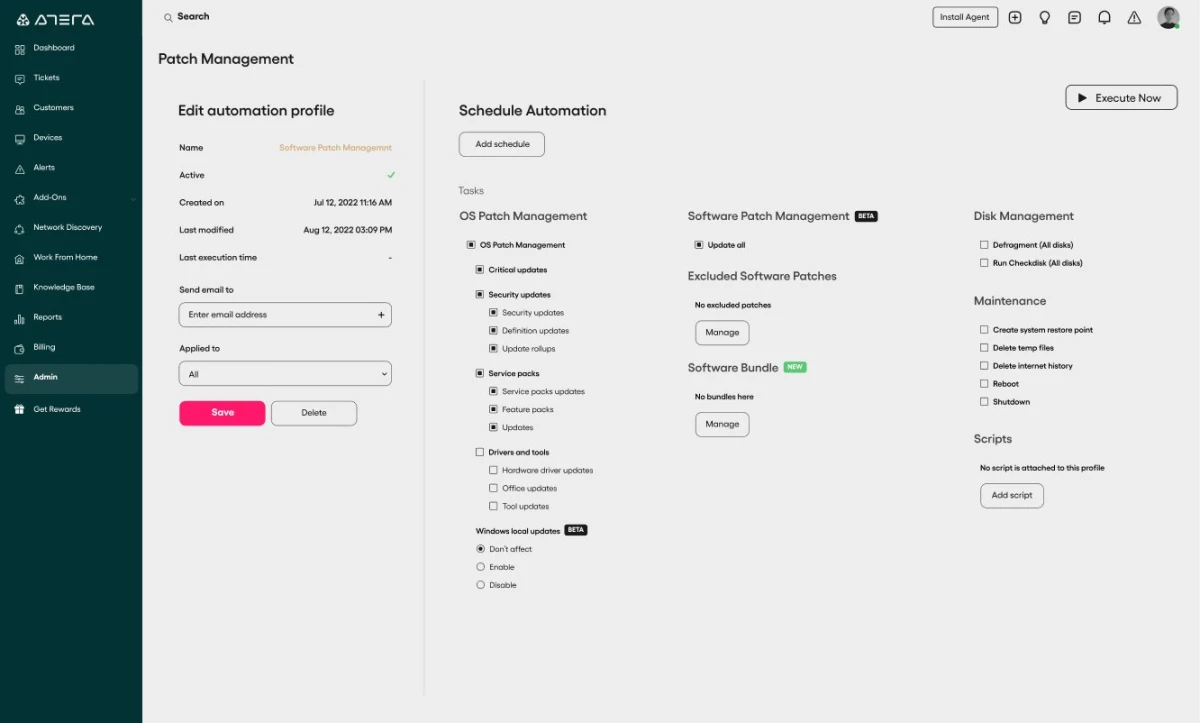
Atera bundles patch management with RMM, remote desktop, ticketing, and network discovery. IT teams get everything in one platform, eliminating the need to juggle multiple tools.
Patch management approach: Automated scanning identifies missing patches across Windows and third-party applications. Deploy patches individually or in batches. Schedule deployments during maintenance windows to avoid disrupting users.
4. Datto RMM
Datto combines RMM, patch management, PSA, and backup into a single platform. Acquired by Kaseya in 2022, it continues operating as a standalone product.
Patch capabilities: Automated patch deployment for Windows OS and applications. Integration with backup means you can snapshot systems before major updates, so you can roll back if patches break something.
MSP focus: Built for managed service providers. Multi-tenant architecture lets you manage multiple clients from a single console while keeping their data separate.
5. Patch My PC
Patch My PC specializes in third-party application updates for Microsoft environments (Configuration Manager and Intune). It doesn’t replace your OS patching it completes it.
What it patches: 300+ third-party applications: Adobe Reader, Chrome, Firefox, Zoom, Slack, 7-Zip, VLC, and more. These applications don’t get patched by Windows Update, creating gaps in your security posture.
How it works: Integrates directly with ConfigMgr or Intune. New application versions are automatically deployed as deployable packages. No manual downloading, packaging, or testing required.
6. N-able N-central
N-central provides RMM with built-in patch management, backup, and automation. The platform targets MSPs and internal IT teams managing distributed infrastructure.
Patch management features: Automated scanning and deployment for Windows, macOS, and over 200 third-party applications. Patch approvals can be delegated to different teams, let help desk approve Chrome updates while security reviews OS patches.
Automation engine: Create scripts that run before or after patches. For example: stop a service, apply a patch, restart the service, verify the service is running, and send a notification.
7. LogMeIn Resolve
Previously called GoTo Resolve, this platform combines patch management with remote support, ticketing, and remote access.
Patch approach: Automated patch deployment for Windows and major applications. The system prioritizes critical security updates and lets you defer feature updates.
8. Kaseya VSA
Kaseya’s Virtual System Administrator (VSA) offers cloud-based RMM with patch management, security, and automation capabilities.
Patch capabilities: Windows OS patches, third-party applications, and driver updates. The system can patch offline devices when they reconnect useful for laptops that aren’t always on the network.
Security integration: VSA includes endpoint detection and response (EDR) alongside patch management. Detect threats and patch vulnerabilities from the same console.
9. Automox
Automox operates entirely in the cloud, with no on-premises servers required. Agents connect directly to Automox’s cloud platform, making it ideal for distributed workforces.
Cross-platform patching: Windows, macOS, Linux, and 100+ third-party applications. Write custom scripts in PowerShell, Bash, or Python to handle edge cases that the built-in policies don’t cover.
Policy-based management: Create patch policies once, apply to device groups. Laptops might get patches weekly, while servers patch monthly during maintenance windows. The system enforces policies automatically.
10. Microsoft Intune
Intune provides cloud-based endpoint management with built-in patch management. Organizations already using Microsoft 365 get Intune integration without additional infrastructure.
What Intune patches: Windows 10/11 updates, including feature, quality, and driver updates. Works with Windows Update for Business to control update timing and deployment rings.
Limitations: Strong for Windows, weak for third-party applications. You’ll need additional tools (like Patch My PC) to handle Adobe, Chrome, Zoom, and other non-Microsoft software.
11. Acronis Cyber Protect Cloud
Acronis combines patch management with backup, disaster recovery, and cybersecurity into a single platform. The integrated approach means you can snapshot systems before patching, and roll back if updates break something.
Patch Detection: Our benchmark testing revealed that Acronis detected patches that NinjaOne missed on identical servers. When we checked the same Windows Server through both platforms on the same day, NinjaOne showed zero pending patches while Acronis found dozens.
This comprehensive detection matters for compliance. If your tool doesn’t see available patches, you can’t deploy them, leaving systems vulnerable even though fixes exist.
12. ManageEngine Desktop Central (Endpoint Central MSP)
ManageEngine provides patch management as part of its unified endpoint management platform. The solution handles Windows, macOS, Linux, and 850+ third-party applications.
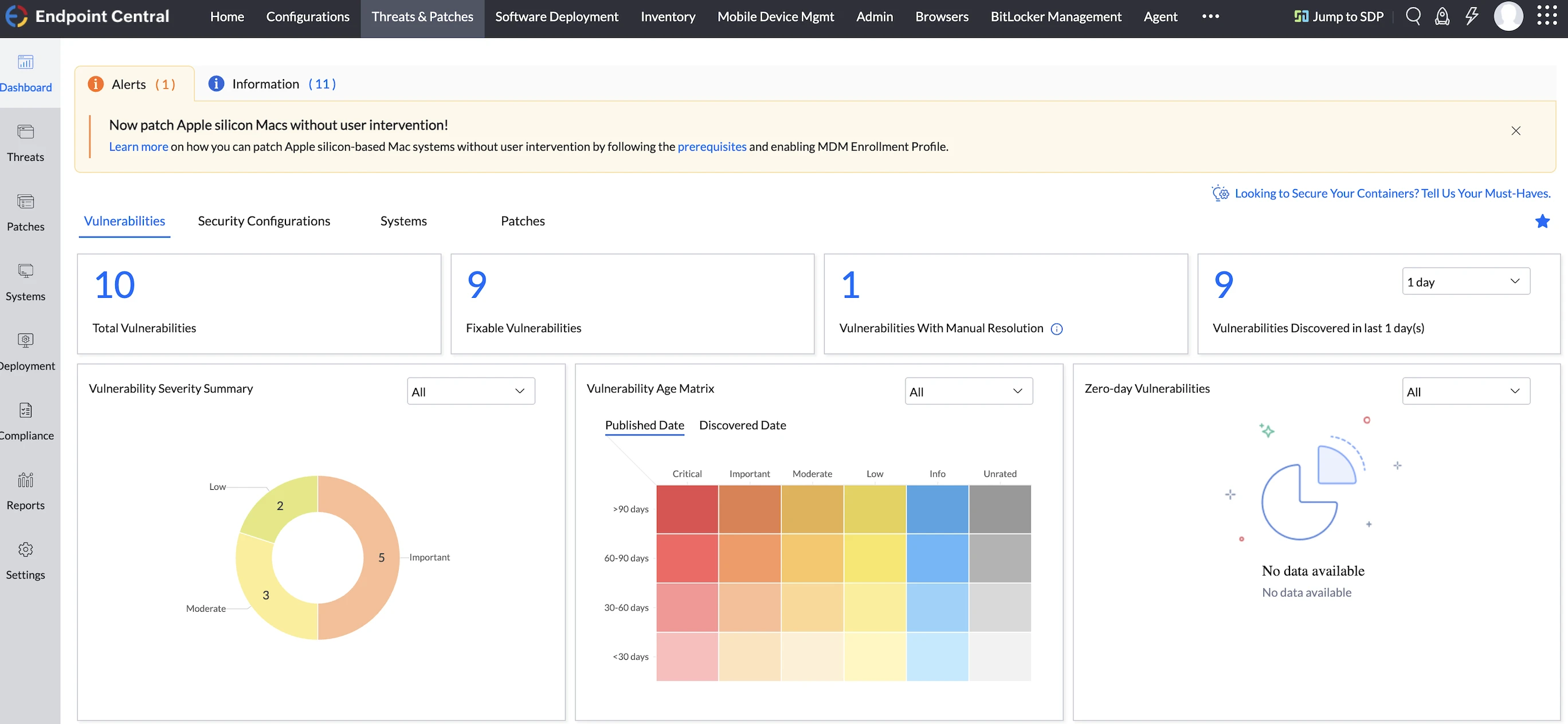
Centralized Patch Dashboard: The “Threats & Patches” section in the main menu displays patch statistics across all managed servers. See overall patch compliance status for your entire infrastructure at a glance, which servers are current, which are missing critical updates, and which have pending deployments.
Patch management benchmark results
We tested NinjaOne, Acronis Cyber Protect Cloud, and ManageEngine Desktop Central on identical servers, comparing patch detection, deployment, and workflow.
- Patch detection: Acronis detected the most patches on the same Windows Server, checked the same day while NinjaOne showed zero pending patches, even though Acronis identified dozens. ManageEngine also found patches. Missing available patches is a compliance risk regardless of how fast the tool deploys.
- Agent deployment: NinjaOne was the fastest by a wide margin, under 2 seconds on Windows and Linux, with no manual steps. Acronis took 3–5 minutes per Windows server and 15–20 minutes per Linux server due to a 1GB installer and dependency failures. ManageEngine fell between the two.
- Restart scheduling: Acronis offered the most control, immediate, specific time, only if required, or never automatic. NinjaOne and ManageEngine provided less granularity out of the box, which matters for production uptime management.
- Patch scan speed: ManageEngine was the fastest to trigger a scan, immediately upon a single click from the device detail page. Patch installation requires a separate configuration step, which adds time but enforces explicit scheduling before deployment.
Agent deployment
Before testing patch management, we had to install agents on all 7 servers. The deployment experience varied substantially.
- NinjaOne is installed in under 2 seconds on Windows and Linux. Installers used pre-authorized tokens that registered devices automatically with no manual steps. A macOS registration issue on the first attempt was resolved on the second try.
- ManageEngine took 20 seconds on Windows with a CAPTCHA step and wizard clicks. Linux installation completed in 5 seconds, but session-locked download URLs required manual SCP transfers, adding 5-10 minutes per server. The macOS installation was smooth. The installation instructions were buried in the README rather than displayed on the download page.
- Acronis:Windows required 3-5 minutes per server with mandatory per-device web registration. Linux completed in approximately 4 minutes, including a dependency confirmation prompt and browser-based enrollment. The installer is approximately 1.1GB.
1. NinjaOne Patch Management
OS patching is disabled by default, which is a reasonable default automatic patching on production systems without explicit enablement is risky. Enabling it added a Patching tab to the device interface.
OS patching
Clicking into the Patching tab revealed an immediate surprise: a pending OS patch was already waiting.
The patch details showed:
- Update name: Update for Windows Security platform – KB5007651 (Version 10.0.29429.1000)
- Category: Definition updates
- Release date: 10/14/2025
- Reboot required: No
- Source: Windows Server Policy
Software patching
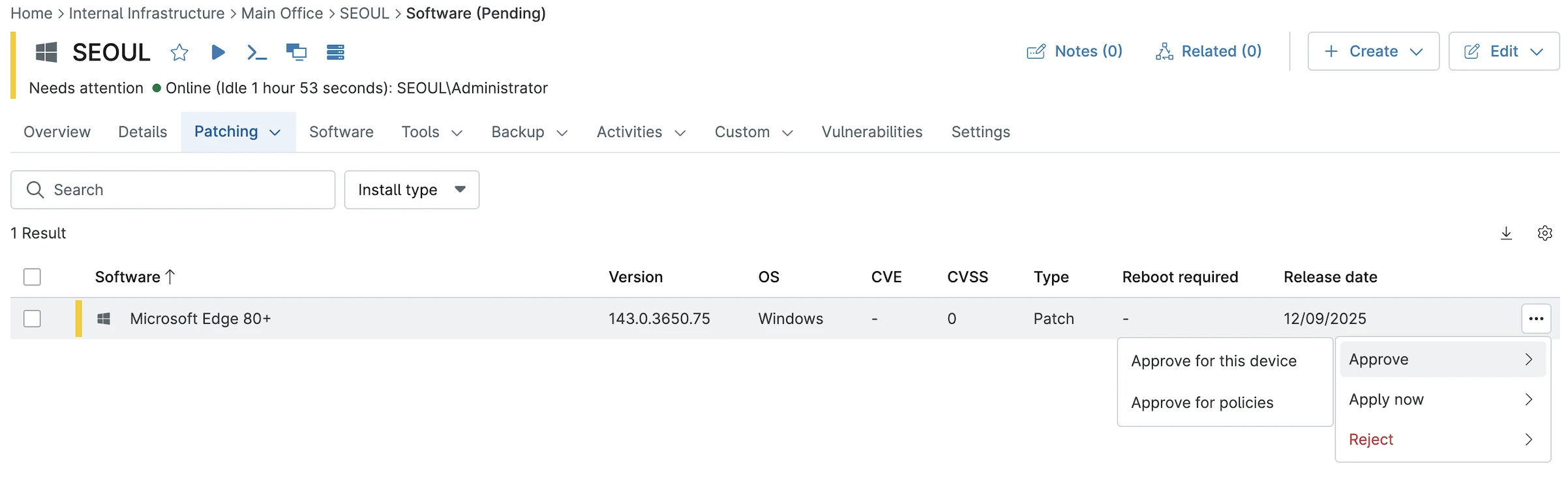
Shortly after handling the OS patch, a software update appeared. The notification showed up in two places simultaneously: a badge on the dashboard and a new entry in the Patching section.
When we clicked the options menu, three choices appeared:
1. Approve for this device: Install only on this machine
2. Approve for policies: Deploy to all devices using this policy
3. Reject: Decline the patch
When we clicked the options menu, three choices appeared:
- Approve for this device – Install only on this machine
- Approve for policies – Deploy to all devices using this policy
- Reject – Decline the patch
Dual-path approval system
This dual-path approach handles different scenarios. Testing a patch on one system first? Use device-specific approval. Rolling out a verified patch across our entire environment? Use policy-based approval to hit every machine at once.
We approved the Edge update only for the SEOUL device. The patch was applied there, but didn’t touch CALIFORNIA, MUMBAI, or any other systems. Device-specific approvals stay isolated as intended, with no unexpected deployments to other machines.
Vulnerabilities tab
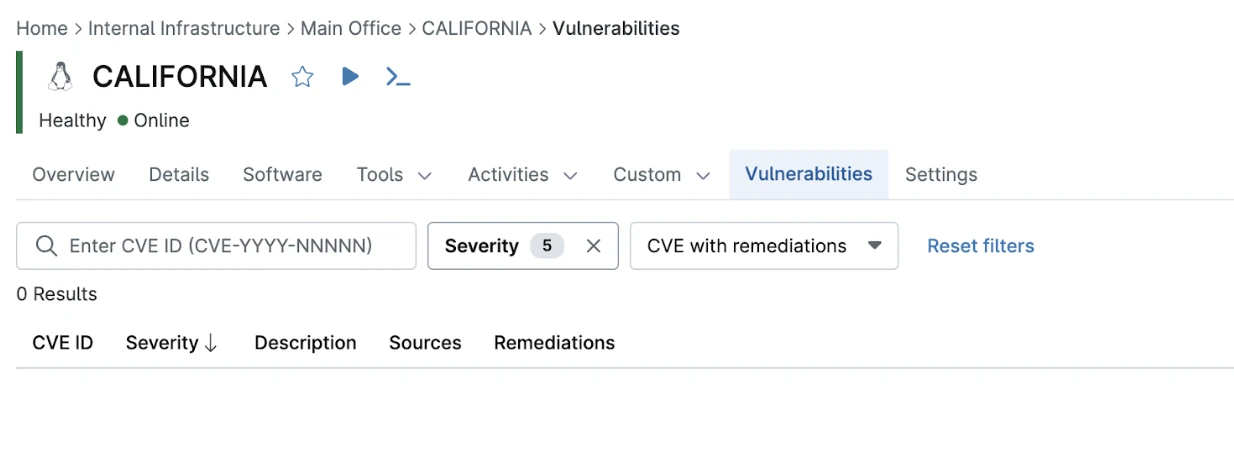
The Vulnerabilities tab displays known security issues in the operating system and installed software packages. The interface shows CVE identifiers, severity ratings, affected components, and available patches or remediations.
During testing, this tab showed “No vulnerabilities” because the test devices were freshly patched. In production environments, we see:
- Outdated packages with known exploits
- Missing security updates
- Software versions with published CVEs
- Recommended remediation actions
We can filter vulnerabilities by:
- Severity level (show only critical and high-risk issues)
- CVE ID (search for specific vulnerabilities)
- Software affected (see all issues in a particular application)
- Remediation status (patched vs. still vulnerable)
This centralized vulnerability view eliminates the need for separate security scanning tools. Instead of running Nessus or OpenVAS scans, we check the Vulnerabilities tab to see what needs attention. The information comes from NinjaOne’s vulnerability database, which tracks CVEs and maps them to installed software versions.
2. Acronis Patch Management
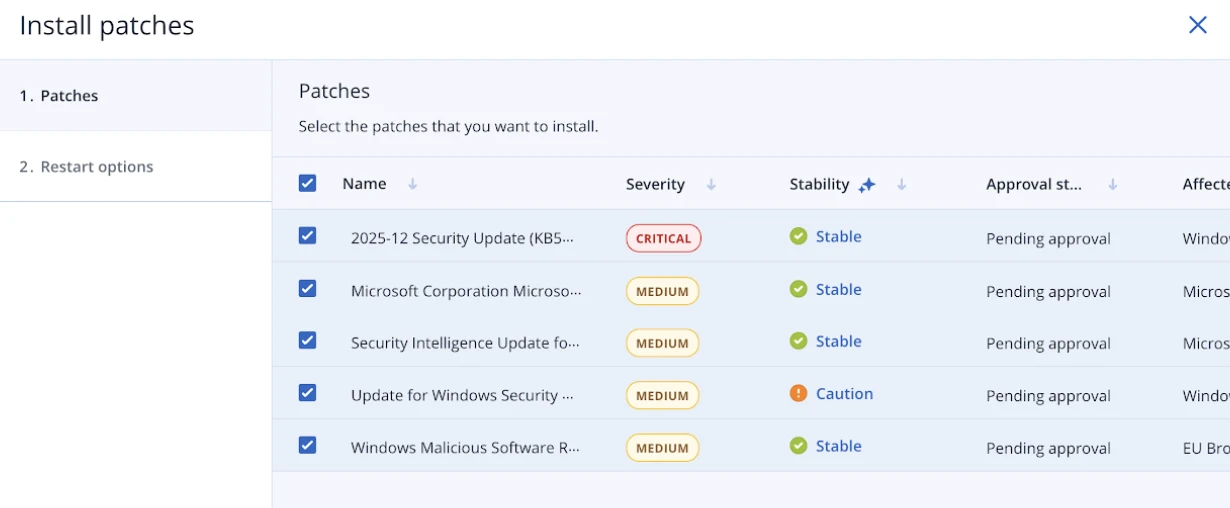
Clicking into the Patches tab immediately revealed a significant difference from NinjaOne: dozens of available patches appeared in the list.
This isn’t a minor discrepancy. We’re looking at the same Windows Server installation, checked on the same day, through two different RMM platforms. One platform sees no work to do. The other platform identifies significant patching needs.
For security compliance and vulnerability management, this gap matters. If your RMM tool doesn’t detect available patches, you can’t deploy them. You’re left with unpatched systems even though fixes exist in Windows Update.
The patch list includes columns we didn’t see in NinjaOne:
Severity rating: Each patch shows its security classification – Critical, Important, Moderate, or Low. This is based on Microsoft’s severity ratings and helps prioritize deployment. Critical security updates get handled before low-priority feature additions.
Stability indicator: This column shows whether a patch has known issues or is considered stable. Some patches ship with bugs that break functionality or cause compatibility problems. The stability rating helps prevent the deployment of problematic updates until Microsoft releases fixes.
During our review, most patches showed “Stable” status. A few displayed different indicators, suggesting Acronis tracks patch quality through telemetry or Microsoft’s patch metadata.
Patch details: Each entry shows the KB number, release date, whether a restart is required, affected components, and installation status.
Restart configuration – granular control
Clicking into the restart options opened deployment controls that exceeded what we saw in NinjaOne.
The available restart policies:
- Restart immediately after installation: Apply patches and reboot right away
- Restart at a specific time: Schedule the reboot for maintenance windows
- Restart only if required: Skip reboots for patches that don’t need them
- Never restart automatically: Apply patches but leave restart timing to manual control
We selected “Restart only if required” and clicked “Install all patches.”
This tells Acronis: install all pending patches, then restart the server only if one or more patches require it. Definition updates and minor patches that work without reboots won’t trigger unnecessary downtime.
3. ManageEngine Desktop Central Patch Management
ManageEngine Desktop Central provides a dedicated “Threats & Patches” section accessible from the main header menu. This centralized view displays patch statistics across all managed servers, allowing administrators to see the overall patch compliance status of their entire infrastructure at a glance.
Device-level patch management
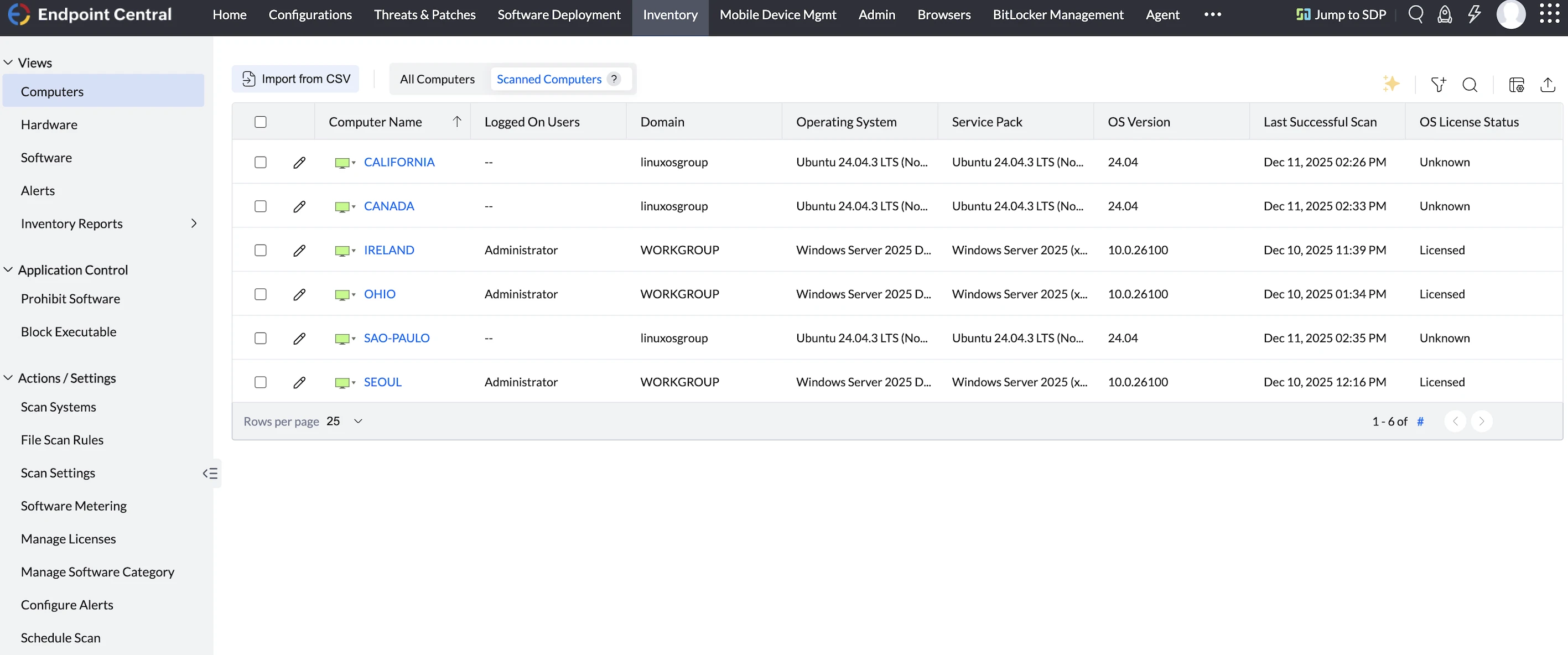
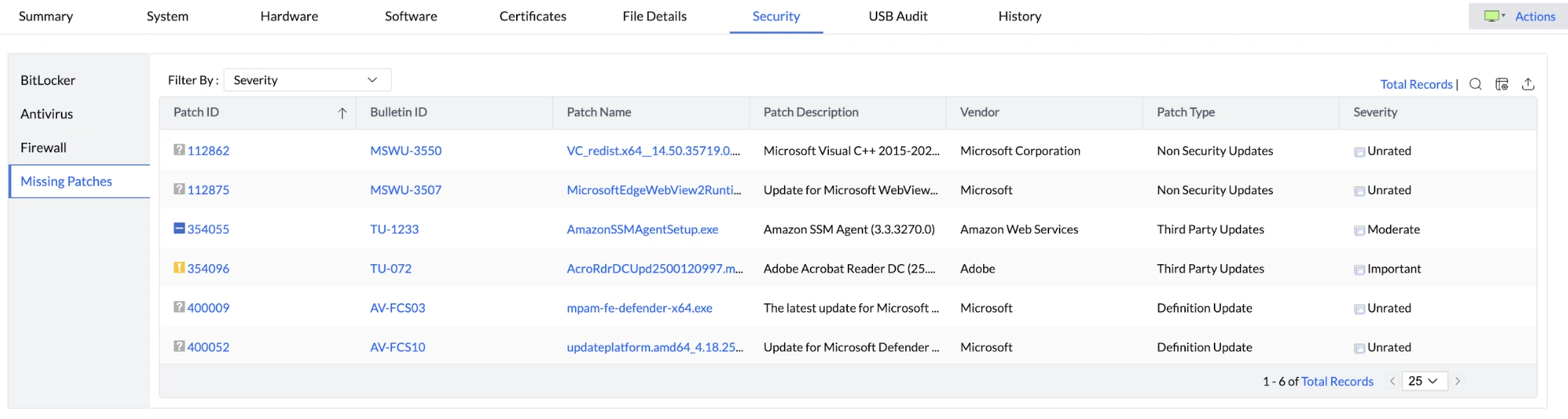
When accessing an individual server (such as the IRELAND server in our testing), patch management functionality is available through multiple access points:
Security tab – patch visibility
The Security tab provides immediate visibility into missing patches. This feature is available in ManageEngine Desktop Central, but was absent in NinjaOne during our testing. The interface displays:
- List of missing security updates
- Patch severity levels
- Available patches are ready for deployment
However, we found that patches could not be installed directly from the Security tab. The installation functionality is located elsewhere in the interface.
From the server detail page, the Actions button in the top-right corner provides quick access to patch operations:
Available patch-related actions include:
- Patch Scan: Initiates an immediate scan for missing patches
- Asset Scan: Performs a comprehensive inventory scan
We tested the Patch Scan function, which immediately initiated a scan of the server to identify missing updates.
System manager – patch details
The primary patch installation interface is accessed through the System Manager menu under “Patch Details.”
Patch Installation Interface
After running a patch scan, the Patch Details menu displays all missing patches with the following capabilities:
- Complete list of available patches
- Patch selection (individual or bulk selection)
- Installation options
Installation Configuration
When selecting patches for installation, ManageEngine Desktop Central doesn’t immediately apply them. Instead, it presents a configuration screen with deployment options:
Configuration options include:
- Scheduling: When to install the patches (immediate or scheduled)
- Restart behavior: How to handle required reboots
- Target selection: Deploy to individual devices or multiple servers simultaneously
This configuration-first approach provides granular control over patch deployment, similar to the policy-based deployment we saw in NinjaOne.
Multi-Device Deployment
ManageEngine Desktop Central supports targeting multiple servers in a single patch deployment task. Rather than deploying patches device-by-device, administrators can:
- Select multiple target servers
- Define deployment schedules
- Configure restart policies
- Deploy patches across the entire fleet in one operation
This bulk deployment capability is essential for efficiently managing large server infrastructures.
Patch management comparison
Consider NinjaOne if you prefer a minimal interface and want to test patches on individual devices before fleet deployment. The approval workflow is built for control over speed.
Consider Acronis if comprehensive patch detection matters for compliance, you need severity ratings and stability indicators for prioritization, or you manage hundreds of servers and need granular restart scheduling.
Consider ManageEngine if you want patch visibility integrated into security reviews, prefer configuration-first deployment workflows, or need fleet-wide multi-device targeting from a centralized compliance dashboard.
Feature comparison
See definitions for the common and differentiating features.
Common features
Automated Patch Deployment
Every solution scans endpoints for missing patches, downloads updates, and installs them automatically or on a schedule. This eliminates the manual process of checking each device individually.
Multi-OS Support
Modern IT environments run Windows servers, macOS laptops, and Linux workstations simultaneously. Most tools support all three, though coverage quality varies. Windows gets the best support across all vendors. macOS and Linux support is stronger in newer cloud-based solutions (Automox, NinjaOne) than in legacy tools.
Centralized Console
View patch status across your entire infrastructure from one dashboard. See which devices are up-to-date, which are missing critical patches, and which failed to install updates.
Scheduling & Maintenance Windows
Deploy patches during off-hours to minimize user disruption. Schedule patches for Saturday night when nobody’s working, or during designated maintenance windows when systems can safely restart.
Reporting & Compliance
Generate reports showing patch compliance status, deployment success rates, and audit trails. Regulators want proof you patched vulnerabilities within the required timeframes; these reports provide that evidence.
Test Environment
We provisioned 7 EC2 instances across 6 AWS regions to represent a distributed corporate environment:
Windows Servers (3 instances):
- Instance type: c5.xlarge (4 vCPU, 8GB RAM)
- Storage: 100GB gp3 (3,000 IOPS, 125MB/s throughput)
- OS: Windows Server 2025 Base
- Regions: Ireland (eu-west-1), Ohio (us-east-2), Seoul (ap-northeast-2)
Linux Servers (3 instances):
- Instance type: c5.xlarge (4 vCPU, 8GB RAM)
- Storage: 100GB gp3 (3,000 IOPS, 125MB/s throughput)
- OS: Ubuntu Server 24.04 LTS (HVM)
- Regions: São Paulo (sa-east-1), North California (us-west-1), Canada (ca-central-1)
macOS Server (1 instance):
- Instance type: mac1.metal (12-core Intel Xeon, 32GB RAM)
- Storage: 100GB gp3 (3,000 IOPS, 125MB/s throughput)
- OS: macOS Sequoia
- Region: Mumbai (ap-south-1)
We deployed across 6 AWS regions to test how geographic distance between vendor management servers and endpoints affects performance. Agent communication, patch downloads, and deployment speed all depend on network latency.
Differentiating features
Custom Script Deployment
Run PowerShell, Bash, or Python scripts before or after patching. Useful for stopping services, backing up configurations, verifying patch success, or performing custom post-patch cleanup.
Tools with this: Automox, N-able N-central, Kaseya VSA, NinjaOne
BIOS/Driver Patching
Update firmware and hardware drivers alongside software patches. BIOS vulnerabilities (like Spectre/Meltdown) require firmware updates, not just OS patches. Driver updates fix hardware-level security issues and improve stability.
Tools with this: NinjaOne, Dell KACE (honorable mention)
Offline Patching
Patch devices even when they’re disconnected from the internet. Useful for:
- Air-gapped secure environments
- Field devices with intermittent connectivity
- Laptops that rarely connect to corporate networks
The system caches patches locally or on a local server. Devices pull updates from the local cache instead of the internet.
Tools with this: Kaseya VSA, N-able N-central
Mobile App
Manage patching from your phone. Deploy emergency patches, approve pending updates, or check patch status without opening a laptop.
Tools with this: Atera, NinjaOne, Datto
 Add as preferred source
Vendor selection criteria
To provide an objective evaluation of vendors, we considered publicly verifiable data, such as the number of reviews and user ratings on software review platforms.
- Number of reviews: We included the vendors with more than 100 total user reviews.
- Average rating: Above 4/5 rating on average across all software review platforms.
- Price: Patch management software products vary in price, and publicly available prices of products are added to the table. Potential users can compare products according to their price.
FAQs
Patch management software is a type of management software that helps IT teams and security teams identify, acquire, test, and deploy patches and software updates across multiple operating systems, such as Windows Server, Linux devices, and macOS.
An effective patch management solution provides a centralized dashboard, real-time visibility, and automated patching to close security gaps and address known vulnerabilities before they can be exploited. By automating the patching process, organizations reduce human error, ensure timely updates for critical patches and security patches, and maintain compliance status.
Patch management software is essential because it safeguards sensitive information, supports network security, and improves software functionality across all devices. Whether you manage a few Windows apps in a small business or critical updates across large networks and cloud servers, using the best patch management software allows you to deploy patches efficiently, prevent missing patches, and maintain business value.
When comparing patch management tools, businesses should focus on how well each solution simplifies the patch management process and supports multiple operating systems. A strong solution will provide real-time visibility into patch status, update status, and compliance status, giving security teams a comprehensive view of software vulnerabilities across devices.
Look for management software that combines automated patch management with flexible scheduling, allowing you to deploy patches and software updates without disrupting users. The best patch management software also makes it easy to monitor third-party applications, generate compliance reports, and maintain a single console for remote monitoring. Tools such as ManageEngine Patch Manager Plus or SolarWinds Patch Manager demonstrate how patch automation can improve network security and prevent missing patches across Windows apps, Linux devices, and cloud servers.
Choosing the best patch management software starts with understanding the organization’s operating systems, security requirements, and patch management operations. For small businesses, a simple tool or free version that can handle software updates and critical patches may be enough. Larger enterprises or MSPs managing large networks often need a single platform with advanced patch automation, centralized dashboards, and automated deployment features to maintain complete control over devices.
A good patch manager should make the patching process seamless, reducing human error and closing security gaps with timely updates. Companies should also evaluate whether the solution offers detailed reports, compliance reports, and multi-platform support so security teams can easily demonstrate compliance and respond quickly to new patches. Comparing options such as Automox, SolarWinds Patch Manager, or ManageEngine Patch Manager Plus helps IT teams select software that delivers business value, protects sensitive information, and improves software functionality across multiple operating systems.
Further reading
Cite this research
Pick the format that matches where you're publishing. Pasting the link version into your CMS preserves the backlink.
@misc{dilmegani2026,
  author = {Dilmegani, Cem},
  title  = {{Top 12 Patch Management Software Including NinjaOne}},
  year   = {2026},
  month  = jul,
  howpublished    = {\url{https://aimultiple.com/patch-management-software}},
  note   = {AIMultiple. Retrieved July 24, 2026}
}Results and timestamps of 30 data points. Download the summary data shown in this article's charts and tables as a ZIP file containing 3 CSV files.
Want the granular data behind it? Join Premium
Changelog
4 updatesAdded NinjaOne's Patch Intelligence AI layer for patch risk assessment.
Added an Acronis Cyber Protect Cloud section covering patch detection, severity ratings, restart scheduling and installer size.
Added results to the Patch Management Benchmark section.
Added a Patch Management Benchmark section to the introduction.
Reference Links
Cem's work at AIMultiple has been cited by leading global publications including Business Insider, Forbes, Morning Brew, and Washington Post, global firms like Deloitte and HPE, NGOs like World Economic Forum, and supranational organizations like European Commission. [1], [2], [3], [4], [5]
Throughout his career, Cem served as a tech consultant, tech buyer and tech entrepreneur. He advised enterprises on their technology decisions at McKinsey & Company and Altman Solon for more than a decade. He also published a McKinsey report on digitalization.
He led technology strategy and procurement of a telco while reporting to the CEO. He has also led commercial growth of deep tech company Hypatos that reached a 7 digit annual recurring revenue and a 9 digit valuation from 0 within 2 years. Cem's work in Hypatos was covered by leading technology publications like TechCrunch and Business Insider.
Cem regularly speaks at international technology conferences. He graduated from Bogazici University as a computer engineer and holds an MBA from Columbia Business School.









Be the first to comment
Your email address will not be published. All fields are required. Comments are left in their original language.