


Top 15 AI Excel Tools Benchmarked

79% of companies claim to have adopted AI agents, and two-thirds of those users say these agents have boosted productivity in measurable ways.1 We test and compare 15 AI Excel tools to see how they handle real spreadsheet work. We ran two benchmarks. Quadratic and GPT for Excel scored the highest. Summary of other results:
- Best for guided step-by-step explanations → Tryshortcut, Formula Bot
- Multi-language communication → GPTExcel
- Visual data exploration → Quadratic
See the benchmark methodology details, feature comparison of AI excel tools, and detailed results:
Performance of Excel AI tools
Results of the first benchmark
Read the benchmark section for more information on the performance test.
Results of the workbook benchmark
Read the workbook benchmark section for more information on the performance test.
Feature summary of AI Excel tools
“NA” indicates that no public information was found.
* These info is filled based on the vendor claim, not our experience.
Read key features for more information.
“NA” indicates that no public information was found.
* Price of the most basic version is listed for each tool.
Claude for Excel
Claude for Excel is an add-in that runs in a sidebar inside Microsoft Excel. It reads multi-tab workbooks, answers questions about specific cells, and links its explanations back to the cells it used. It can update an assumption in a formula without breaking the formula’s dependencies.
In our workbook benchmark, it answered 95% of the questions correctly.
GPT for Excel
GPT for Excel is a separate add-in from GPTExcel, the multi-language tool listed above. It runs inside Excel and reads the data, plans the steps, and writes results back into the cells.
In our workbook benchmark, it answered 97.5% of the questions correctly.
Quadratic
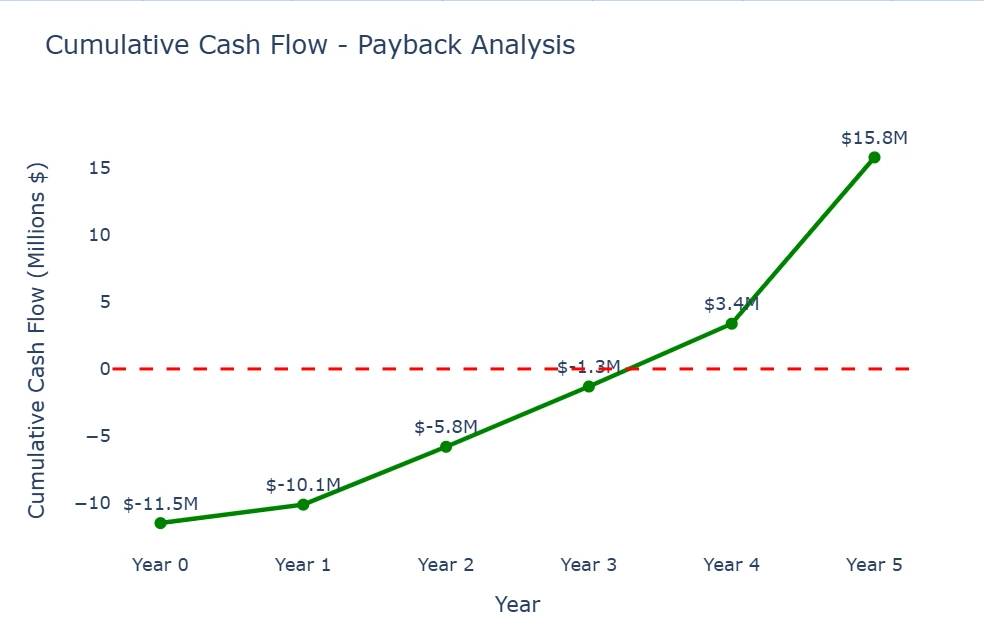
Quadratic also achieved 75% accuracy. A notable feature was its ability to provide code in Python and PHP, which were also used in generating visuals. Impressively, it automatically generated charts when they weren’t requested. However, generating answers took longer compared to other tools.
Figure 1. A graph created with Quadratic to represent one of the answers from our benchmark
AJELIX
AJELIX also achieved 85% accuracy in the first benchmark and 95% in the workbook benchmark. It didn’t provide explanations unless specifically requested, which limited usability. It can be valuable for straightforward tasks and automation scenarios.
R2 Copilot
R2 Copilot, an Excel add-in, achieved about 75% accuracy. It sometimes provided a method for solving a problem rather than the actual solution. For complex cases, such as a six-year financial plan, it provided part of the answer (e.g., the first two years). This inconsistency reduced its reliability.
Paradigm
Paradigm also reached 75% accuracy. However, the main challenge was reliability; the AI chat did not work consistently. I had to ask the same question four times to get a response. It provided little to no explanation or extra analysis, making it less dependable for serious use.
Formula Bot
The platform gave correct answers in about 65% of cases in the first and 15% in the workbook benchmarks. However, it seems the wrong answers stem from a misunderstanding of the question. Its explanations were detailed, like a step-by-step lesson. It’s helpful for learning how Excel formulas work or understanding a data model. It offered useful trend summaries and insights. The free version doesn’t create charts, even though it claims to support them.
GPTExcel
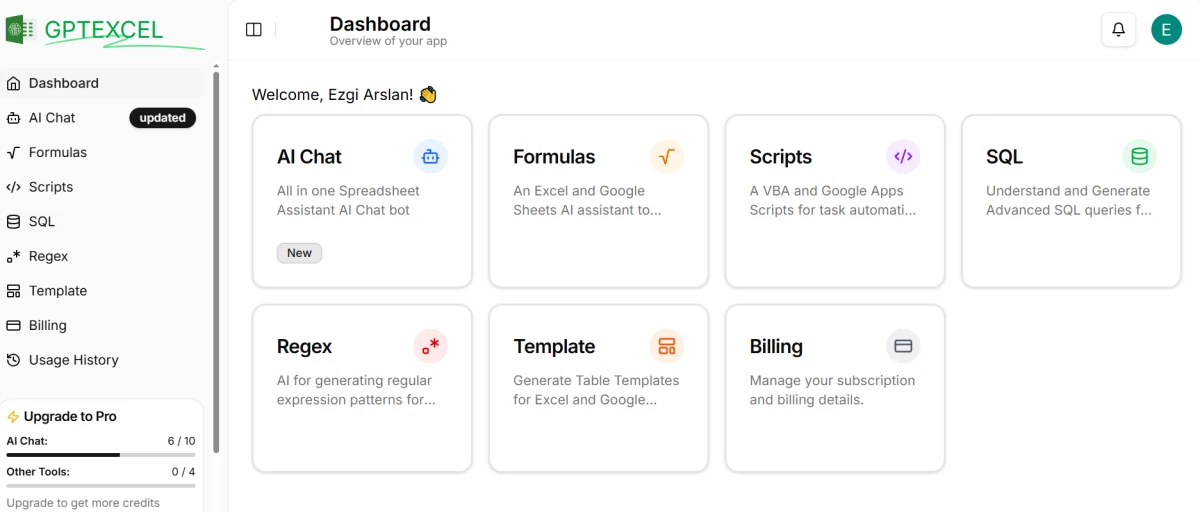
GPTExcel achieved about 65% accuracy. The main issue was that it often misunderstood the question and didn’t provide detailed explanations. On the positive side, the multi-language feature worked well, smoothly supporting different languages. This makes it particularly useful for international teams, even if its problem-solving abilities are limited.
Figure 2. Dashboard of GPTExcel
GPTExcel AI Chat Bot is reliable for getting answers and understanding formulas, but it doesn’t go beyond the basics.
Tryshortcut
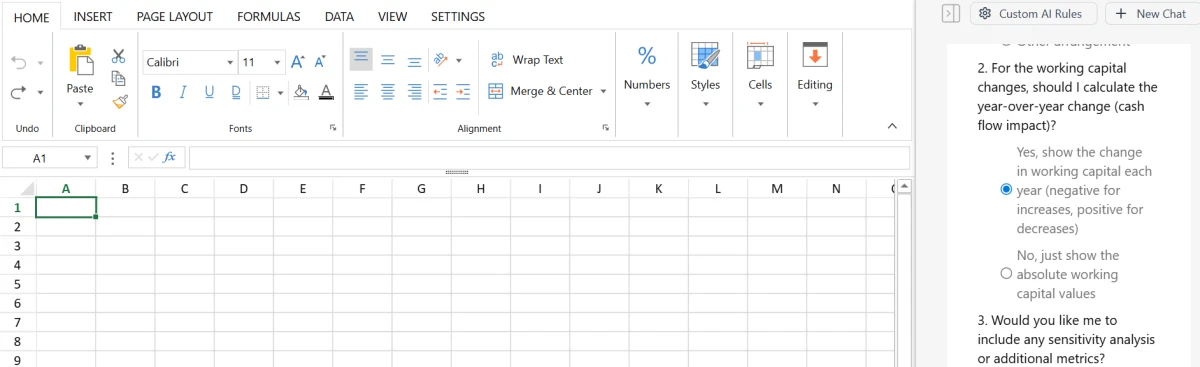
Tryshortcut demonstrated a 60% accuracy rate. Its primary strengths are providing detailed explanations and offering supplementary analysis, such as sensitivity testing, follow-up calculations. It is particularly valuable for financial modeling, as it allows users to customize outputs and provides downloadable solutions. The main limitation is that data analysis took longer than expected.
Figure 3. TryShortcut Excel sheet with chat
AI sheet by Huggingface
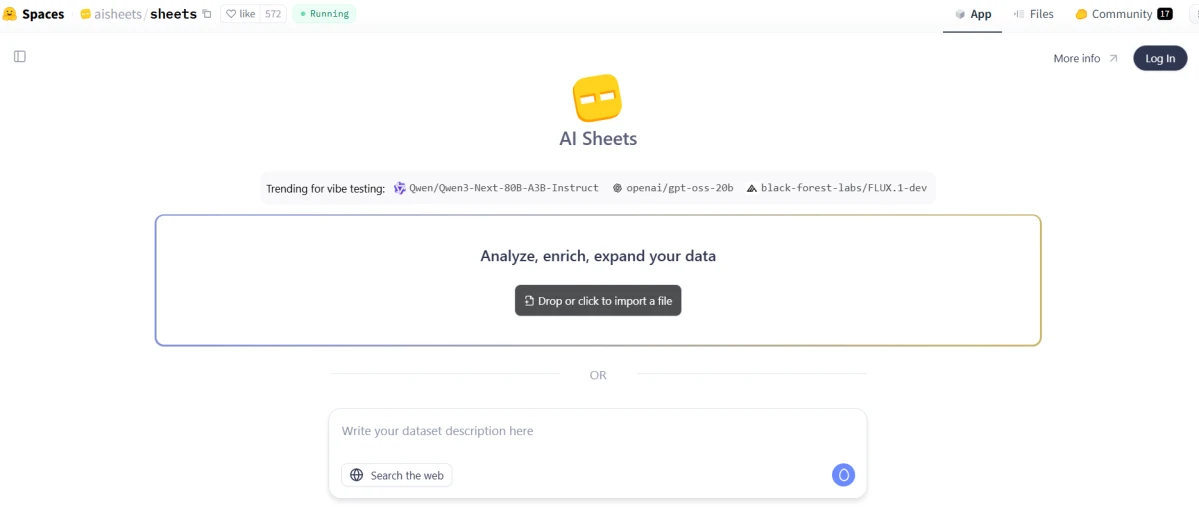
This open-source tool scored 5% accuracy. It produced different calculations and asked users for feedback, which felt experimental. A useful feature was that results could be downloaded. Still, its practical performance was limited.
Figure 4. Dashboard of HuggingFace AI Sheets
ExcelAIBot
ExcelAIBot does not correctly answer any question in our benchmark. It allowed users to request formula generation or explanations for both Excel and Google Sheets. While its step-by-step explanations were clear, they weren’t detailed and often didn’t provide the exact formula needed.
Carousel
Carousel was different in that it required an on-premise installation as an Excel add-in. In practice, it could not solve questions unless the data was inside the spreadsheet, even if the problem was clearly written in chat. This limited its usefulness in our tests.
Numerous
Numerous was not designed for calculations and explanations. Instead, it pointed out how to generate formulas from short descriptions and offered features like sentiment analysis, translation, and text rewriting. In our experience, it was not useful for numerical problem solving but could support content-related tasks such as digital marketing or text categorization.
Microsoft Copilot
Microsoft Copilot is the AI assistant built into Microsoft 365 apps, including Excel. In Excel, it can summarize tables, build pivot tables, write and fix formulas, and flag outliers.
In 2026, Microsoft added Agent Mode to Copilot in Excel. Agent Mode plans a multi-step task, makes changes to the workbook, and checks the results, rather than suggesting steps. It became available on Excel for the web in December 2025, and on Windows and Mac in early 2026.
Arcwise
Arcwise is an AI data analyst that works inside the spreadsheet, especially Google Sheets. It helps users explore, understand, and visualize the given spreadsheet data. Arcwise claims that the Excel AI tool chat can make calculations, provide explanations, and conduct extra analysis.
Methodology of AI-powered Excel solutions benchmarks
First benchmark
We put each AI tool through a standardized benchmark test. We used 20 scenarios that required different financial calculations:
- Discounted Free Cash Flow (DCF): Calculating the value of a project based on future cash flows. (3 question)
- Present Value (PV): Finding the current value of a future sum of money. (5 questions)
Example:
Your uncle, who is 65 years old today, is expecting to live for 10 more years. He wishes to invest $26,000 in an annuity that will make a level payment at the end of each year until his death. If the interest rate is 10.0%, what income can he expect to receive each year?
- Future Value (FV): Projecting the value of a current investment at a future date. (2 question)
Example:
Suppose your company’s defined contribution retirement plan allows you to invest up to $20,000 per year. You plan to invest $20,000 per year in a stock index fund for the next 30 years. Historically, this fund has earned 9% per year on average. Assuming that you actually earn 9% a year, how much money will you have available for retirement after making the last payment?
- True or False: Assessing conceptual understanding of core finance principles by determining whether a given statement is correct or incorrect. (5 questions)
Example:
State whether the following statement is True or False: The duration of any bond is the same as its maturity.
- Multiple choice: Comparing multiple financial alternatives and selecting the correct ranking or outcome based on the time value of money and discounting principles. (5 questions)
Example:
Consider the following four alternatives:
1. $132 received in two years.
2. $160 received in five years.
3. $200 received in eight years.
4. $220 received in ten years.
The ranking of the four alternatives from most valuable to least valuable if the interest rate is 7% per year would be:
A) 1, 2, 3, 4.
B) 4, 3, 2, 1.
C) 3, 4, 2, 1.
D) 3, 1, 2, 4.
Each question has one correct answer. The performance score represents the percentage of correct answers across five tasks. We measured the tools’ accuracy within a 1% error margin.
Second benchmark: real workbook tasks
To test how the tools handle real files, we ran a second benchmark. We gave each tool two workbooks and asked 40 questions across four use cases: enterprise reporting, scientific QC data, small-business operations, and a sole proprietor’s books. Each use case had 10 questions.
The questions asked each tool to find errors, reconcile figures across sheets, flag mismatches, and run calculations on the supplied data. We marked an answer correct when it matched the value in the workbook.
Scores differ from the finance benchmark because the tests measure different skills. The finance test checks calculation on a single prompt. The workbook test checks whether a tool can read several sheets, spot bad data, and tie its answer back to the source.
Key features of AI-powered tools
We also scored each tool on these capabilities:
Calculation
AI-Excel tools can run complex formulas and queries for you. They handle tasks like sums, averages, loan payments, and database lookups. This saves you from typing complex formulas by hand.
Explanation
They break down the steps behind each formula or script. You can see how each part works in plain language. This helps you learn and trust the results.
Extra analysis
Some tools can provide more of a detailed analysis, such as running “what-if” scenarios, performing sensitivity analysis, and clarifying the approach used in the solution etc. This deeper insight lets you explore your data without leaving the spreadsheet.
FAQs
AI features are moving from chat suggestions to direct edits. In 2026, both Microsoft Copilot and Claude for Excel can read a workbook, change it, and explain the changes. Tools are also adding saved, repeatable workflows and a choice of models. The open question is trust. Tools still return wrong values, as our benchmark shows, so users need to check the output.
 Add as preferred source
Further reading
Cite this benchmark
Pick the format that matches where you're publishing. Pasting the link version into your CMS preserves the backlink.
@misc{arslan2026,
  author = {Arslan, Ezgi},
  title  = {{Top 15 AI Excel Tools Benchmarked}},
  year   = {2026},
  month  = jun,
  howpublished    = {\url{https://aimultiple.com/ai-excel}},
  note   = {AIMultiple. Retrieved June 16, 2026}
}Results and timestamps of 45 data points. Download the summary data shown in this article's charts and tables as a ZIP file containing 4 CSV files.
Want the granular data behind it? Join Premium
Changelog
3 updatesAdded a second benchmark section on real workbook tasks, with its own results.
Replaced Claude Max with Paradigm in the summary of results.
Reference Links




Be the first to comment
Your email address will not be published. All fields are required. Comments are left in their original language.