


Chrome Proxy Settings: Windows, Mac & Linux

Chrome has no built-in proxy panel. On Windows and macOS, it uses the operating system’s proxy settings, so configuration happens at the OS level. Two methods set a proxy for Chrome: a command-line launch flag and a browser extension.
Set a proxy in Chrome on macOS
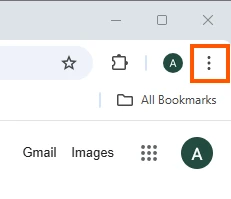
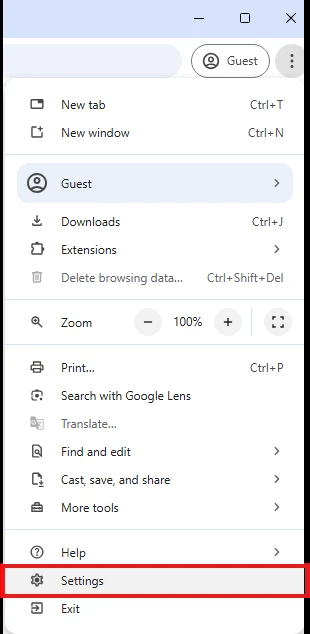
- To open Chrome settings, click the three-dot menu in the top-right corner, then navigate to settings.
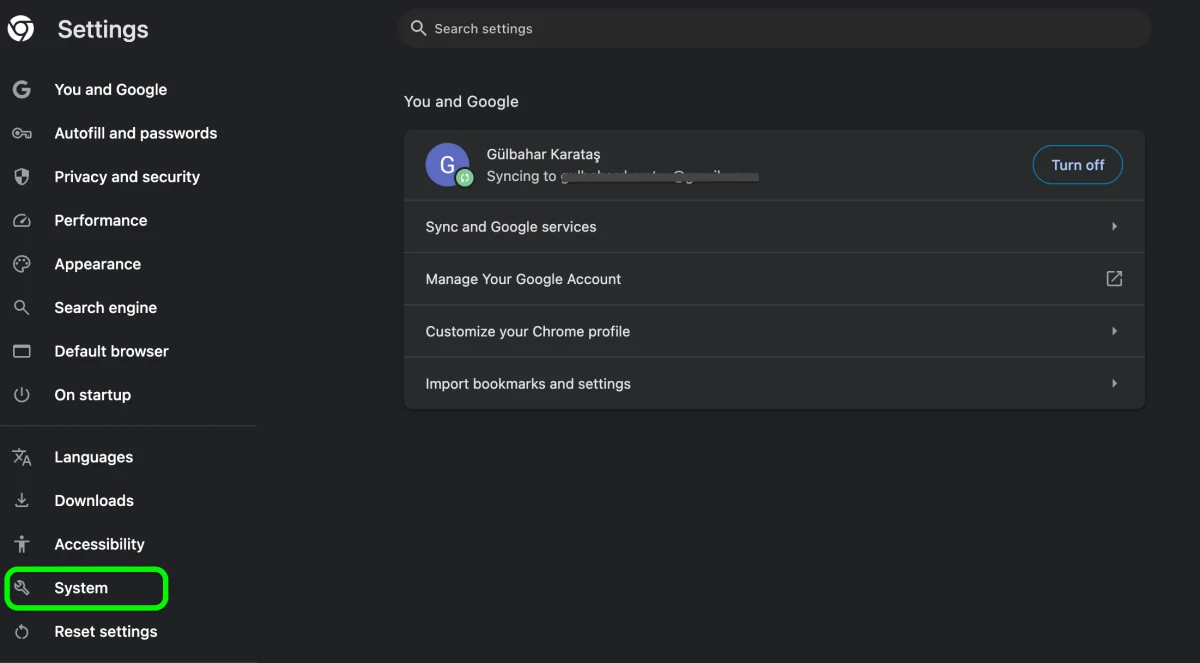
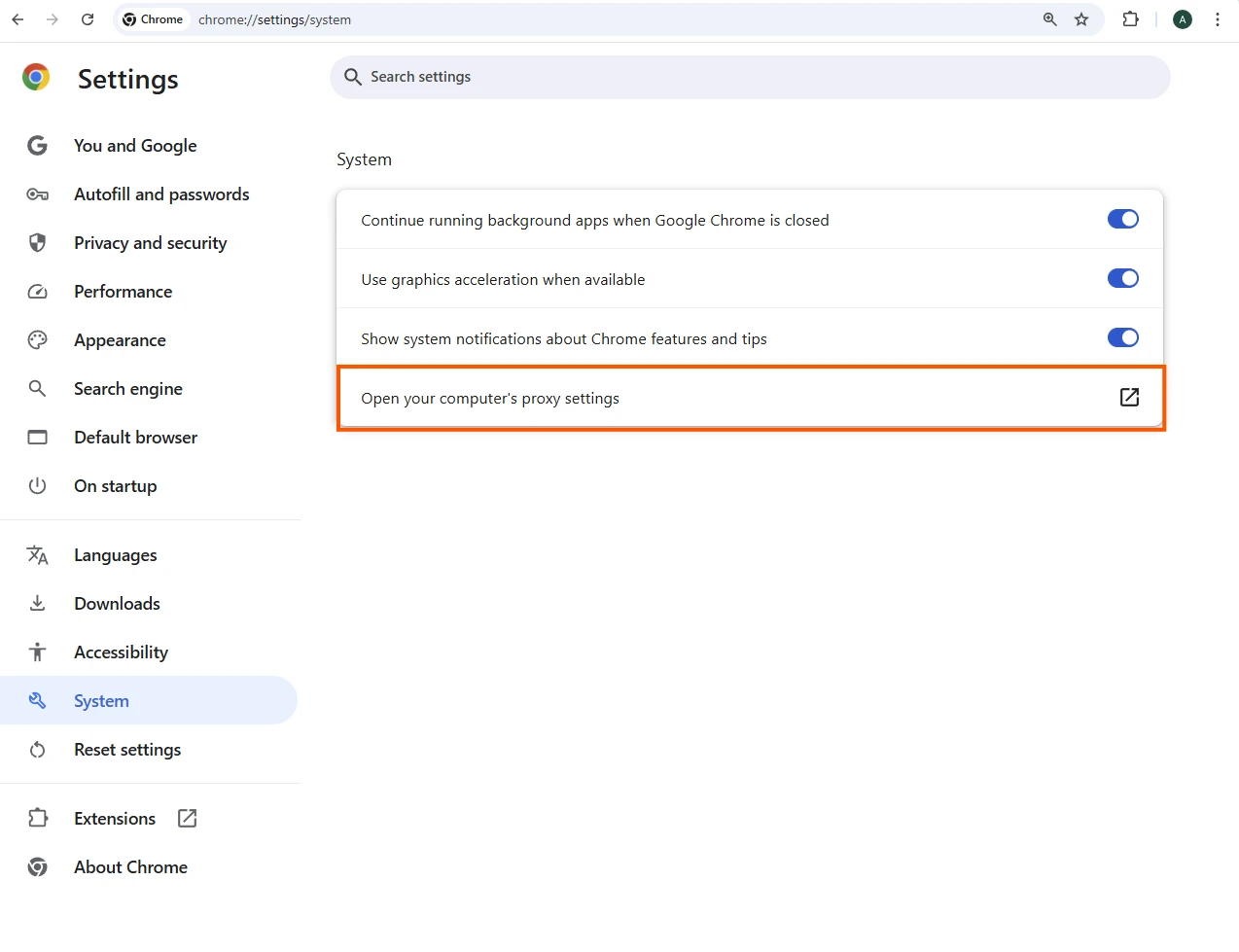
- Scroll down and click on “System”.
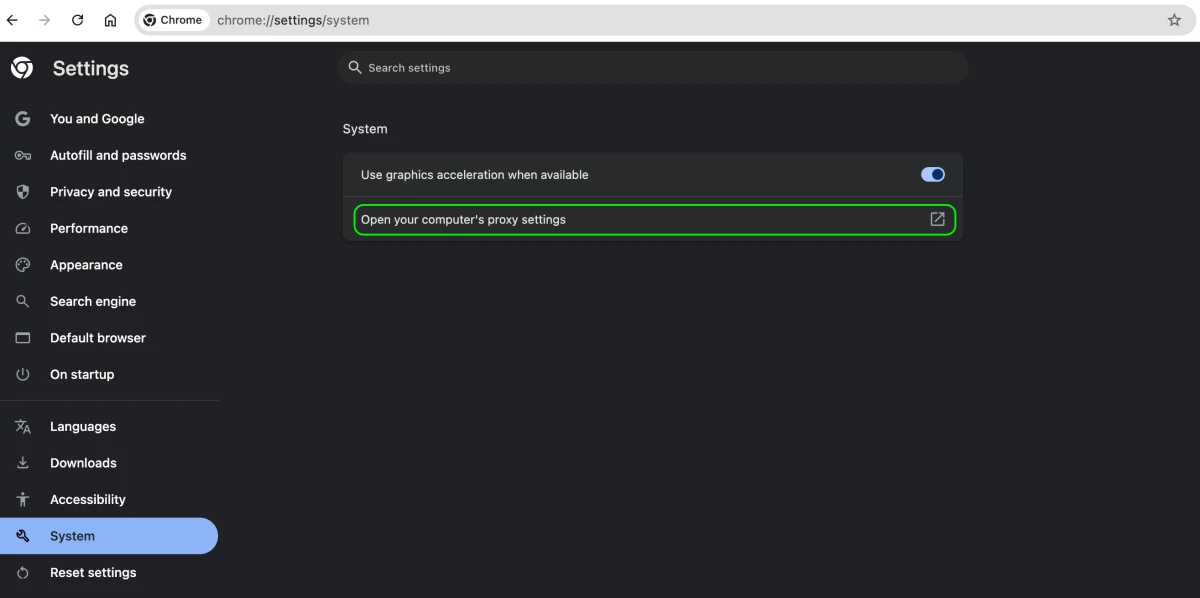
- Click Open your computer’s proxy settings option.
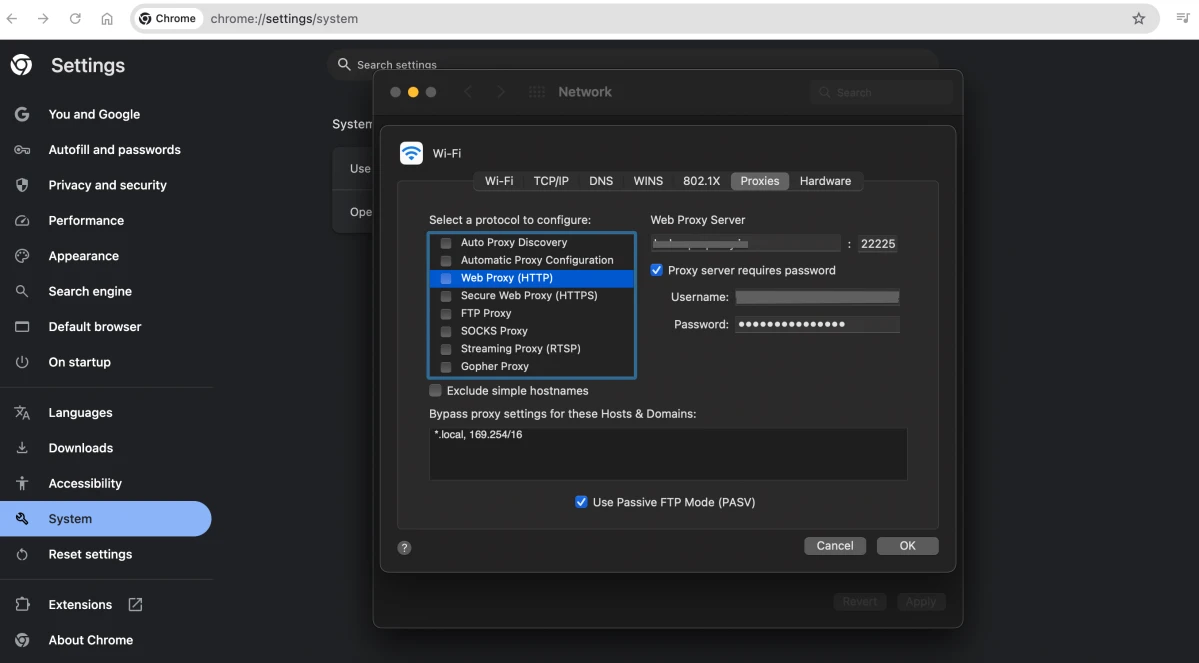
- This will open the Proxies page in Network options because Chrome lacks in-app proxy server settings. Select the type of proxy server that you wish to set up. Click OK after entering the proxy server information.
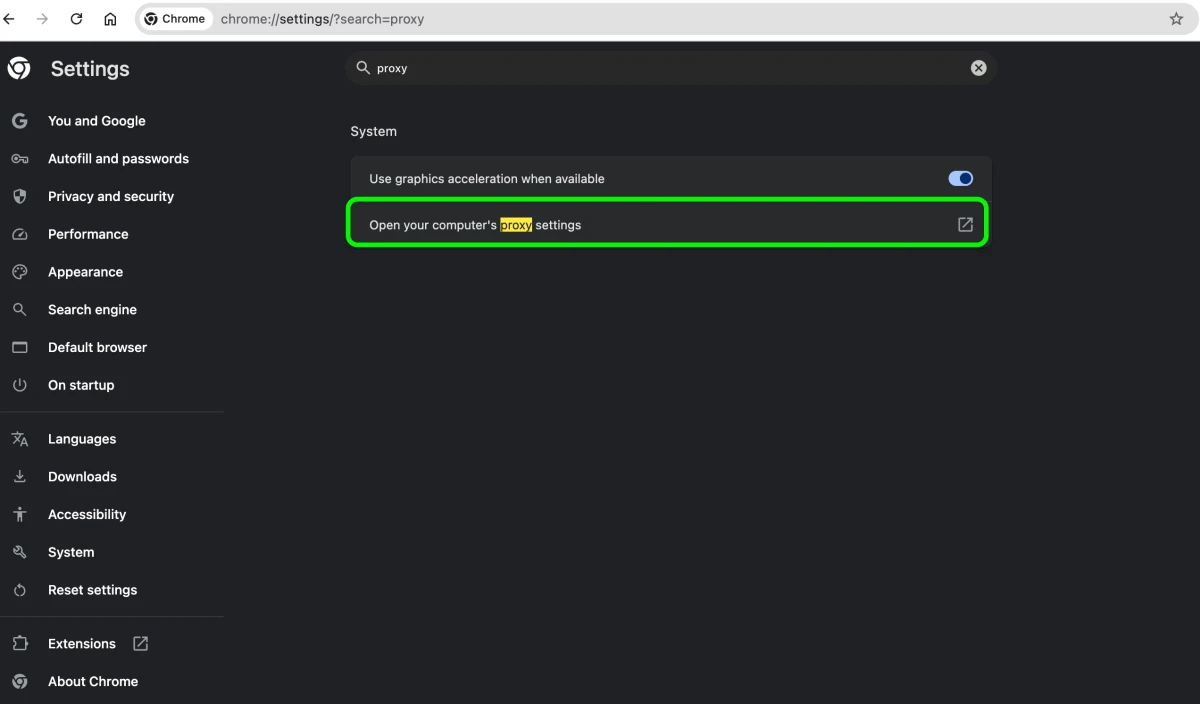
Disclaimer: Chrome’s proxy settings can also be accessed by clicking the three-dot menu in the top-right corner > selecting Settings > typing proxy into the search bar at the top of the settings page > “Open your computer’s proxy settings” option will appear in the search results.
Set a proxy in Chrome on Windows
- Open your Chrome browser and click the three-dot menu icon.
- Select Settings from the dropdown menu.
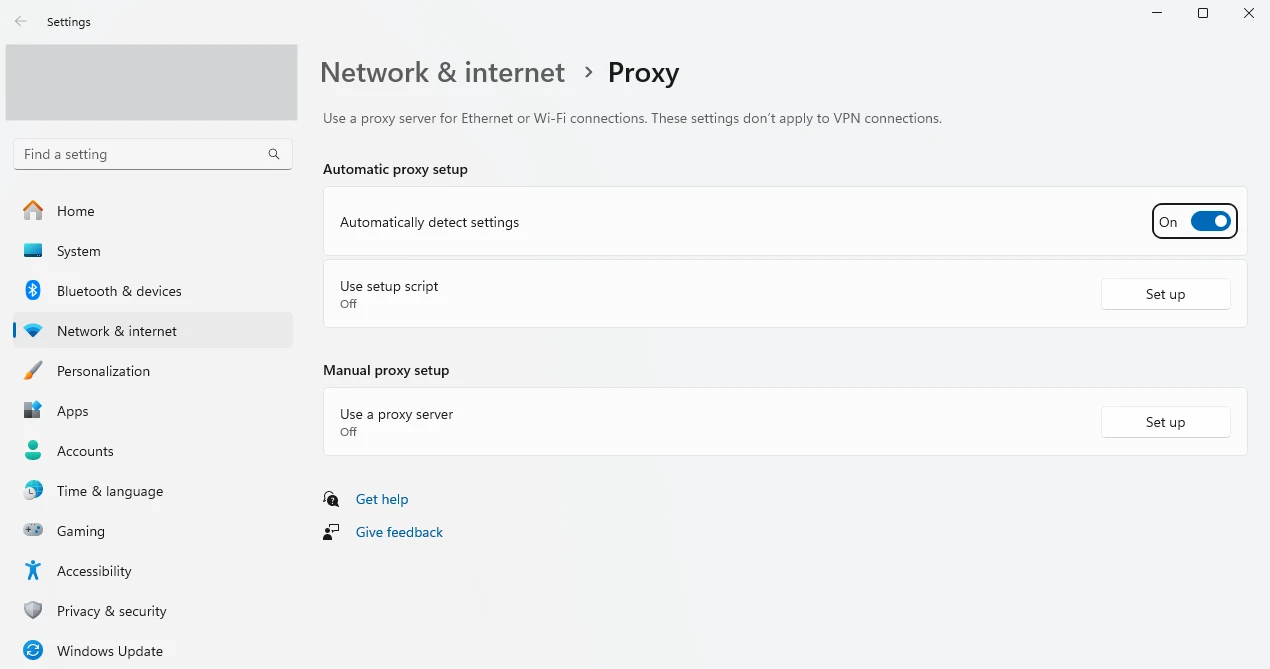
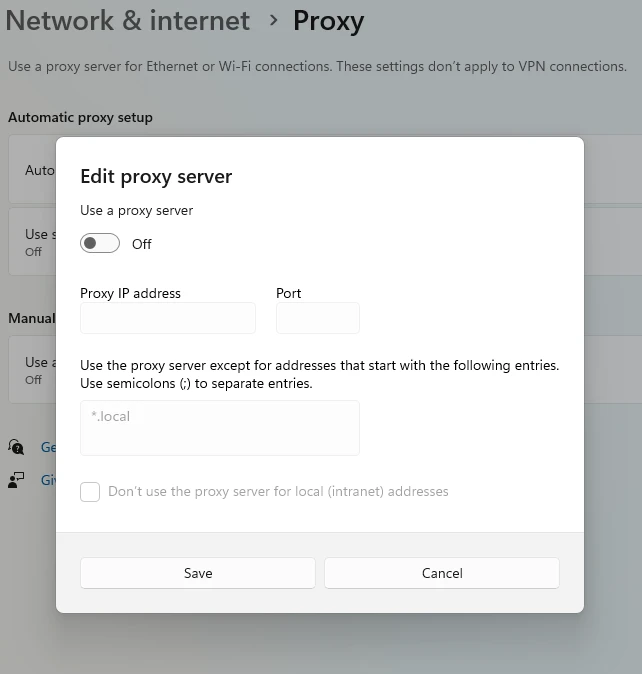
- Click the System section and Open your computer’s proxy settings. This will open proxy settings window.
- Switch to On in the manual proxy setup section.
- Enter the necessary proxy details such as IP address and port number provided by your proxy service provider.
Set a proxy in Chrome on Linux
Chrome on Linux reads the desktop environment’s network settings. On GNOME:
- Open Settings → Network → Network Proxy.
- Set the mode to Manual and enter the host and port for each protocol.
Chrome also respects the http_proxy, https_proxy, and no_proxy environment variables when launched from a terminal. For a proxy that applies to Chrome, use the command-line flag below.
Set a proxy in Chrome with an extension
Use a maintained, Manifest V3–compatible proxy extension to apply a proxy in Chrome. For example, the original Proxy SwitchyOmega no longer runs on Chrome since Google retired Manifest V2 in mid-2025. Once installed:
- Open the extension and create a new proxy profile.
- Set the protocol (HTTP, HTTPS, or SOCKS5) and enter the proxy IP address and port.
- Add a username and password if your proxy requires authentication.
- Save, activate the profile from the toolbar, and confirm your IP on a checker site.
For a tested comparison of free and premium options, see our guide to the best Chrome proxy extensions.
Set a proxy for Chrome (command-line flag)
The --proxy-server flag applies a proxy to a single Chrome instance without changing system settings.
Windows:
macOS:
Linux:
Close all running Chrome windows before using the flag. Chrome routes a new launch to the existing process and otherwise ignores the flag. To keep a normal session open at the same time, add a separate profile: --user-data-dir="/tmp/chrome-proxy".
How to disable Chrome proxy settings?
To disable your Chrome proxy settings, take these steps:
System Preferences > Network > Advanced > Proxies > Uncheck all protocols > click OK and then Apply.
 Add as preferred source
Does Chrome use the system proxy settings?
Chrome has no proxy engine of its own. On Windows it reads the system proxy through WinInet; on macOS and Linux it uses the OS or desktop-environment settings.
Any proxy set at the OS level therefore applies to Chrome automatically, which is why “changing Chrome’s proxy” means changing your system proxy.1
FAQs
A proxy routes Chrome’s traffic through an intermediary server instead of connecting directly, changing the IP address and location that websites see.
Because Chrome relies on the system proxy, any proxy you configure applies to every app that uses the OS network stack.
No. Chrome uses your operating system’s proxy configuration. Opening proxy settings from Chrome’s menu launches the OS proxy page.
Click the three-dot menu → Settings → System → Open your computer’s proxy settings, or type proxy in the settings search bar and select the same option.
Yes. On Windows, Chrome reads the system proxy through WinInet, so any proxy set in Network & Internet → Proxy applies to Chrome.
Cite this research
Pick the format that matches where you're publishing. Pasting the link version into your CMS preserves the backlink.
@misc{karatas2026,
  author = {Karatas, Gulbahar},
  title  = {{Chrome Proxy Settings: Windows, Mac & Linux}},
  year   = {2026},
  month  = aug,
  howpublished    = {\url{https://aimultiple.com/chrome-proxy-settings}},
  note   = {AIMultiple. Retrieved August 4, 2026}
}
Changelog
3 updatesAdded a section on setting a Chrome proxy with an extension
Added sections on setting a Chrome proxy on Linux and via the --proxy-server command-line flag.
Added a section about Privacy settings vs. manual proxy masking.
Reference Links



Be the first to comment
Your email address will not be published. All fields are required. Comments are left in their original language.