


Telegram Proxy Setting: Free Links & Step-by-Step

Telegram supports two proxy types in its apps: SOCKS5 and MTProto. SOCKS5 uses a server and port, with username and password optional. MTProto uses a server, port, and a required secret. Telegram also supports proxy links that can open and prefill these settings for you.
We tested the free tiers of three SOCKS5 Telegram proxies to see what a Telegram user actually gets; jump to the results.
Free SOCKS5 proxies for Telegram
All three plans (datacenter IPs) below are permanent free tiers, not trials, and all three support SOCKS5, which is what Telegram needs.
Provider | Free IPs | Data/mo | Exit |
|---|---|---|---|
15 | 2 GB | Global | |
5 | 5 GB | US only | |
10 | 1 GB | Global |



For more options, see our guide to the best free SOCKS5 proxy providers.
Telegram proxy benchmark
- Bright Data is fastest if you send photos or videos, or use Telegram on mobile, with the fastest transfer (1.96/2.01 MB/s) and the fastest reconnection time (359 ms).
- Oxylabs is the pick if you mostly send text: it has the largest free quota (5 GB) and the lowest per-message latency (1,106 ms).
Latency
Speed
How we tested
We created a free account with each provider, connected to Telegram over SOCKS5, uploaded and downloaded a 250 MB file, and sent 250 short text messages at a concurrency of 5. File size and message count were capped by the providers’ free bandwidth limits.
These results describe the free tiers as products rather than the providers’ paid infrastructure. Full methodology is below.
How to configure a SOCKS5 proxy on Telegram (iOS)
- Open Telegram and go to Settings.
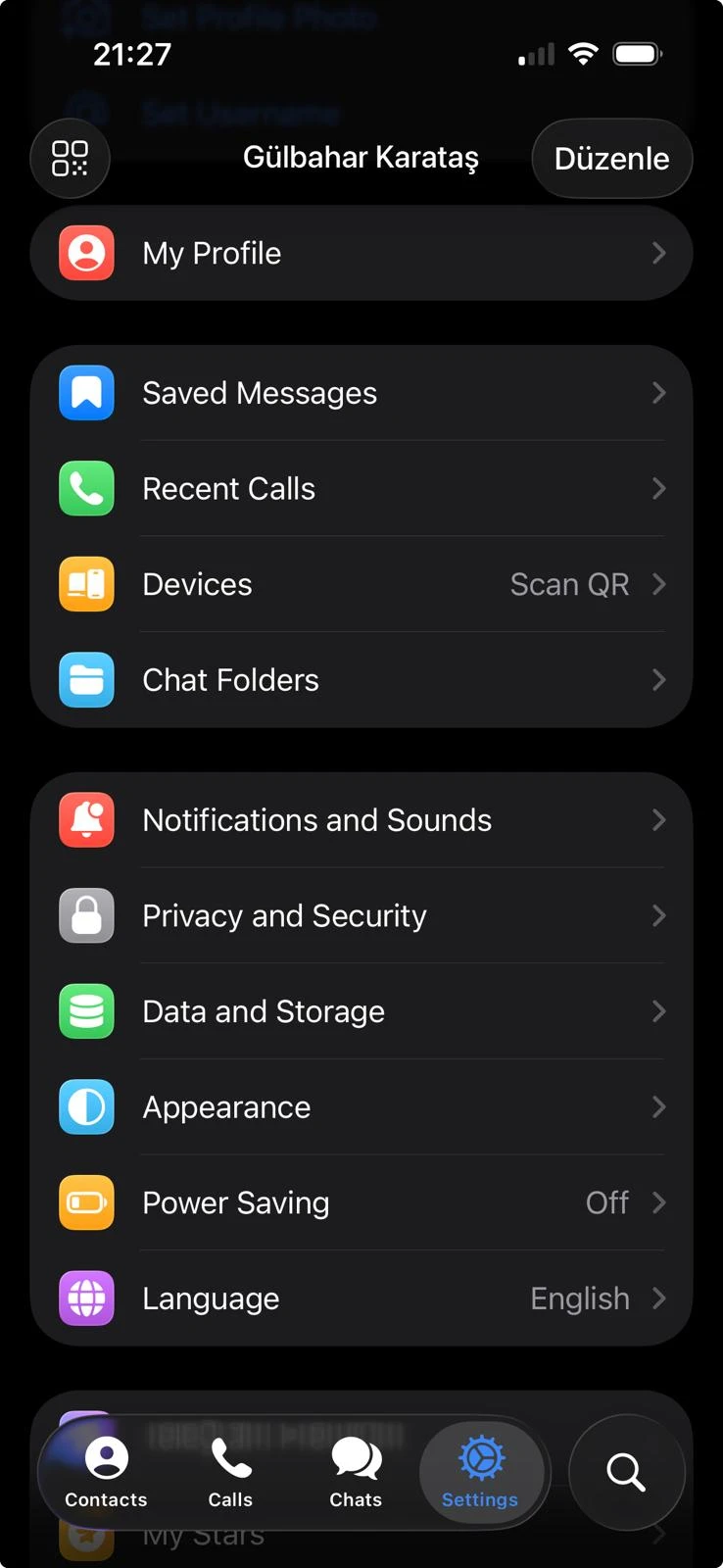
- Inside the Telegram Settings, find and select Data and Storage.
- Tap Proxy to open Telegram’s proxy settings page.
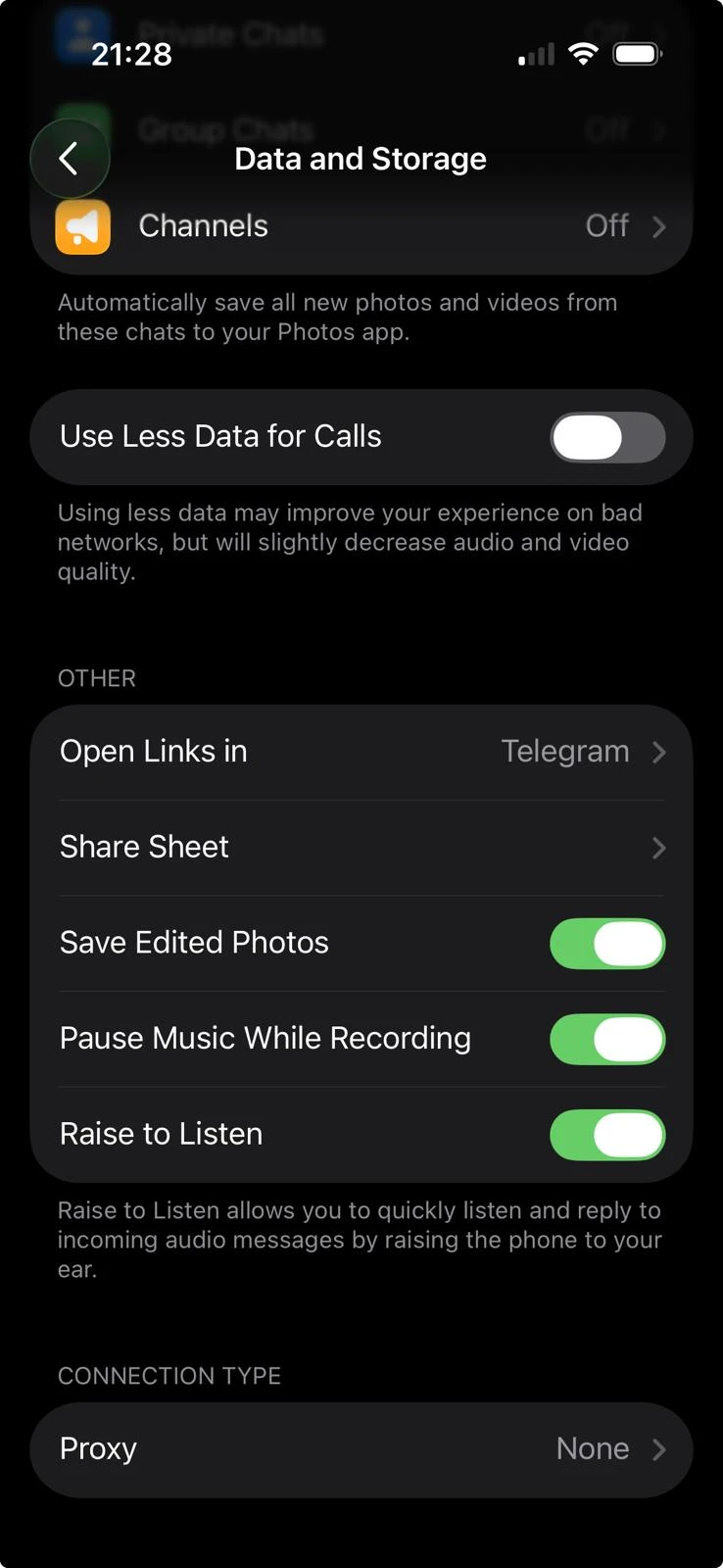
- Telegram will ask you to choose the type of proxy you want to configure. It uses different fields for SOCKS5 and MTProto proxies. After tapping Add Proxy, choose SOCKS5 from the available options. Once selected, Telegram will display the input fields required for a SOCKS5 connection. These normally include:
- Server
- Port
- Username
- Password
Note: The username and password fields are often optional, but that depends on the proxy you are using. Some SOCKS5 proxies work with a server and port, while others require login credentials.
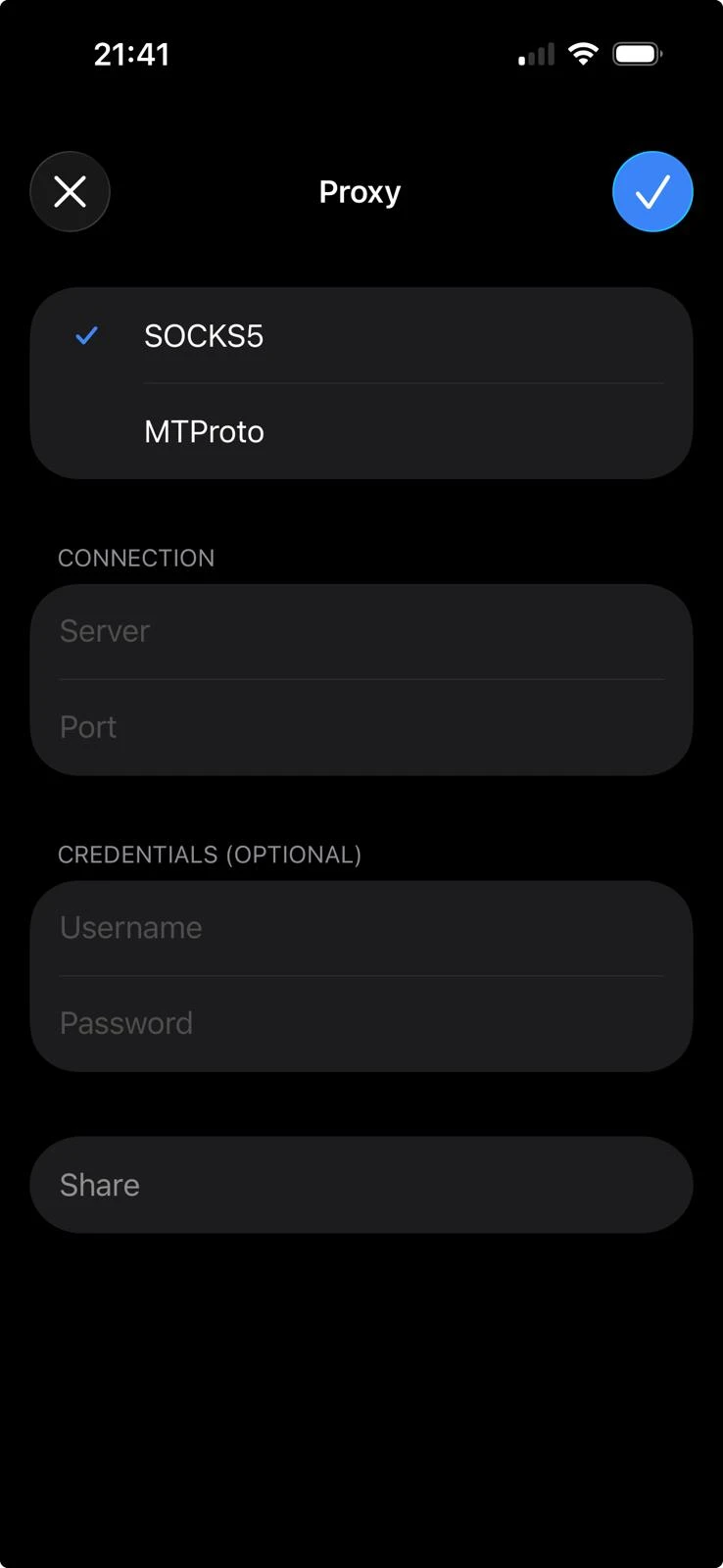
- Enter all the required information; server address and port number. If your proxy provider gives you connection details, map them into Telegram like this: the hostname goes into Server, the numeric connection endpoint goes into Port, the login name goes into Username, and the secret login string goes into Password.
- After entering all the required information, save the proxy. Once saved, the new SOCKS5 proxy should appear in your proxy list.
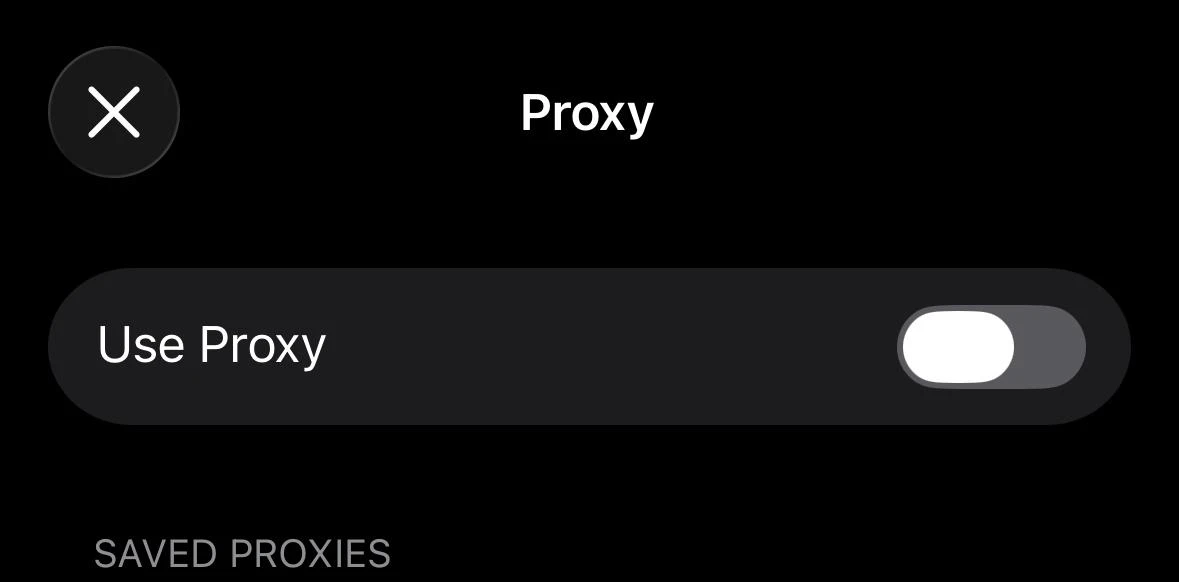
- Make sure the Use Proxy switch is turned on. When this option is enabled, Telegram routes its connection through the SOCKS5 proxy you added. If the switch is off, the proxy may be saved but not actively used.
On Android, the path is the same with different labels:
Settings → Data and Storage → Proxy Settings → Add Proxy → SOCKS5. Enter the same server, port, username, and password.
Telegram applies the proxy as soon as you toggle Use Proxy.
How to configure an MTProto proxy on Telegram
If you want to use an MTProto proxy in Telegram, the setup is similar to SOCKS5, but the required information differs. Instead of a username and password, Telegram asks for a server, port, and secret.
- When you tap Add Proxy to create a new proxy connection, Telegram will then ask you to choose the proxy type. Choose MTProto from the available connection types.
- Telegram will show the fields required for this type of proxy. Unlike SOCKS5, you will not usually see username and password fields here.
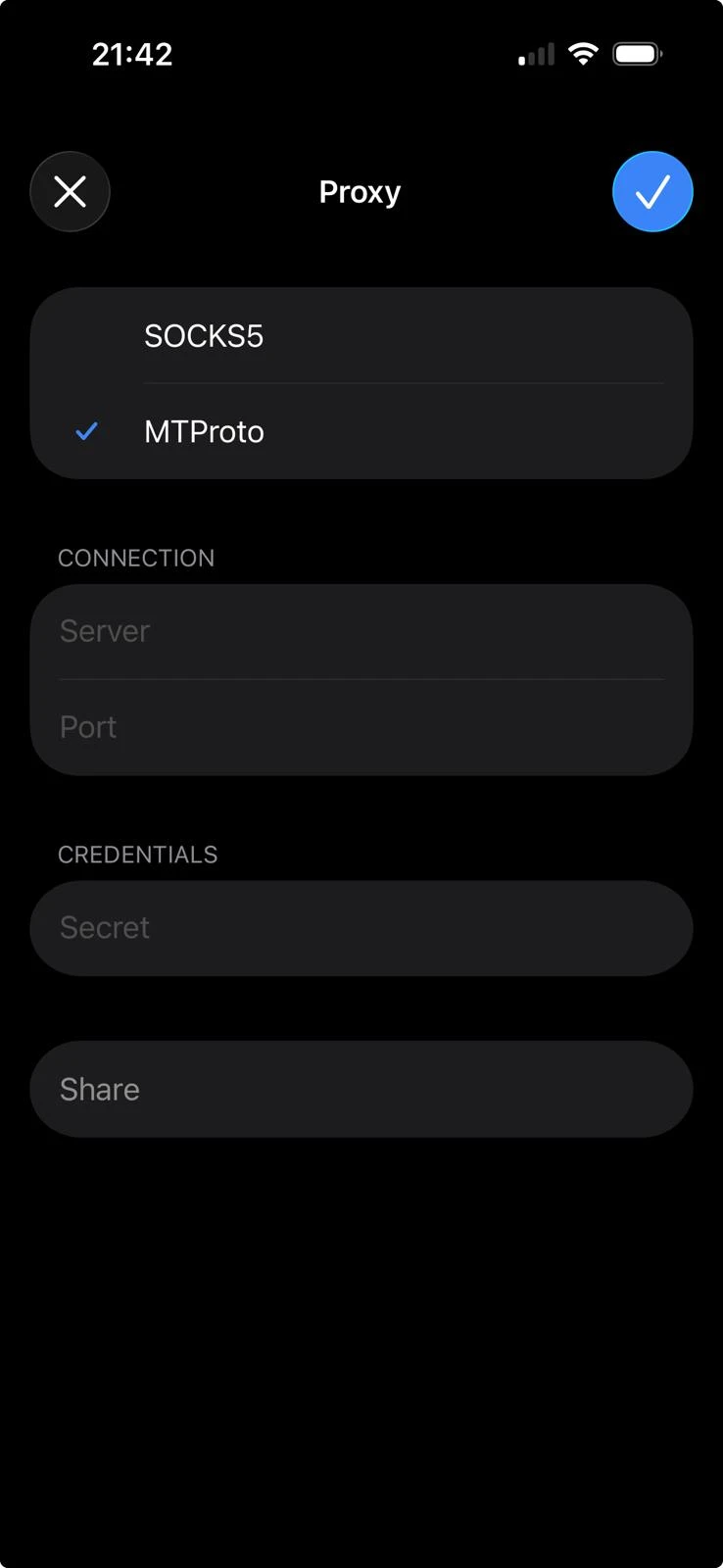
- In an MTProto proxy setup, the Server field contains the proxy host name or IP address, the Port field contains the port number, and the Secret field contains the MTProto secret provided by the proxy service. Unlike SOCKS5, MTProto does not usually use a username and password. Instead, Telegram connects using the server, port, and secret.
- After entering the server, port, and secret, save the proxy settings.
- Make sure the Use Proxy toggle is turned on.
How to turn the proxy off in Telegram
When Use Proxy is on, a shield icon appears at the top of your chat list; tap it to jump straight to these settings.
- Open the Telegram app and go to Settings.
- Inside Settings, tap Data and Storage.
- Scroll down and tap Proxy.
- Find the Use Proxy switch and turn it off.
Telegram proxy links (t.me/proxy)
Telegram supports proxy links that open the app and pre-fill the proxy dialog, so you don’t need to type a server address by hand. They look like this:
- SOCKS5:
https://t.me/socks?server=<host>&port=<port>&user=<user>&pass=<pass> - MTProto:
https://t.me/proxy?server=<host>&port=<port>&secret=<secret>
Tapping the link opens Telegram with a confirmation sheet showing the server and port. Nothing is applied until you confirm. You can also paste a proxy link into any chat, including Saved Messages, and tap it from there, which is the simplest way to move a proxy between your own devices.
Two things to know before tapping a link someone sent you:
- The credentials are in the URL: Anyone who sees the link has the proxy. If a link was posted publicly, assume the proxy is shared with everyone who saw it.
- A proxy sees your connection metadata. Telegram’s encryption protects what you write. The proxy operator still sees that you are connecting, from what IP.
 Add as preferred source
SOCKS5 vs MTProto in Telegram
Telegram supports two main proxy types: SOCKS5 and MTProto. But each requires different credentials. SOCKS5 typically requires a server address, a port, and, sometimes, a username and password.
MTProto requires a server address, port, and a secret. SOCKS5 is a general-purpose proxy, while MTProto is designed specifically for Telegram.
Choose SOCKS5 proxies if:
- your proxy provider supplies standard proxy credentials
- the setup includes a username and a password
Pick MTProto if:
- your provider specifies that the proxy is for Telegram
- the setup includes a secret key
What is SOCKS5 in Telegram?
SOCKS5 is a proxy protocol compatible with various applications and services, including Telegram. To configure SOCKS5 in Telegram, you typically need the following information:
- Server address
- Port number
- Optional username
- Optional password
What is MTProto in Telegram?
MTProto is Telegram’s own proxy server format. In Telegram, an MTProto proxy requires:
- server
- port
- secret
How we tested proxies for Telegram
Setup
A new free account was created with each provider. All three operate permanent free plans rather than time-limited trials. All proxies tested are shared datacenter IPs from each provider’s free plan.
All measurements were taken from a remote VPS connecting to Telegram over SOCKS5. Test size was capped by the providers’ free bandwidth limits: a 250 MB file and 250 messages.
Throughput:
A 250 MB test file was uploaded to Telegram and downloaded back. Transfer rates (MB/s) and completion times were recorded.
Message latency:
250 short text messages were sent through each proxy at a concurrency of 5. Round-trip time was recorded per message; the reported figure is the average. The success rate was recorded for the same 250 messages.
Concurrency was set to 5 for each provider, below the group’s lowest free-tier concurrency limit (Oxylabs, 20 sessions), so no provider was constrained by its own cap.
FAQs
Yes. Telegram’s documentation includes SOCKS5 proxy links and shows the SOCKS5 parameters as server, port, and optional username and password.
For text messaging, effectively unlimited, a message round-trip is on the order of a kilobyte. For media, far less: roughly 3,000 compressed photos, or about an hour of video. Turn off Settings → Data and Storage → Automatic media download before connecting through a metered free proxy.
In our tests Bright Data’s free tier had the highest throughput and the lowest connection latency, while Oxylabs had the lowest per-message latency.
Cite this research
Pick the format that matches where you're publishing. Pasting the link version into your CMS preserves the backlink.
@misc{karatas2026,
  author = {Karatas, Gulbahar},
  title  = {{Telegram Proxy Setting: Free Links & Step-by-Step}},
  year   = {2026},
  month  = oct,
  howpublished    = {\url{https://aimultiple.com/telegram-proxy-setting}},
  note   = {AIMultiple. Retrieved October 5, 2026}
}Results and timestamps of 3 data points. Download the summary data shown in this article's charts and tables as a ZIP file containing one CSV file.
Want the granular data behind it? Join Premium
Changelog
3 updatesRemoved the Speed section from the Telegram proxy benchmark.
Added SOCKS5 free-proxy speed test results for Bright Data, Webshare, and Oxylabs.
Added a Nodemaven free proxy list section covering 3,500+ SOCKS5, SOCKS4 and HTTPS proxies with filters and CSV download.


Be the first to comment
Your email address will not be published. All fields are required. Comments are left in their original language.