


WhatsApp Proxy Server & Code: Setup Guide

WhatsApp proxies let you connect to WhatsApp through an intermediary server rather than directly. There are two different setups, and each needs a different kind of proxy:
- WhatsApp’s built-in proxy: Use it when WhatsApp is blocked or won’t connect. You need a WhatsApp proxy server address, shared with you or self-hosted.
- System-level proxy: Use it for privacy, multi-account management or automation. You need a residential, mobile or datacenter proxy from a provider.
The built-in proxy carries text messages and media. Voice and video calls are not routed through it.
Set up WhatsApp’s built-in proxy
Before you start, update WhatsApp to the latest version; older versions may not include the proxy option. You’ll need the proxy server’s host name or IP address, plus port numbers if the server uses non-standard ones.
The setup screen has no username or password fields, so proxies that require a login won’t work here. For those, use the system-level method below.
On iPhone
- In the Chats tab, tap Settings.
- Tap Storage and Data.
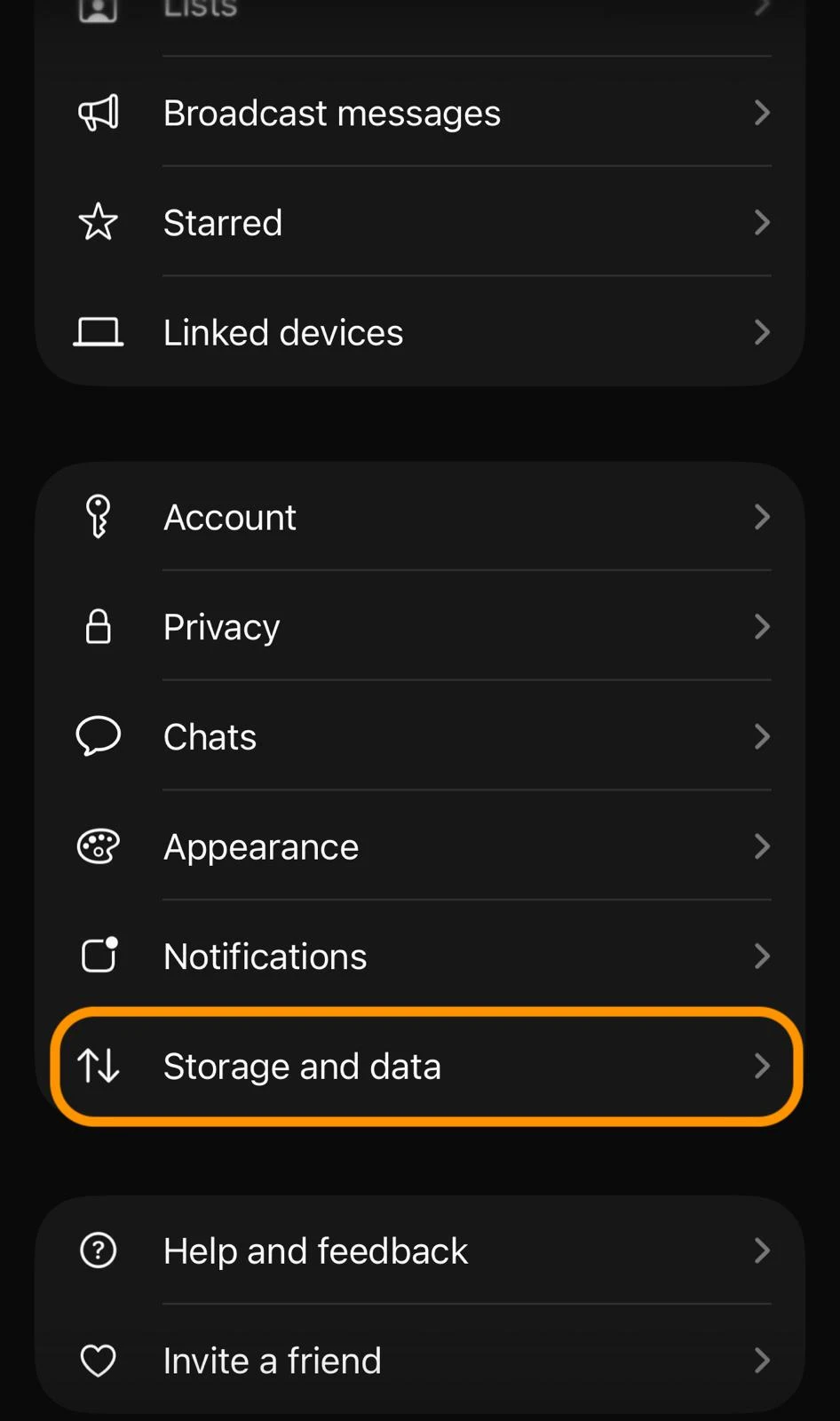
- Under Network, tap Proxy.
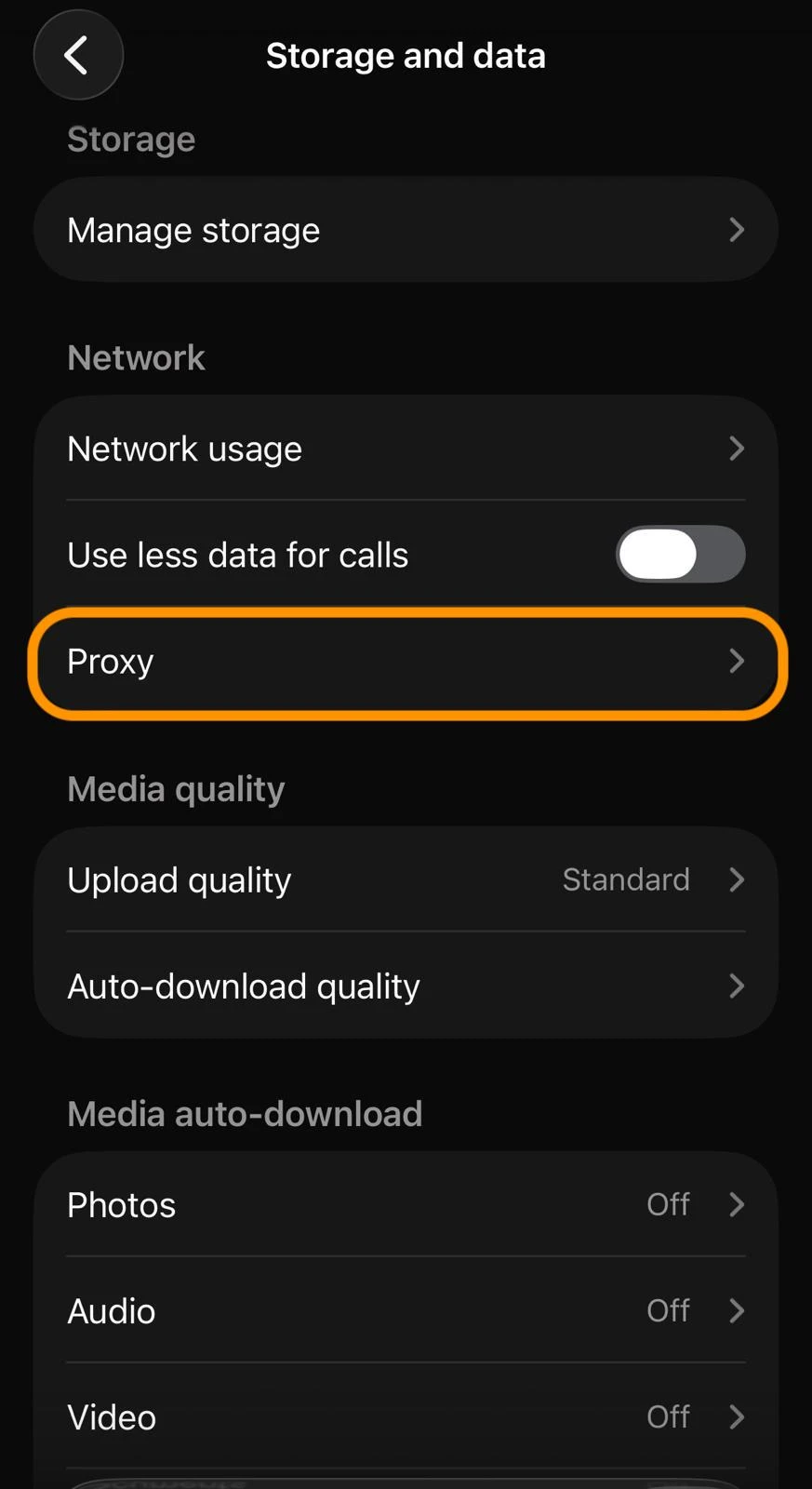
- Turn on Use proxy, then tap Set up proxy.
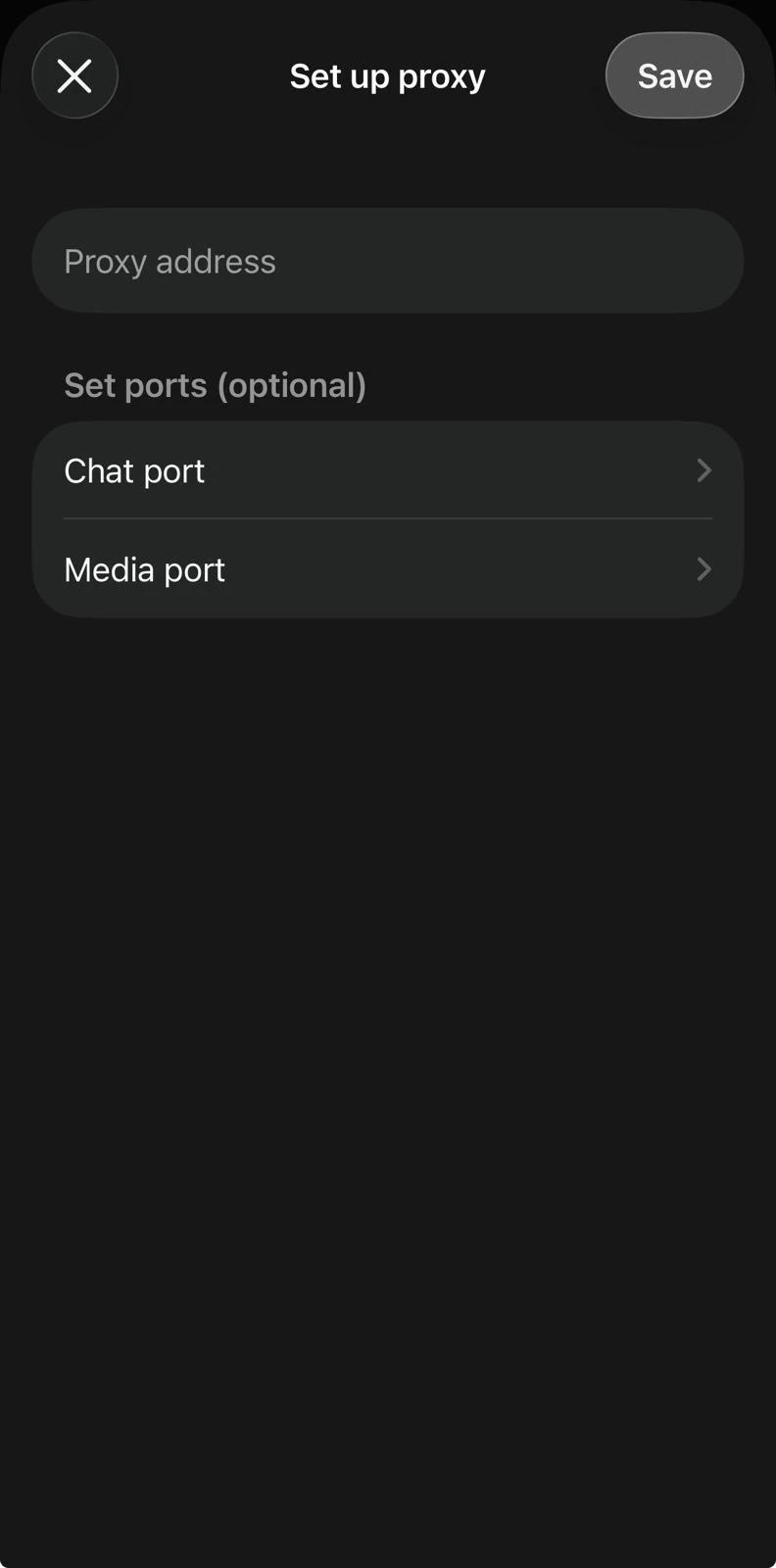
5. Enter the server’s host name or IP address in Proxy address.
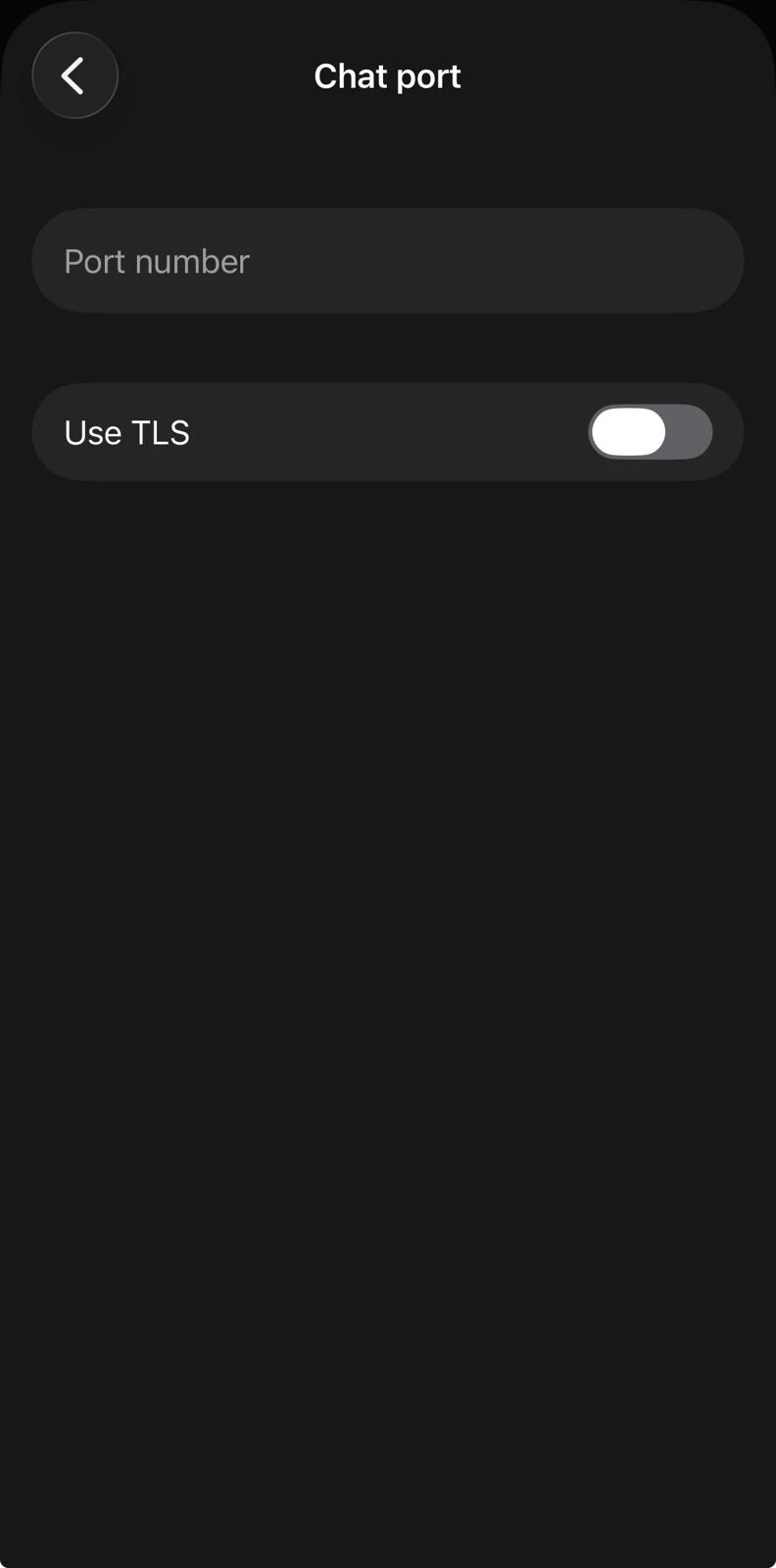
6. If the server uses specific ports, open Chat port or Media port, enter the port number and set Use TLS to match the server.
Proxy address (required): The host of your WhatsApp proxy server: a domain name (e.g., proxy.example.com) or an IP address.
Chat port: Carries text messages and chat traffic.
Media port: Carries photos, videos, voice messages and documents.
Use TLS: Turn this on if the port uses an encrypted (TLS) connection. It’s separate from WhatsApp’s end-to-end encryption, which protects your messages regardless of proxy settings.
WhatsApp connects on standard ports by default, so you can usually leave the port settings untouched.
On Android
- Open WhatsApp, tap the three-dot menu, then Settings.
- Tap Storage and data.
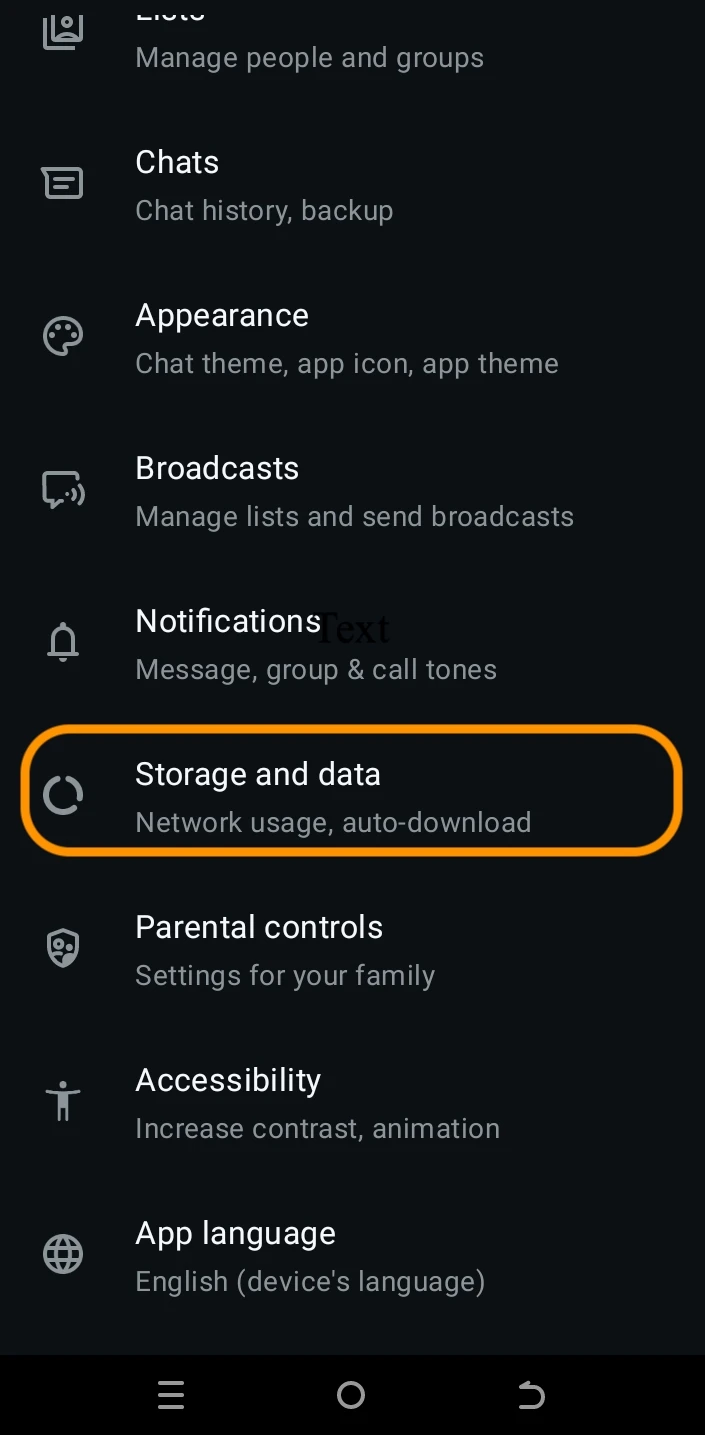
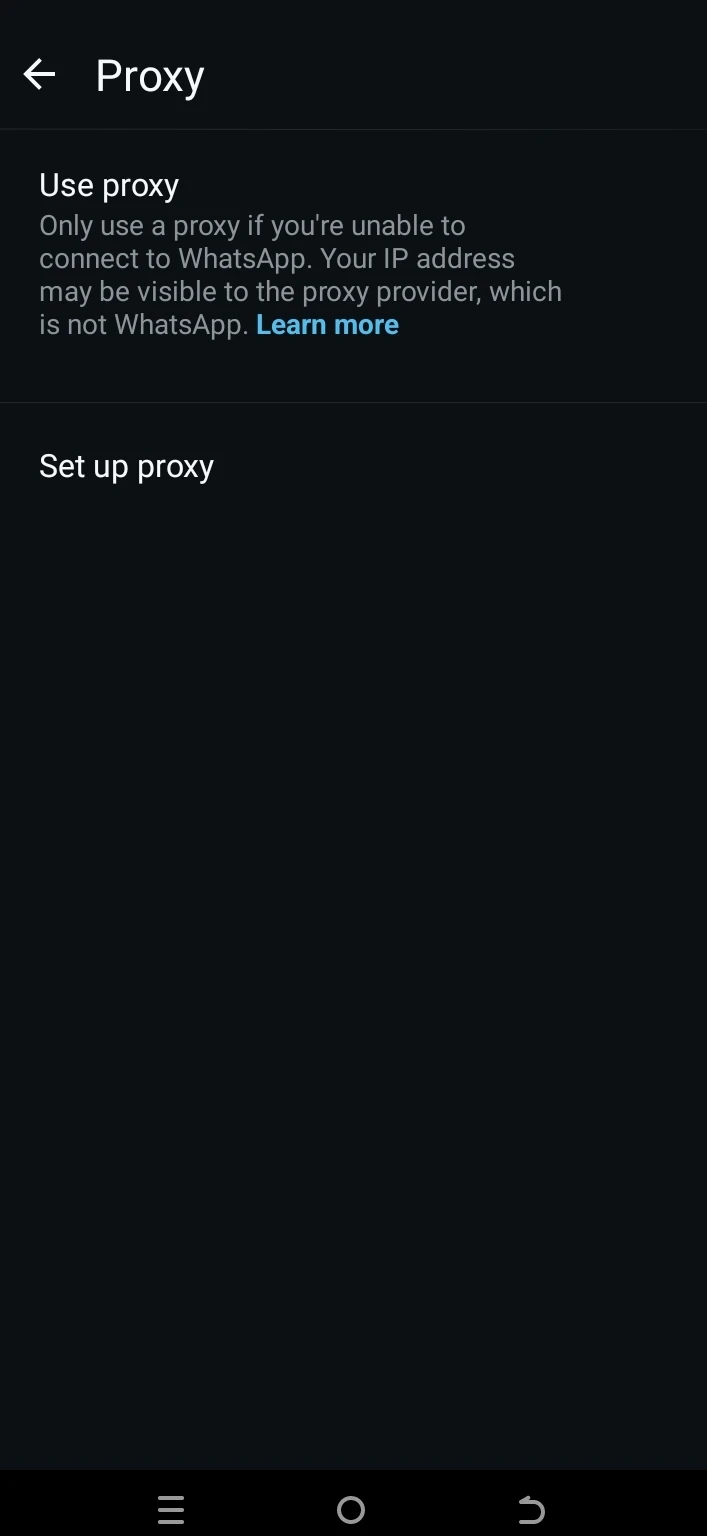
3. Scroll down and tap Proxy. You’ll see two options: Use proxy and Set up proxy.
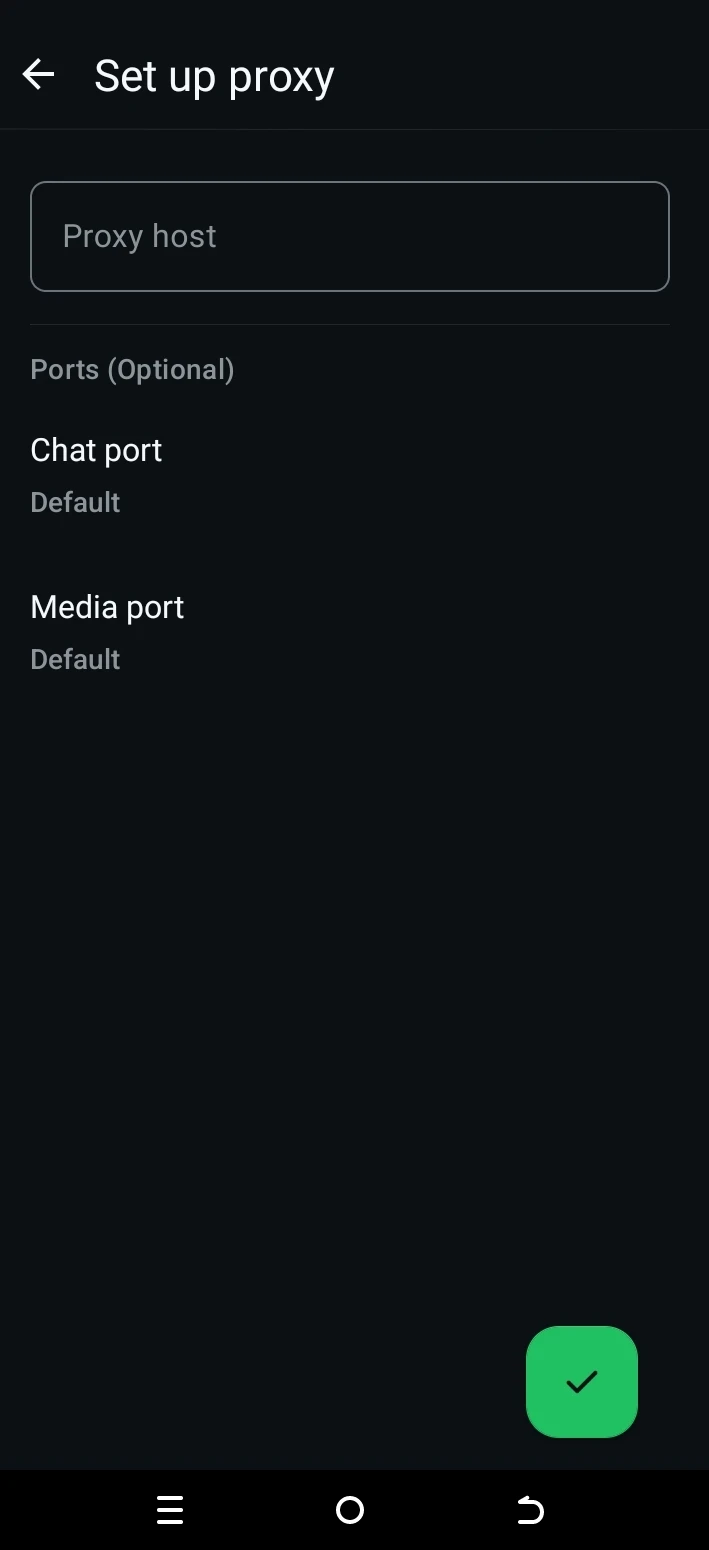
4. Tap Set up proxy and enter the server’s host name or IP address in the Proxy host field. Ports are optional and set to Default. If the server uses specific ports, tap Chat port or Media port and enter the number.
Host your own WhatsApp proxy server
WhatsApp publishes its proxy code as open source on GitHub, and Meta provides a pre-built Docker image, so you don’t need to build anything yourself.
What you need:
- A server: a VPS with a public IP address that your users can reach.
- Docker: Docker installed on the server. Docker Compose is optional but recommended for running the proxy as a service.
Step 1: Pull the official image
Step 2: Run the container
When the output ends with “Certificate generation completed.”, the proxy is running.
Step 3: Check that it works
Open http://YOUR_SERVER_IP:8199 in a browser, replacing YOUR_SERVER_IP with your server’s public IP address. This page confirms the proxy is running and shows traffic statistics.
Step 4: Connect
Enter the server’s domain or public IP in WhatsApp’s Proxy address field, following the iPhone or Android steps above.
WhatsApp proxy server ports:
WhatsApp proxy providers for system-level setups
The providers below offer proxies with free tiers. Use them with the system-level method above: WhatsApp’s built-in proxy field expects a WhatsApp proxy server and has no login fields.
Route WhatsApp through a system-level proxy
Instead of using WhatsApp’s built-in field, configure the proxy at the device or browser level so that WhatsApp traffic flows through it. Use this method for privacy, multi-account management, or automation with a residential or mobile proxy from a proxy provider.
On Android
- Open Settings → Connections → Wi-Fi and tap the network you’re connected to.
- Open the network’s settings and expand Advanced.
- Under Proxy, choose Manual.
- Enter the proxy host name (IP address) and port from your provider, then save.
Authentication note: Android’s built-in Wi-Fi proxy fields don’t accept a username and password. If your proxy requires login credentials, use a proxy/VPN app that supports authentication, or a browser-based method instead.
On iPhone
- Open Settings → Wi-Fi and tap the (i) next to your network.
- Scroll to HTTP Proxy and select Manual.
- Enter the server (IP address) and port from your provider.
- If your proxy requires credentials, toggle Authentication on, enter the username and password, then exit to save.
On WhatsApp Web/desktop
For WhatsApp Web, route your browser through the proxy:
- Browser extension: add a proxy extension, enter (or connect) your provider’s IP and port, then open the app. All WhatsApp Web traffic now routes through the proxy. This is the quickest method and supports authenticated proxies through the extension’s own login.
- System-wide: configure the proxy in your OS network settings (Windows: Settings → Network & Internet → Proxy) so all traffic, including WhatsApp Web, uses it.
 Add as preferred source
FAQs
A WhatsApp proxy is an intermediary server that relays your WhatsApp traffic instead of letting your phone connect directly to WhatsApp. People use it to reconnect when WhatsApp is blocked or disrupted (using WhatsApp’s built-in proxy feature), or to mask their IP address (by routing WhatsApp through a residential or mobile proxy at the system level).
No. Your WhatsApp messages stay end-to-end encrypted when you connect through a proxy, so the proxy operator can’t read them. The proxy passes along already-encrypted traffic.
No. WhatsApp’s proxy supports text messages and media (photos, videos, voice messages, and documents), but voice and video calls don’t route through it.
WhatsApp publishes the official proxy code on GitHub (github.com/WhatsApp/proxy), and a pre-built image is available as facebook/whatsapp_proxy:latest on Docker Hub.
A self-hosted WhatsApp proxy uses port 5222 by default, plus 80 and 443 for web traffic and 587 or 7777 for media. On a public server, exposing 443 and 587 is enough for messages and media.
Cite this research
Pick the format that matches where you're publishing. Pasting the link version into your CMS preserves the backlink.
@misc{karatas2026,
  author = {Karatas, Gulbahar},
  title  = {{WhatsApp Proxy Server & Code: Setup Guide}},
  year   = {2026},
  month  = sep,
  howpublished    = {\url{https://aimultiple.com/whatsapp-proxy}},
  note   = {AIMultiple. Retrieved September 17, 2026}
}Results and timestamps of 9 data points. Download the summary data shown in this article's charts and tables as a ZIP file containing 2 CSV files.
Want the granular data behind it? Join Premium
Changelog
1 updatesAdded a section on self-hosting a WhatsApp proxy server.





Be the first to comment
Your email address will not be published. All fields are required. Comments are left in their original language.